
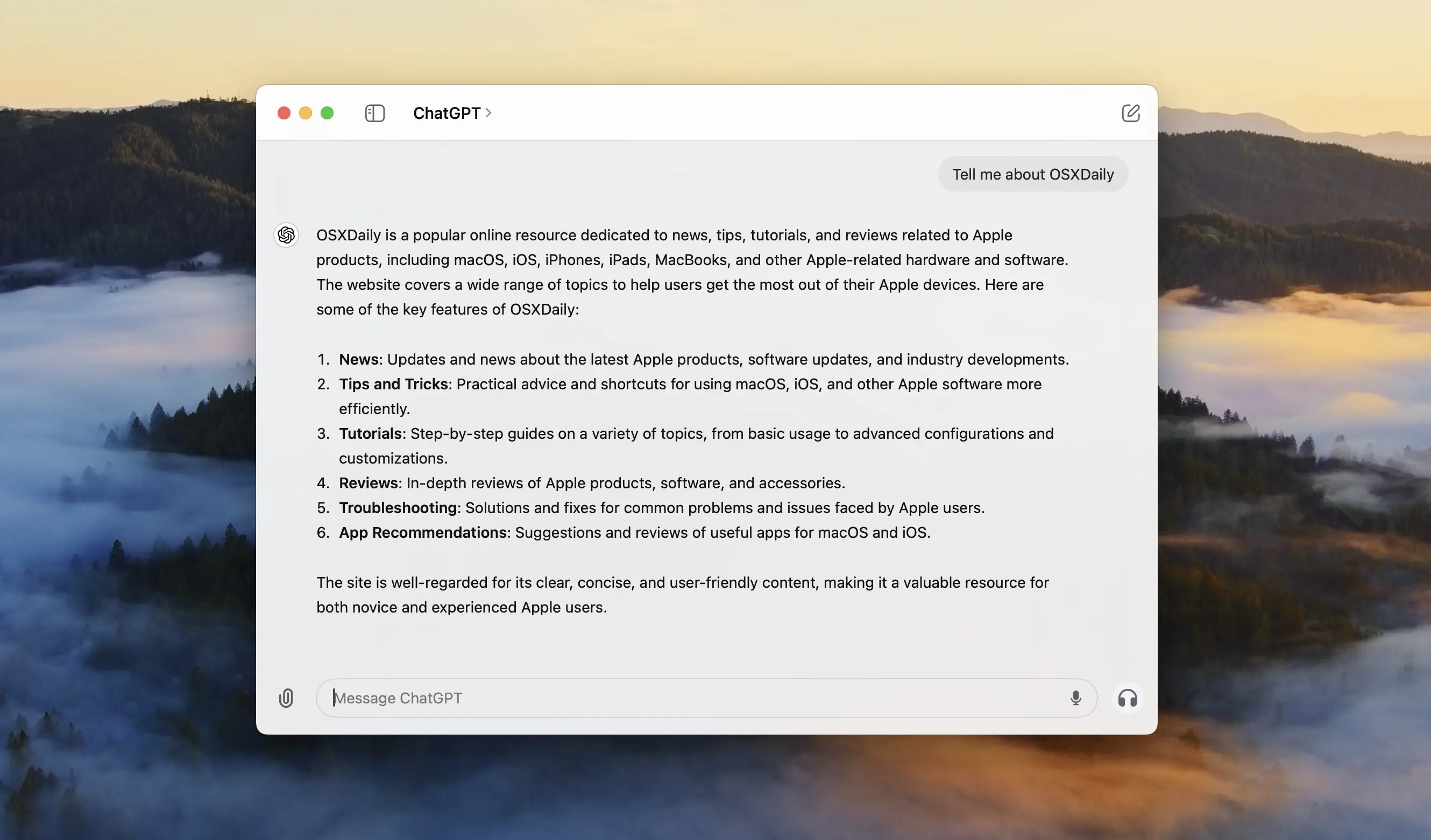
ChatGPT Overview
ChatGPT for Mac is OpenAI's official desktop app, bringing chat, voice conversations, and image generation to your menu bar. Since July 2026, it's a merged "super app" that folds Codex, OpenAI's coding agent, and ChatGPT Work, a business task delegation agent, into the same window, built on what used to be the separate Codex app's foundation. The free tier covers everyday use, while Go, Plus, Pro, or Business plans unlock more usage and advanced models. Because ChatGPT is one of the most cloned app names online, download it only from openai.com, the Mac App Store, or a trusted mirror like this one, never a random third-party site.
Why Choose ChatGPT Mac App
Most AI chat tools live only in a browser tab. The desktop app keeps ChatGPT one keyboard shortcut away and understands what's already open on your screen, so you're not manually copying and pasting a document or spreadsheet just to ask a question about it.
There's a safety detail worth knowing before you search for this app: ChatGPT is one of the most impersonated app names on the internet, with fake desktop clients circulating outside official channels. Older third-party GitHub wrapper projects that predate OpenAI's own Mac app have also been explicitly deprecated by their own developers now that the real thing exists. Stick to openai.com or the Mac App Store, and you're safe.
Key Features
- Text chat with OpenAI's latest GPT models, from free to Pro-tier access
- Voice conversations powered by OpenAI's Whisper model
- Image generation directly from a chat prompt
- Codex, OpenAI's coding agent, merged into the main app since the July 2026 redesign
- ChatGPT Work for delegating multi-step business tasks across your apps
- Full context awareness — it can read your open files, screenshots, email, and whatever's on screen without you pasting anything in
- Memory features that carry context across conversations
- Sync across devices tied to your OpenAI account
- Menu bar access for quick questions without opening a browser
- ChatGPT Classic still available separately for anyone who prefers the lighter, original native app
What's New in 26.820.60940 Version
The most significant recent change wasn't a version bump, it was a full redesign. On July 9, 2026, OpenAI merged the separate ChatGPT and Codex apps into one, adding the new ChatGPT Work agent alongside it. The rollout was rocky: early users lost easy access to chat history and Projects behind a confusing Work/Codex toggle, prompting enough backlash that OpenAI shipped a follow-up update just over a week later restoring easier chat access. The previous native app didn't disappear, it was renamed ChatGPT Classic and continues to receive model updates, bug fixes, and security patches for anyone who'd rather skip the new merged interface.
Supported macOS Versions
ChatGPT for Mac requires macOS 12 or later and runs on both Apple Silicon and Intel Macs. Worth knowing: the current merged app is built on Electron rather than native AppKit, which is why it now needs nearly 600 MB and up to 8 GB of RAM, noticeably heavier than the old native app it replaced. If storage or resource use is a concern on an older Mac, ChatGPT Classic remains a lighter alternative built the original native way.
How to Install ChatGPT on macOS?
Setting up ChatGPT on your Mac takes just a few steps, whether you're downloading it on a MacBook Air, MacBook Pro, or Mac Studio.
- Download the latest official version of ChatGPT for Mac from the button above.
- Open the downloaded installer file.
- Follow the on-screen instructions to complete installation.
- Launch ChatGPT from your Applications folder.
- Sign in or create a free OpenAI account to start chatting.
- Once signed in, start a conversation, use voice mode, or open Codex right away.
How to Use ChatGPT App for Mac?
- Open ChatGPT and sign in with your OpenAI account.
- Type a question, or use voice mode to talk instead of typing.
- Attach files or screenshots if you want ChatGPT to reference them directly.
- Open Codex from within the app if you need coding assistance.
- Use the menu bar icon for quick questions without switching windows.
Alternatives
Claude: Anthropic's AI assistant, with a native Mac desktop app and a free tier, generally praised for longer, more careful writing and coding responses.
Google Gemini: Google's AI assistant, free to use with a Google account, tightly integrated with Gmail, Docs, and the rest of Google's ecosystem.
Microsoft Copilot: Microsoft's free AI assistant, useful if you're already working inside Word, Excel, or Outlook on Mac.