
Cube Pro Overview
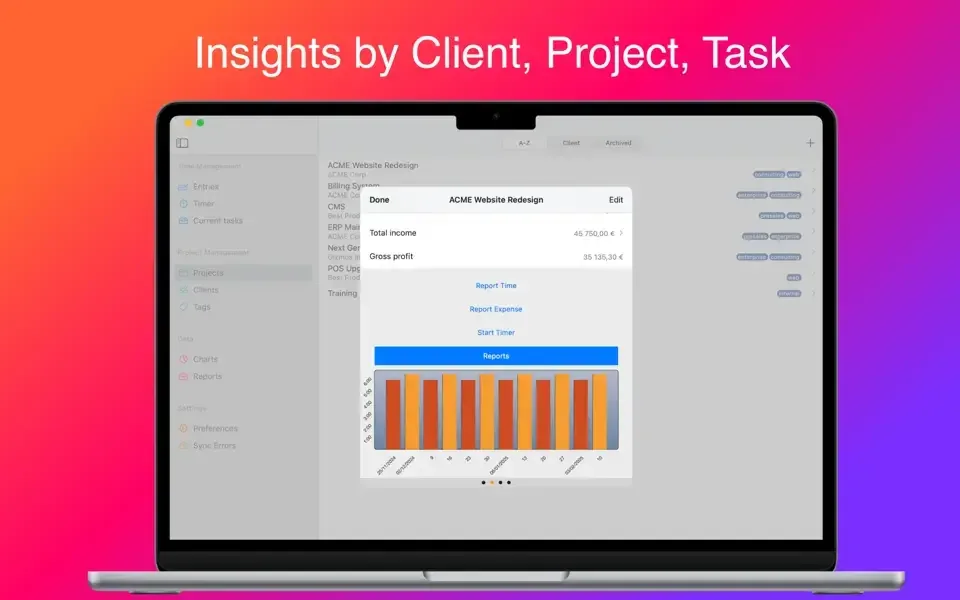
Cube Pro is a time and expense tracking app for Mac from bitrzr LDA. It starts a timer for any project or task, then automatically calculates how much that time is worth based on a set hourly rate. Expenses log alongside tracked time, so a project's actual profit is visible without doing the math by hand. A calendar view shows daily activity at a glance, and a project manager panel organizes tasks, clients, and projects in one place. Charts generate automatically, covering time spent per project, client attention, completed tasks, and billable versus non-billable hours. Data exports to CSV or Excel for reporting outside the app. iOS, Android, and web access are available too, though syncing across devices requires a separate Cube Anywhere subscription beyond the one-time Mac app purchase.
Why Choose Cube Pro Mac App
A lot of time trackers stop at logging hours. Cube Pro goes further by tying tracked time directly to money. Set an hourly rate once, and the app calculates what a project has actually earned as the clock runs, expenses included. The calendar view, project manager panel, and automatically generated charts turn a week of scattered work into something that's actually easy to review afterward.
Cube Pro works as a fully standalone Mac app, with no account required for local time tracking. Getting that same data on a phone, or pulling it up from a browser at a client's office, is where the optional Cube Anywhere plan comes in, billed separately from the app itself. For a freelancer or small team that mainly needs the numbers rather than invoicing software, that combination of local tracking with optional cloud sync covers a specific, practical need without over-complicating things.
Key Features
- Project timers: starts and stops timers for individual tasks or projects directly from the main window.
- Automatic earnings calculation: converts tracked time into money owed based on a set hourly rate.
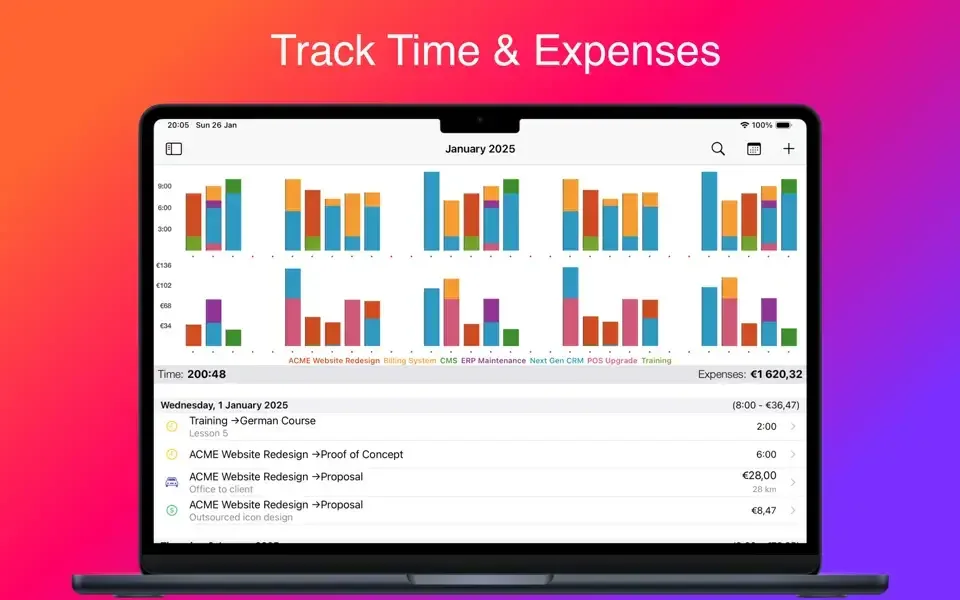
- Expense recording: logs expenses against a specific project alongside the time spent on it.
- Calendar view: displays a day's worth of tracked activity at a glance.
- Project manager panel: organizes tasks, clients, and projects in one place.
- Tag panel: groups related project elements together by subject or tag.
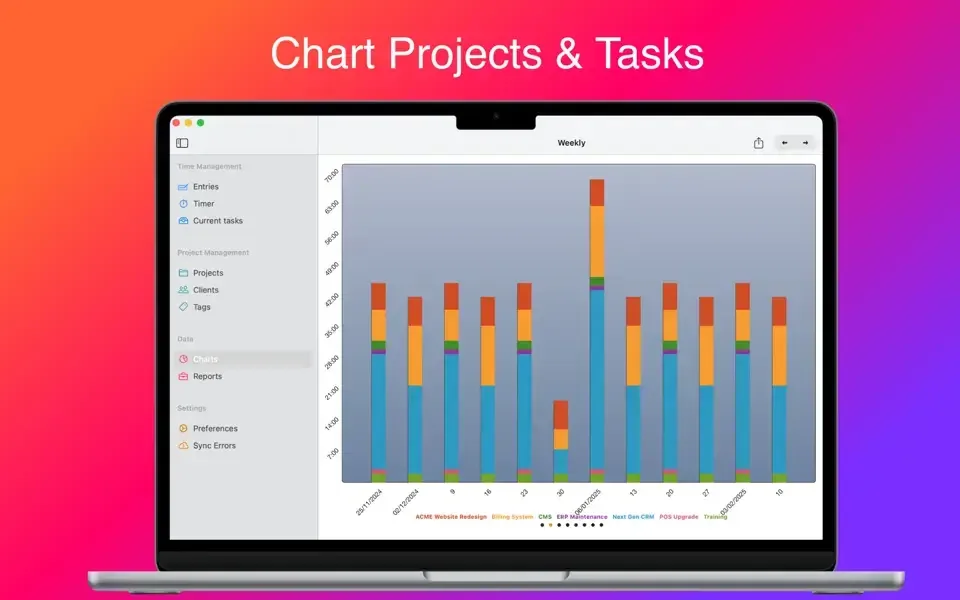
- Automatic chart generation: visualizes time spent per project, client attention, and completed tasks without manual setup.
- Billable vs non-billable comparison: compares billable and non-billable hours in a single chart.
- iOS and Android companion apps: extends tracking to a phone or tablet, with data kept in sync.
- Web interface access: views tracked data from any browser through a Cube Anywhere account.
- CSV and Excel export: saves tracked data to a spreadsheet file for reporting elsewhere.
- Adjustable preferences: sets daily work hours and currency to match how a project is actually billed.
Screenshots
What's New in Cube Pro 5.1.7 Version
Version 5.1.7, released September 18, 2026, is a small maintenance update:
- Bug fixes
The developer's public changelog doesn't break this release down beyond that summary.
Supported macOS Versions
Cube Pro requires macOS 14.0 or later and runs as a universal binary on both Apple Silicon and Intel Macs. The app's core job is tracking time and calculating totals rather than processing anything demanding, so hardware speed makes essentially no difference to how it runs. The main practical consideration is simply having a Mac recent enough to meet the macOS 14 minimum.
How to Download and Install Cube Pro on Mac?
Installing Cube Pro on Mac takes under a minute through the App Store, with no separate download or setup involved.
- Click the Download button above. It opens Cube Pro's official listing on the Mac App Store.
- Click the price button to purchase, since this is a paid app rather than a free download.
- Sign in with your Apple ID if prompted.
- macOS downloads and installs Cube Pro automatically in the background.
- Once installed, launch it from Launchpad or your Applications folder.
Cube Pro works immediately as a standalone Mac app. A Cube Anywhere account is only needed if syncing to a phone or the web is wanted later.
How to Use Cube Pro Mac App?
- Create a new project or client from the File menu.
- Click a project to start its timer, and click again to stop it once work is done.
- Log an expense against a project from the same File menu.
- Open the Calendar view to see a day's worth of activity at a glance.
- Check the Graph panel for automatically generated charts on time and billable hours.
- Export data to CSV or Excel from the File menu when a report is needed outside the app.
Alternatives to Cube Pro
Toggl Track: Free-tier time tracker for Mac with project tracking, reporting, and integrations across dozens of other tools.
Clockify: Free time tracker for Mac with unlimited users and projects on its free plan, plus reporting and timesheets.