Subler Overview
Subler is a free, open source Mac app for muxing and tagging MP4 files. Muxing means packing video, audio, subtitle, and chapter tracks into one file. Remux an MKV or MOV file to MP4 in a few clicks. Add a subtitle track to an MP4 you already have. Subler builds TX3G and WebVTT subtitles, which Apple devices understand. It also handles closed captions, VobSub subtitles, and raw H.264 or AAC files. A full iTunes-style metadata editor covers titles, artwork, and descriptions. Lookups pull movie and TV show details from TheMovieDB, TVDB, and the iTunes Store. It runs natively on Apple Silicon and Intel Macs.
Why Choose Subler Mac App
Apple devices are picky about video files. An MKV from a download often won't play in QuickTime or on an Apple TV. Subler fixes that by repackaging the tracks into an MP4. Subtitles come along too, in a format Apple hardware reads.
Tagging is the second half. Movies and TV episodes need titles, artwork, and descriptions to look right in a library. Subler looks them up online for you. Then you can edit anything by hand. The app is free and open source under the GPL. Its code sits in public on GitHub.
Key Features
- Remuxing to MP4: repackages video, audio, chapters, subtitles, and closed captions from MOV, MP4, and MKV files.
- Subtitle creation: turns subtitle files into TX3G and WebVTT tracks inside the MP4.
- Raw format import: reads H.264 streams, AAC, AC3, Scenarist, and VobSub files.
- iTunes-style metadata editing: sets title, artwork, description, and rating on any MP4.
- Online metadata lookup: finds movie and TV details on TheMovieDB, TVDB, and the iTunes Store.
- Higher-resolution artwork: retrieves Apple TV artwork at a larger size.
- Chapter tracks: adds or edits chapters, including one at the very start.
- Audiobook metadata: supports the unofficial tags often used for audiobooks.
- Queue: adds files to a queue and processes them one after another.
- AppleScript support: automates Subler tasks, including queue actions, through scripts.
- Default save location: remembers where finished files should go.
- Universal build: one download runs natively on both chip types.
Screenshots
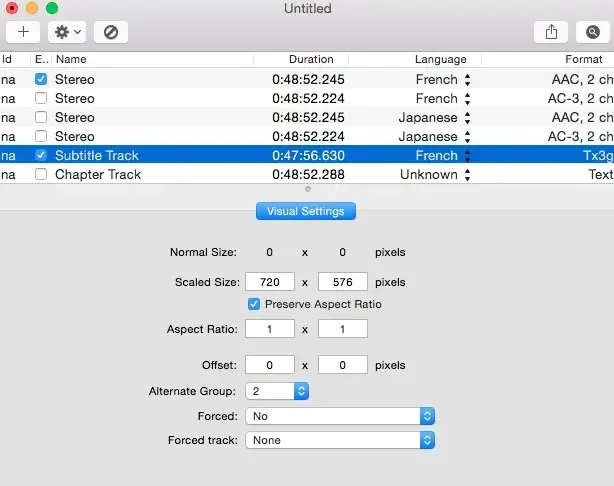
What's New in Subler 1.9.4 Version
Version 1.9.4 is a tidy maintenance update:
- Added an option to select a default "Save as" location
- Fixed manually added JPEG artworks being saved as PNG
- Fixed mismatched track languages when two different languages are defined for the same track
- Fixed some minor interface issues
- Updated localizations
- The core muxing and tagging tools work the same way.
Supported macOS Versions
Subler needs macOS 10.13 or later. One universal build covers Apple Silicon and Intel Macs. Remuxing mostly rearranges tracks that already exist. It finishes quickly on any supported Mac. Large files depend more on disk speed than on the processor. Metadata and artwork lookups need an internet connection.
How to Download and Install Subler Mac?
Installing Subler on Mac only takes a few steps.
- Click the Download button above to securely download the setup file.
- Unzip the downloaded file, then drag Subler into Applications.
- Launch it. If macOS shows a security prompt, open System Settings, then Privacy & Security, and click Open Anyway.
How to Use Subler Mac?
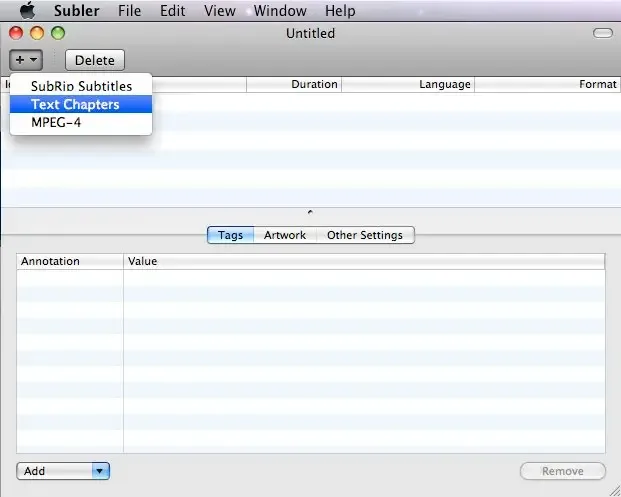
- Open Subler and drag in an MKV, MOV, or MP4 file. Choose which tracks to keep in the import window.
- Add subtitle tracks, chapters, or extra audio files to the same document.
- Choose File, then Import, to look up movie or TV details online.
- Open the Metadata tab at the bottom to edit title, artwork, and description by hand.
- Add extra entries from the drop-down menu at the bottom left.
- Save the file as MP4 or M4V, or send several files to the queue.
Alternatives to Subler
HandBrake: Free, open source video transcoder with a universal Mac build. It re-encodes video into MP4 or MKV using presets, which Subler doesn't do.
FFmpeg: Free, open source command-line toolkit that remuxes and converts almost any audio or video format. It's powerful, with a steep learning curve.