XnConvert Overview
XnConvert for Mac is a powerful batch image converter and editor developed by XnSoft. It supports 500+ image formats, allowing you to convert, resize, rename, crop, compress, rotate, watermark, and optimize multiple images at once. With built-in filters, color adjustments, metadata editing, and support for JPEG, PNG, TIFF, WebP, HEIC, PSD, and many other formats, XnConvert is an excellent solution for photographers, designers, and users who need fast bulk image processing on macOS.
Key Features
- Batch convert images in over 500 file formats.
- Resize, crop, rotate, and compress photos.
- Add watermarks, text, and custom overlays.
- Apply filters and color adjustments in bulk.
- Rename multiple files automatically.
- Preserve or edit image metadata.
- Convert RAW images to common formats.
- Create custom processing workflows.
- Drag-and-drop support for quick imports.
- Optimized for Intel and Apple Silicon Macs.
- Preview changes before processing files.
- Regular updates improve compatibility.
What's New in 1.117.0 Version?
- Faster batch image processing.
- Improved HEIC and WebP compatibility.
- Better Apple Silicon performance.
- Enhanced RAW image support.
- Updated image processing filters.
- Improved metadata handling.
- Faster file export speeds.
- Fixed reported bugs and crashes.
- Better macOS compatibility.
- General stability improvements.
Screenshots
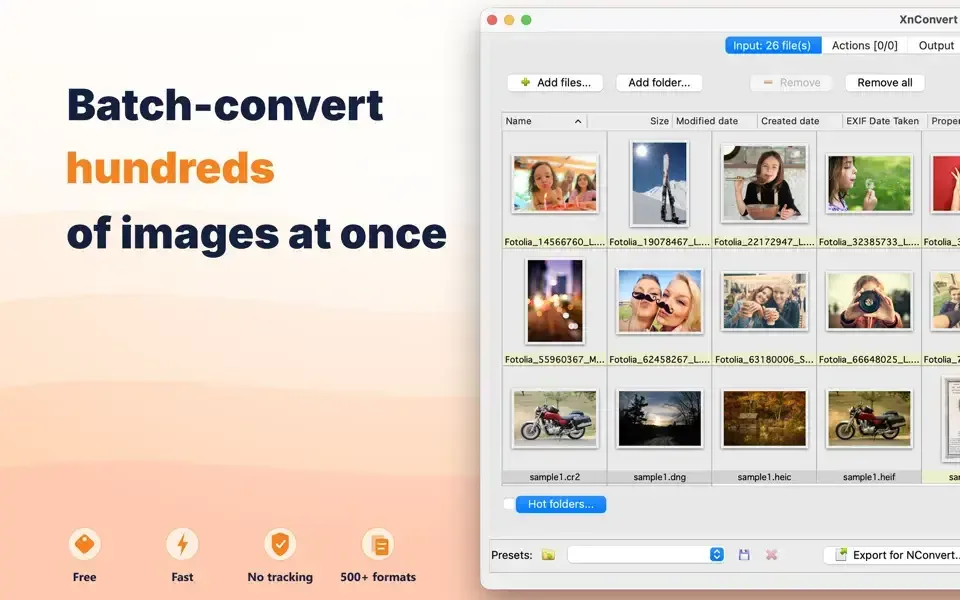
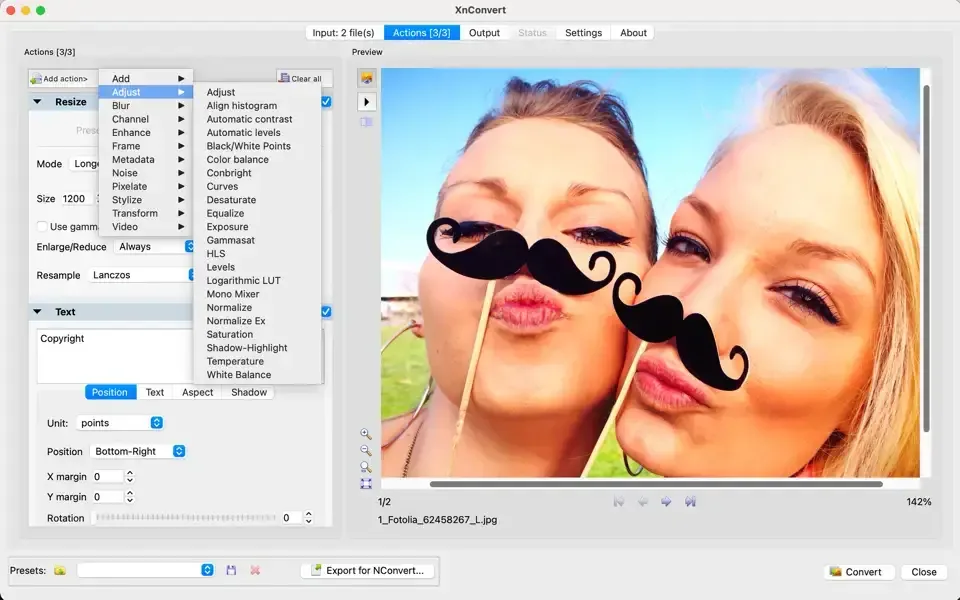
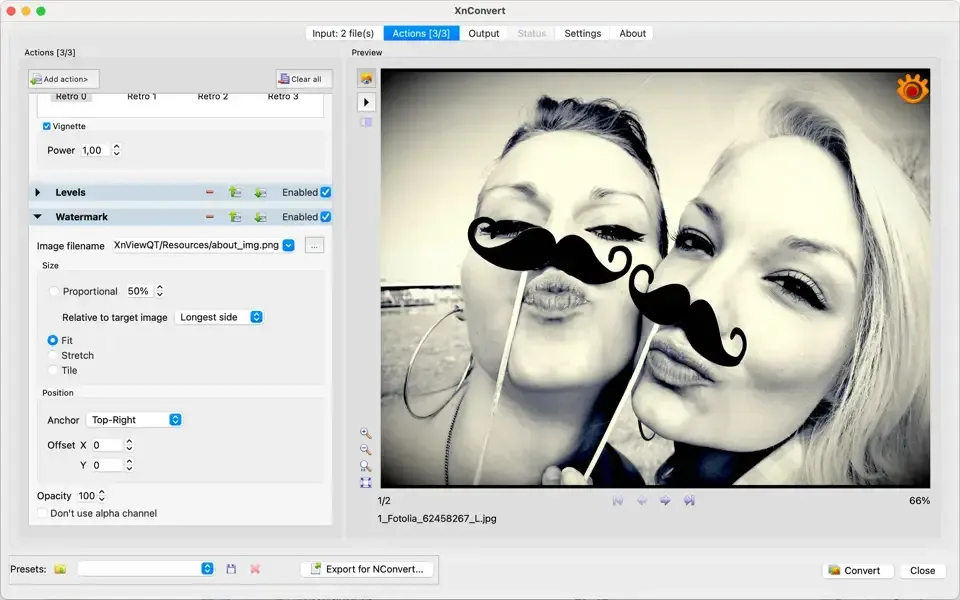
How to Install XnConvert on Mac?
Getting started with XnConvert is simple.
- Download the latest version of XnConvert for Mac.
- Open the downloaded .dmg file.
- Drag XnConvert into the Applications folder.
- Launch it from Launchpad or Applications.
- Allow any required macOS permissions.
- Choose your preferred language and settings.
- Start importing images for batch processing.
After installation, you can create custom workflows, select output formats, configure image actions, and save presets for future projects.
How to Use XnConvert on Mac?
Processing images with XnConvert only takes a few steps.
- Launch XnConvert on your Mac.
- Add one or multiple image files.
- Select the edits or filters you want to apply.
- Choose the output format and destination folder.
- Configure resizing or compression settings if needed.
- Click Convert to process your images.
- Access the converted files from the selected folder.
For repetitive tasks, save your processing settings as presets to quickly apply the same workflow to future image batches.