
BrightIntosh Overview
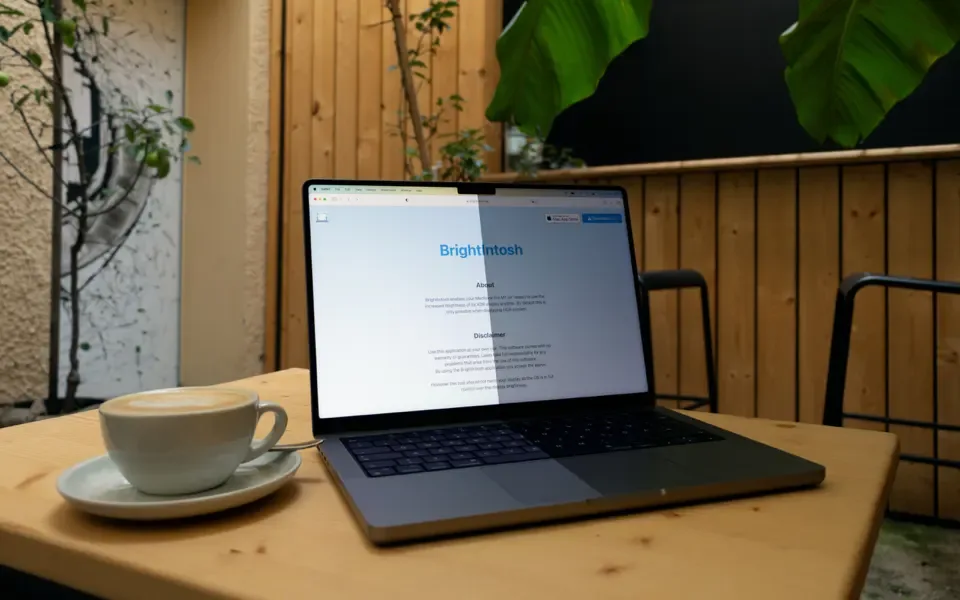
BrightIntosh for Mac is a small open source utility that unlocks the full brightness of your MacBook Pro's Liquid Retina XDR display. Normally macOS only allows that peak brightness, up to 1000 nits, when playing HDR video content. BrightIntosh removes that restriction so the extra brightness applies to everything on screen, from your desktop to regular apps. It works through the menu bar with one click controls, keyboard shortcuts, and optional automation tied to whether your Mac is plugged in or running on battery. It suits anyone who works outdoors, in bright cafes, or simply wants a noticeably brighter screen indoors without switching to HDR content first.
Why Choose BrightIntosh for Mac App?
The technical detail competitors often skip is exactly how BrightIntosh achieves this. It places a tiny one pixel HDR overlay hidden behind your display's rounded corner, which tricks macOS into activating its HDR brightness mode system wide. Gamma values are then adjusted so the extra brightness applies across all content, not only HDR video, all while macOS stays in full control of the actual display hardware.
The other important gap is device compatibility, since this is not a universal Mac utility. BrightIntosh only works on specific MacBook Pro models from the M1 generation onward, plus the Studio Display XDR in beta and the Pro Display XDR. Regular MacBook Air models and older Intel based Macs cannot use it at all, since they lack the Liquid Retina XDR hardware the trick depends on. Checking your exact model before downloading avoids a wasted install.
Key Features
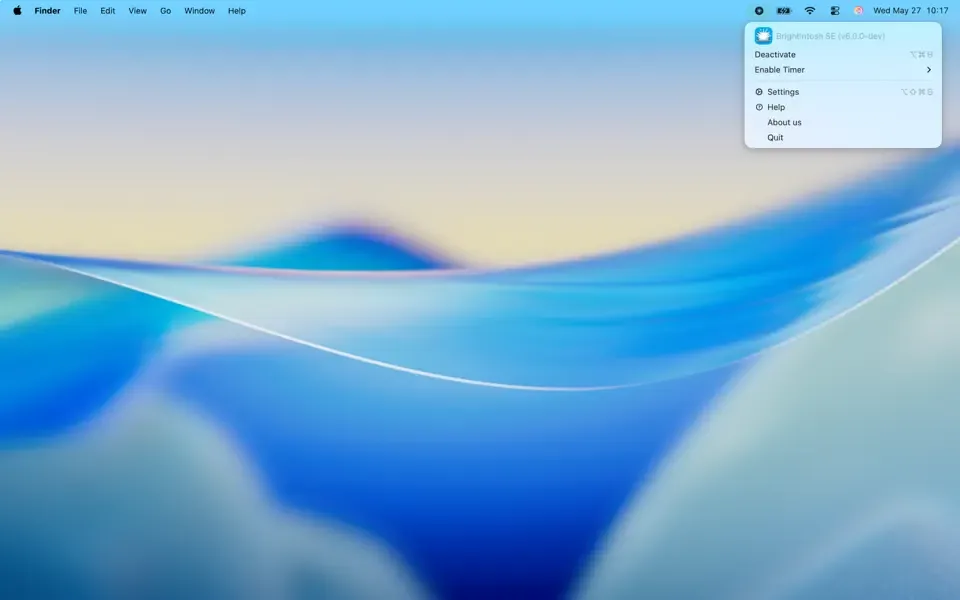
- One click brightness boost accessible from the menu bar
- Fine grained brightness control alongside the standard keyboard brightness keys
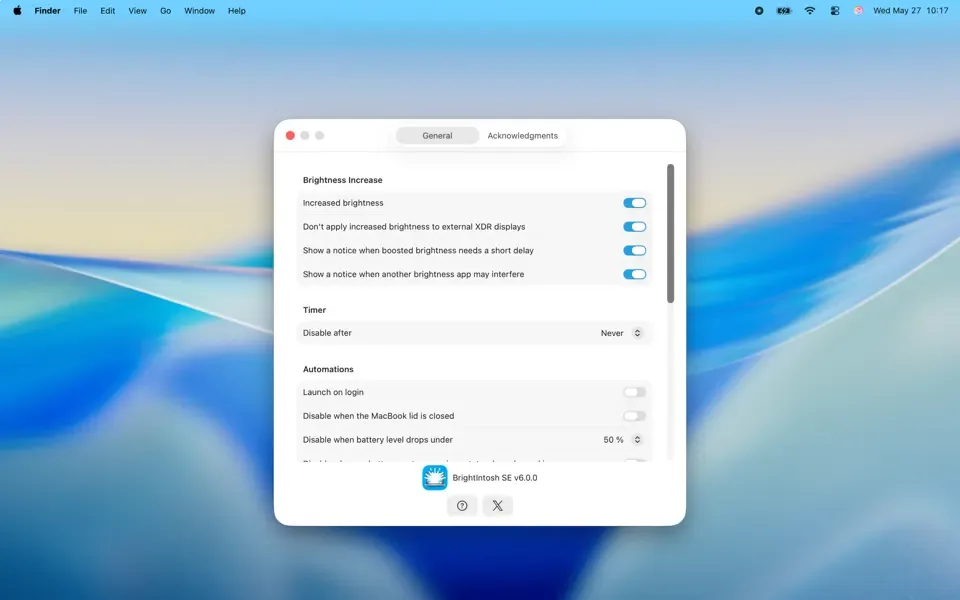
- Keyboard shortcut and Spotlight search access to Settings for fast adjustments
- Automatic brightness toggling based on whether your Mac is on battery or plugged in
- macOS Control Center integration for quick access without opening the app
- Command line install option for users who prefer scripting their setup
- Support for multiple languages including German, Japanese, and both Chinese variants
- No data collection of any kind, aside from App Store purchase and trial validation
- Works with external Studio Display XDR and Pro Display XDR monitors
- Lightweight footprint at under 3MB of storage
Screenshots
What's New in 6.0.10 Version
- Recent updates have concentrated on making the brightness boost more reliable across everyday interruptions.
- Improved brightness recovery after your Mac wakes from sleep or the lid reopens
- Fixed cases where increased brightness failed to reactivate after changing displays
- Restored optional fine grained brightness controls and their keyboard shortcuts
- Added automatic recovery of increased brightness after browsing Time Machine backups
- Added warnings when other apps that could interfere with the brightness boost are running
- Removed an experimental feature that was causing inconsistent behavior
- These fixes mainly target the moments where brightness used to silently reset, which had been the most common complaint in earlier versions.
Supported macOS Versions
BrightIntosh requires macOS 14.6 or later and only supports MacBook Pro models built around the Liquid Retina XDR display, starting from the 2021 M1 generation through the current M5 lineup, plus the Studio Display XDR and Pro Display XDR as external monitors. A simple way to check compatibility is looking for a notch on your MacBook's display and confirming it says MacBook Pro on the underside. There is no separate Intel build, since every supported device already runs on Apple Silicon.
Supported devices are:
- MacBook Pro M1 14" / 16"
- MacBook Pro M2 14" / 16"
- MacBook Pro M3
How to Install BrightIntosh on Mac?
- Go to the developer's official BrightIntosh page or the Mac App Store listing
- Start the free three day trial to test the brightness boost on your Mac
- Open the downloaded app once installation finishes
- Grant any permissions the app requests during first launch
- Use the menu bar icon to enable the brightness boost immediately
- Purchase the one time unlock before the trial period ends if you want to keep using it
How to Use BrightIntosh on Mac?
- Click the sun icon in the menu bar to toggle the brightness boost on or off
- Use the keyboard shortcut Cmd Option Shift B to open Settings quickly
- Search Spotlight for BrightIntosh Settings if you prefer not to memorize shortcuts
- Adjust automation so brightness increases automatically when unplugged or plugged in
- Add the BrightIntosh control to macOS Control Center for one tap access
- Disable extra brightness when the lid is closed if you want it to reset automatically