DockDoor Overview
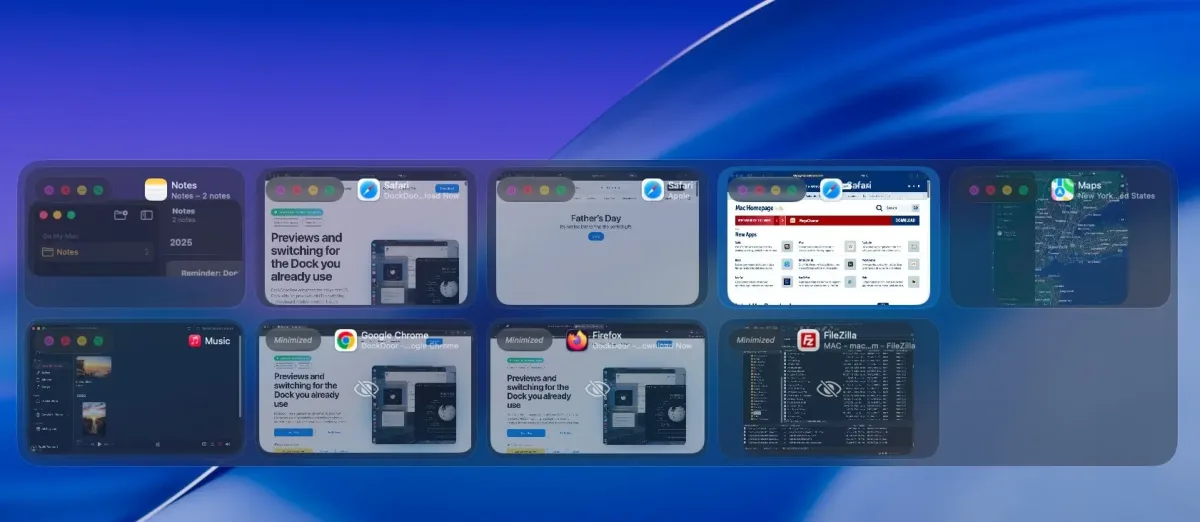
DockDoor adds window previews to the Mac Dock. Hover any app's icon, and every window it has open shows up as a live thumbnail, just like the taskbar on Windows. DockDoor also adds a real Option-Tab shortcut that switches between individual windows, not just apps. Click a preview to bring that window forward. Click its buttons, or middle-click it, to close or minimize that window directly. Windows show up across every Space and display, including hidden and minimized ones. Folder Pop lets you hover a Dock folder to browse its contents without opening Finder. The entire app is free and open source, with no analytics, tracking, or crash reporting built in.
Why Choose DockDoor Mac App
Windows shows every open window when you hover a taskbar icon. The Mac Dock doesn't, not without help. DockDoor adds that missing feature. Hover any Dock icon, and every window that app has open shows up as a live preview. Click the one you want.
Command-Tab on Mac only switches between apps. DockDoor adds a real Option-Tab shortcut instead. It switches between individual windows, the way Alt+Tab works on Windows. The entire app is open source, with no analytics, tracking, or crash reporting built in. Debug logs stay on your Mac unless you choose to share them yourself.
Key Features
- Dock hover previews: shows every open window of an app as a live thumbnail when you hover its Dock icon.
- Window-level Alt+Tab: switches between individual windows with Option-Tab, not just between apps.
- Enhanced Cmd+Tab: shows window previews above the built-in app switcher while holding Command-Tab.
- Click actions on previews: brings a window forward, or closes and minimizes it directly from the thumbnail.
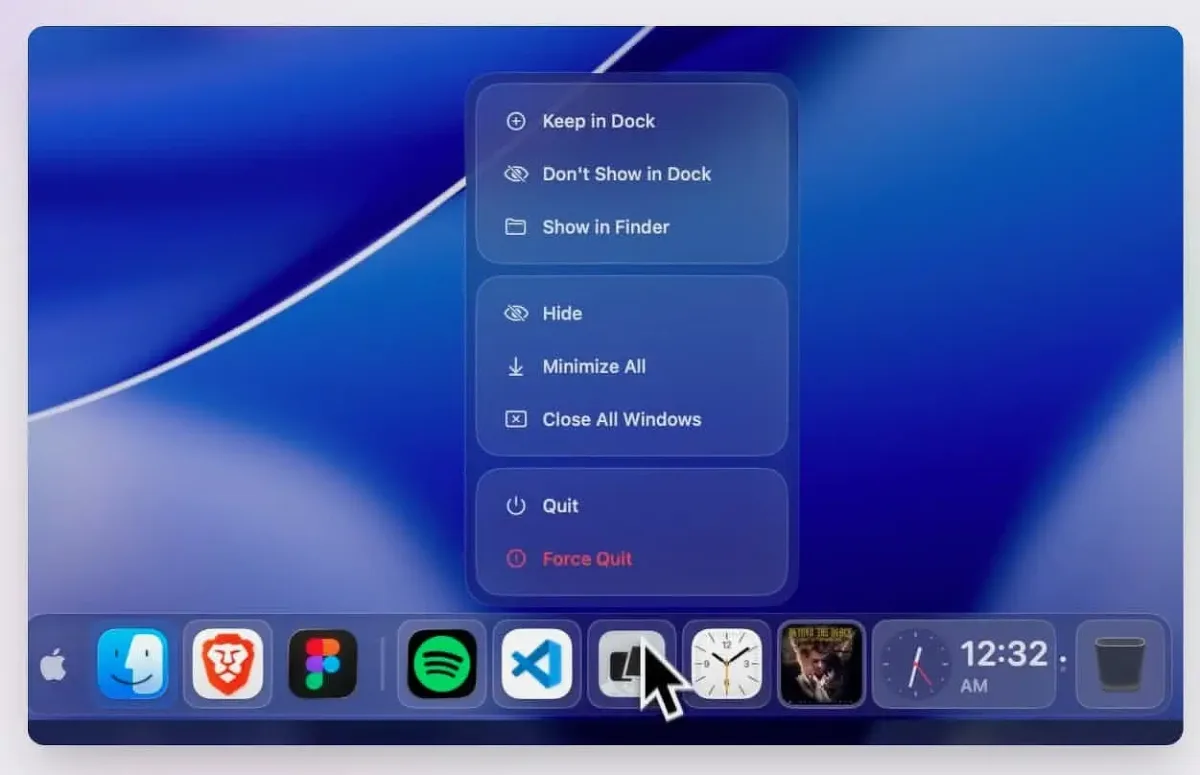
- Close or minimize all: shuts down or minimizes every window of an app with a single click.
- Multi-display and Space support: shows windows across every desktop and display, including hidden ones.
- Three preview layouts: switches between grid, list, or large thumbnail views.
- Folder Pop: hovers a Dock folder to browse its contents as a sortable list, no Finder window needed.
- Liquid Glass appearance: offers frosted, clear, or Liquid Glass styling on supported macOS versions, with a Variant slider for different glass looks.
- Tab collapsing: shows one preview per window instead of one per tab for apps like Safari, Finder, and Terminal, turned on in Settings.
- Adjustable corner radius: sets how rounded preview cards, widgets, and the search bar look, from sharp corners to fully round.
- Gestures and custom keybinds: supports trackpad swipes, middle-click actions, and custom shortcuts.
- Optional widgets: adds music and calendar widgets alongside Dock previews.
- Zero telemetry: collects no analytics or usage data, with fully open source code.
Screenshots
What's New in DockDoor 1.40.4 Version
Version 1.40.4, released this week, fixes a specific, annoying bug:
- Dock and preview clicks that stopped responding now recover on their own, instead of staying stuck after macOS temporarily blocks DockDoor from sending input
- The release just before it, 1.40.3, added more. A Corner Radius slider now controls how rounded preview cards look, from sharp corners to fully rounded. A new two-color option for the running-app dots under each Dock icon simplifies that indicator. That same update also fixed a bug that had been keeping some Macs from dimming or sleeping normally, along with Settings opening itself unexpectedly during background Siri activity.
Supported macOS Versions
DockDoor needs macOS 13 Ventura or later. It runs natively on both Apple Silicon and Intel Macs. Liquid Glass styling specifically needs macOS 26 or later. Generating window previews is light work for any supported Mac, since DockDoor only captures a thumbnail when a preview or the switcher actually needs one.
How to Download and Install DockDoor Mac?
DockDoor is also installable through Homebrew. Only download it from dockdoor.net or its official GitHub page. The developer has specifically warned about cracked copies containing malware circulating on other sites.
- Click the Download button above to safely download the setup file.
- Open the downloaded file, then drag DockDoor into Applications.
- Launch it, then grant Accessibility and Screen Recording access when asked. DockDoor needs both to find your windows and show previews.
- Point at any app in the Dock to see its open windows right away.
No account, trial, or purchase is required. Every feature is free.
How to Use DockDoor Mac?
- Hover any app icon in the Dock to see its open windows as live previews.
- Click a preview to bring that window to the front.
- Hold Option and press Tab to open the window switcher, then press Tab again to move through windows.
- Release Option to switch to the highlighted window, or press Return.
- Click the buttons on a preview, or middle-click it, to close or minimize that window directly.
- Hover a folder in the Dock to browse its contents as a sortable list, without opening Finder.
Alternatives to DockDoor
AltTab: Free, open source window switcher for Mac with a similar focus on individual windows rather than whole apps.
Mission Control (built into macOS): Free and included on every Mac, showing all open windows at once in a zoomed-out overview.