Vimo Rebinder Overview
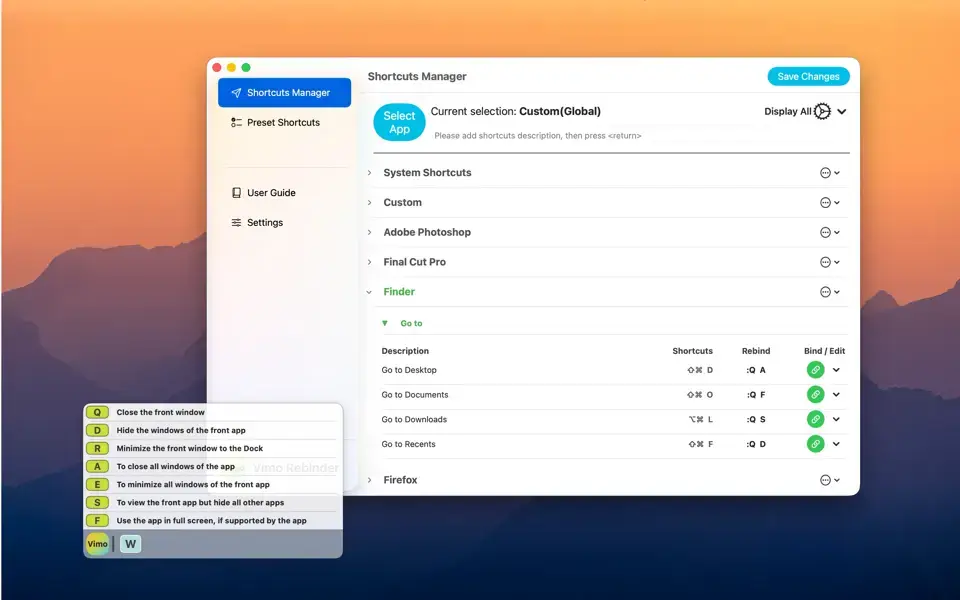
Vimo Rebinder for Mac replaces multi-finger chord combos with a single Superkey. Hold it down, tap a letter, and any of 5,000+ built-in shortcuts fire instantly, whether you're in Finder, Chrome, VS Code, or a JetBrains IDE. A floating hint panel shows the available shortcuts grouped by category, so you learn the system by using it rather than memorizing a manual first. Developers juggling dozens of IDE shortcuts, designers switching between Photoshop and Premiere Pro all day, and anyone tired of hand-cramping keyboard combos use it to keep their whole workflow on two hands without ever leaving the home row.
Why Choose Vimo Rebinder Mac App
The Superkey system is what sets this apart from just remapping a few keys. Instead of memorizing five-finger chords, you hold one key and tap another, and the floating panel shows you exactly what's available before you commit to pressing it. It auto-detects your active app, so the same letter combination pulls up the right shortcut whether you're in Finder or a code editor, and it layers on top of your existing shortcuts instead of overwriting them. With 80+ defaults packed onto just 7 left-hand keys and unlimited custom bindings on top, your mouse hand never has to leave what it's doing.
The Keyboard Map feature is the standout for anyone managing a lot of bindings: it's an interactive, color-coded layout that shows exactly which keys are already bound, lets you click into a key to see every shortcut that starts with it, and traces multi-key combos step by step with a breadcrumb trail back to where you started. A HyperKey Compatibility toggle keeps the Superkey from fighting with tools like Karabiner-Elements if you're already running one, and the app ships with 5,000+ presets covering apps like Adobe Illustrator, Premiere Pro, Photoshop, and the JetBrains IDE lineup, so you're not starting from a blank slate. The App Store privacy label confirms it collects no data at all, running entirely local to your Mac.
Key Features
- Superkey shortcut system: hold one key, tap another, and trigger any of 5,000+ built-in shortcuts without chord gymnastics.
- Floating hint panel: shows available shortcuts grouped by category, so you learn by doing instead of memorizing upfront.
- App-aware mapping: automatically detects your active app, so the same letters trigger the right shortcut in Finder, Chrome, or your IDE.
- Interactive Keyboard Map: visualize every bound shortcut on a color-coded layout, with drill-down for multi-key combos.
- Unlimited custom shortcuts: assign any letter combination to any action, included even on the free tier.
- 5,000+ built-in presets: covers popular apps out of the box, including Adobe Illustrator, Premiere Pro, and JetBrains IDEs.
- HyperKey Compatibility toggle: avoids conflicts when used alongside tools like Karabiner-Elements.
- Left-hand optimized layout: 80+ default shortcuts sit on just 7 keys, keeping your mouse hand free at all times.
- Repeater function: repeat your last shortcut instantly without re-triggering the full combo.
- Dashboard with import/export: manage all your custom shortcuts from one screen, and back up or share your configuration.
What's New in Vimo Rebinder 2.5.4 Version
Version 2.5.4 shipped as a bug-fix release, following a run of more substantial updates:
- Keyboard Map — an interactive, color-coded keyboard layout that visualizes every shortcut you've bound, with drill-down for multi-key combos.
- Dashboard — a new central screen for managing your shortcuts in one place.
- HyperKey Compatibility toggle — prevents the Superkey from conflicting with tools like Karabiner-Elements.
- Unlimited custom global shortcuts, now available in the free version rather than gated behind a purchase.
- A dedicated fix for display issues specifically on macOS Tahoe 26.
Supported macOS Versions
Vimo Rebinder requires macOS 13 Ventura as a floor, so older Macs on Monterey or earlier can't run it. It's been tested and patched specifically for macOS 26 Tahoe, including a fix for display issues that showed up early after Tahoe's release, and it runs cleanly on macOS 15 Sequoia too. As a genuine universal binary, Apple Silicon Macs handle the constant background keystroke monitoring without any translation overhead, and Intel Macs on a supported macOS version run just as smoothly, since watching for a Superkey press isn't demanding work for either chip.
How to Download and Install Vimo Rebinder on Mac?
Installing Vimo Rebinder on Mac takes under a minute through the App Store, no separate download, unzip, or drag-and-drop needed.
- Click the Download button above, it opens Vimo Rebinder's official listing on the Mac App Store.
- Tap Get to install the free app.
- Sign in with your Apple ID if prompted.
- macOS downloads and installs Vimo Rebinder automatically in the background.
- Once installed, launch it from Launchpad or your Applications folder.
Because the App Store handles future updates automatically, you won't need to manually reinstall Vimo Rebinder each time a new version ships.
How to Use Vimo Rebinder Mac App?
- Open Vimo Rebinder from Launchpad after installing it from the App Store.
- Grant Accessibility permission when prompted, so it can detect keystrokes and your active app.
- Hold the Superkey and check the floating panel for available shortcuts, grouped by category.
- Tap a letter while holding the Superkey to trigger that shortcut instantly.
- Open the Dashboard to add, remove, or customize shortcut bindings for any app.
- Use the Keyboard Map to see which keys are already bound before adding new ones.