CapCut Overview
CapCut for Mac is a free, AI-powered video editing app built by ByteDance for creators making YouTube videos, TikTok clips, Instagram Reels, and marketing content. It requires macOS 14 or later and runs natively on both Apple Silicon and Intel Macs. Core tools include a multi-track timeline, automatic captions, AI background removal, motion tracking, and cloud-based project syncing. The free version covers most day-to-day editing, while a CapCut Pro subscription unlocks premium templates, extra AI tools, and higher-resolution exports. For creators who want fast, AI-assisted editing without a steep learning curve, CapCut for Mac is one of the most accessible options available.
Why Choose CapCut for Mac?
CapCut has become one of the most popular desktop video editors because it combines professional editing capabilities with AI-powered automation in a clean, beginner-friendly interface. Instead of spending hours on repetitive editing tasks, creators can generate automatic captions, remove backgrounds, stabilize footage, enhance voices, and apply smart effects within minutes. This makes it equally useful for social media creators, educators, marketers, and business professionals.
Another advantage is its optimization for Apple Silicon. Native support for M1 through M4 chips allows smoother timeline playback, faster exporting, and better handling of high-resolution footage than many older editors manage. At the same time, CapCut includes advanced features such as multi-track editing, keyframe animation, motion tracking, masking, and chroma key, giving experienced users real creative control without making the interface feel overwhelming.
Key Features of CapCut for Mac
- AI Video Editing – Speed up editing with intelligent tools that automate repetitive tasks while keeping manual controls available.
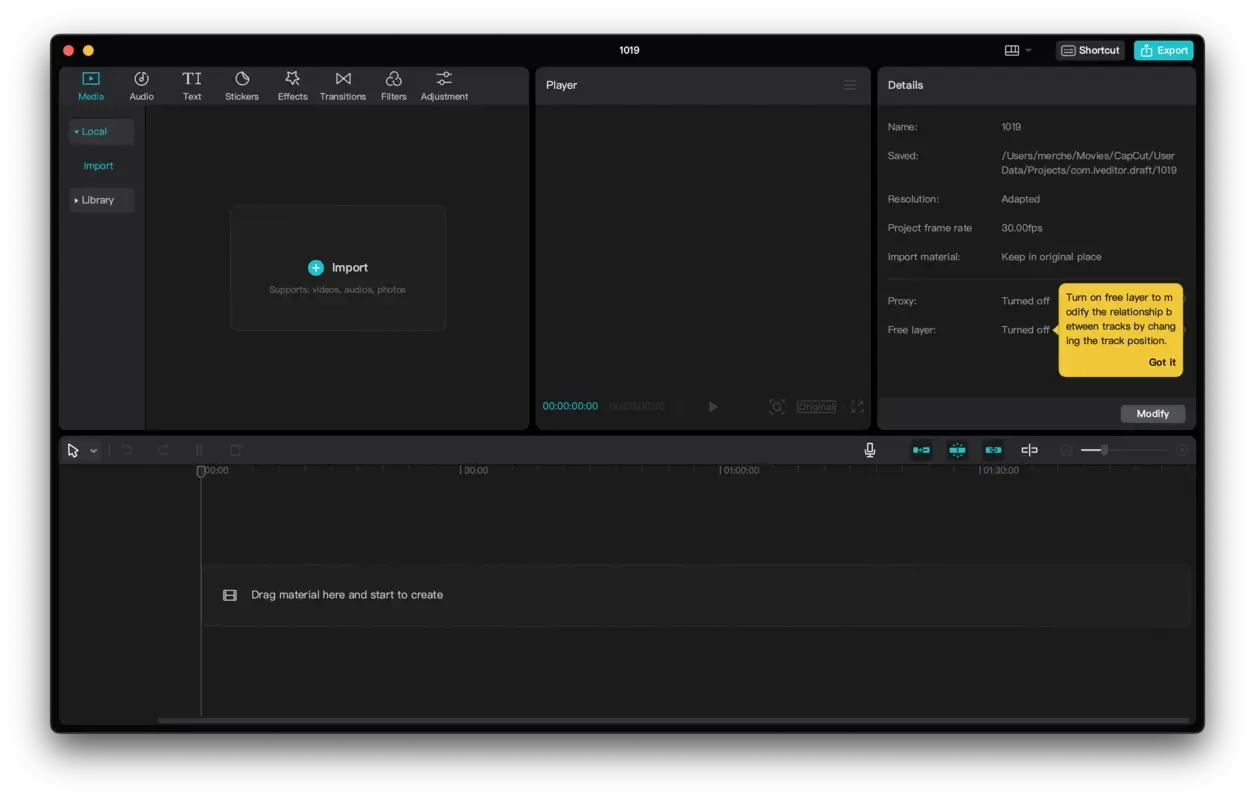
- Multi-Track Timeline – Arrange videos, audio, images, overlays, and text on multiple tracks for precise editing.
- AI Auto Captions – Generate subtitles automatically with editable text and multiple caption styles.
- Background Removal – Remove or replace video backgrounds without requiring a green screen in many scenarios.
- Motion Tracking – Attach text, stickers, or effects to moving subjects with built-in tracking tools.
- Keyframe Animation – Create smooth animations for position, scale, rotation, opacity, and other properties.
- Chroma Key Support – Replace green screen backgrounds for professional-looking productions.
- Extensive Effects Library – Access transitions, filters, visual effects, animations, and templates.
- Audio Enhancement Tools – Reduce noise, apply voice effects, synchronize audio, and improve dialogue clarity.
- High-Resolution Export – Export videos in multiple resolutions and formats for social media and professional projects.
What's New in 19.5.0 Version
Recent releases of CapCut for Mac continue to improve AI-powered editing, workflow efficiency, and desktop performance. Recent improvements include:
- Fixed some known issues and improved the trimming experience.
- Improved AI editing tools for faster content creation
- Better subtitle generation with higher recognition accuracy
- Enhanced timeline responsiveness during complex editing projects
- Expanded effects, transitions, animations, and creative templates
- Improved audio editing and voice enhancement capabilities
- Better optimization for Apple Silicon Macs, resulting in smoother playback and faster exports
These updates help creators edit larger projects more efficiently while delivering a smoother overall editing experience.
Supported macOS Versions
CapCut for Mac requires macOS 14 (Sonoma) or later and performs best on Apple Silicon Macs (M1, M2, M3, and newer), where hardware acceleration delivers faster rendering, smoother timeline playback, and improved export speeds. Compatible Intel-based Macs on macOS 14 or later are also supported, although demanding projects involving 4K footage, AI effects, or multiple video layers may benefit from additional memory and graphics resources. For the best experience, using an SSD with sufficient free storage is recommended when working with large media files.
How to Install CapCut on MacOS?
Installing CapCut on your Mac takes only a few minutes. Follow these steps to get started:
- Download the latest compatible version of CapCut for Mac.
- Open the downloaded installation file and begin the setup process.
- Drag CapCut to the Applications folder if prompted.
- Launch the application from Applications or Launchpad.
- Sign in with your account to access cloud projects and premium features, or continue with the available free tools.
- Allow the required permissions for storage, microphone, and media access if requested.
Once the installation is complete, you can start editing videos immediately.
How to Use CapCut Mac App?
Getting started with CapCut is simple, even if you're new to video editing.
- Create a new project and import your videos, photos, and audio files.
- Arrange media on the multi-track timeline and trim or split clips as needed.
- Add transitions, filters, text, effects, and animations to enhance your project.
- Use AI features like Auto Captions, Background Removal, or Motion Tracking to speed up editing.
- Preview your project and make final adjustments to audio, colors, and timing.
- Export the finished video using your preferred resolution and quality settings.