Firefox Overview
Firefox for Mac is Mozilla's independent, open-source web browser that blocks trackers automatically, includes a free built-in VPN, and gives users direct control over how (or whether) AI shows up while browsing. Unlike Chromium-based competitors, it runs on Mozilla's own Gecko/Quantum engine rather than a shared rendering core, which means it isn't beholden to the same update cycle or default behaviors as Chrome-derived browsers. It ships with tab groups for organizing dozens of open tabs, a Privacy Dashboard that shows exactly what's been blocked, and over 30,000 extensions through Mozilla's add-on store. For anyone switching from Safari or Chrome, bookmarks, saved passwords, and browsing history import automatically during setup, so the move doesn't cost you your existing setup.
Why Choose Firefox for Mac?
Firefox's biggest differentiator on Mac isn't a single feature — it's the engine underneath. Because it runs on Gecko instead of Chromium, it renders pages and handles memory independently of Google's release schedule, which matters if you've been burned by a Chrome extension breaking after a silent engine update. It's also the rare mainstream browser where the company's business model doesn't depend on selling personal data, so tracker blocking isn't tuned to spare its own ad partners.
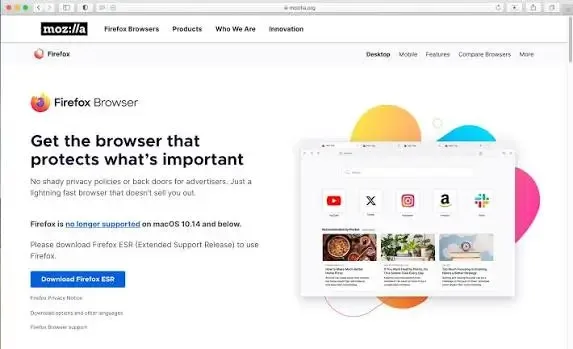
The other gap most competitor pages skip is macOS version handling. Firefox draws a hard line at Catalina: anything on macOS 10.12 through 10.14 gets shifted to the 115 ESR branch instead of the regular release track, which means those Macs miss out on new features like tab groups and Smart Window even though they still get security patches. If you're running an older Mac, that distinction changes what you should actually expect from the "latest" Firefox.
Key Features
- Automatic tracker blocking with no setup required
- Free built-in VPN for encrypting your connection
- Privacy Dashboard showing exactly which trackers were blocked
- Tab groups with labels and color coding for organizing open tabs
- Smart Window: built-in AI assistant for summarizing and explaining selected text
- Reader mode that strips distractions from articles
- Picture-in-picture video that stays visible while you browse elsewhere
- Over 30,000 extensions and thousands of themes via Mozilla Add-ons
- Built-in PDF editing directly inside the browser
- Cross-device sync for tabs, bookmarks, passwords, and history, encrypted by default
Screenshots
What's New in 157.0.1 Version
- Fixed: downloads failing on macOS when Firefox is set to ask where to save files but doesn't have permission to access the Downloads folder.
- Fixed: the sidebar getting stuck on the Bookmarks or AI Chatbot panel for some users.
- Fixed: the Restore from Backup option not appearing during onboarding on Windows.
- Security fix.
Supported macOS Versions
Firefox's current release track requires macOS 10.15 (Catalina) or later and runs natively on Apple Silicon and Intel Macs alike. Macs stuck on macOS 10.12 through 10.14 are shifted onto the Firefox 115 ESR branch, which still receives security fixes but doesn't get new features like tab groups or Smart Window. There's no separate Apple Silicon "beta" track — both architectures get the same release simultaneously, though M-series Macs generally see faster page rendering and lower battery draw during long browsing sessions.
How to Install Firefox on Mac?
- Open a browser and go to Firefox's official macOS download page
- Click the download button to fetch the installer for your Mac
- Open the downloaded file and drag the Firefox icon into your Applications folder
- Launch Firefox from Applications or Launchpad
- Choose to import bookmarks, passwords, and history from your current browser when prompted
- Sign in with a Firefox account if you want to sync data across other devices
How to Use Firefox on Mac?
- Type a search term or URL into the address bar to start browsing
- Right-click a tab and select "Add Tab to Group" to start organizing tab groups
- Open the Privacy Dashboard from the toolbar to see which trackers were blocked on the current site
- Highlight text on any page to bring up Smart Window's summarize and explain options
- Visit Settings > Sync to connect a Firefox account and share tabs across devices
- Browse the Firefox Add-ons store to install extensions or themes that match your workflow