
Google Chrome Overview:
Google Chrome for Mac is Google's official web browser, built on the Chromium engine for fast, secure, and reliable browsing. It supports Google Sync, the Chrome Web Store, Safe Browsing, and built-in password management, allowing you to access bookmarks, passwords, history, and extensions across your devices. Optimized for both Intel and Apple Silicon Macs, Chrome delivers a familiar browsing experience that's well suited for work, study, streaming, and everyday web use.
Key Features
- Fast browsing powered by the Chromium engine.
- Google Sync keeps bookmarks and passwords updated.
- Access thousands of Chrome Web Store extensions.
- Safe Browsing protects against harmful websites.
- Built-in password manager with security alerts.
- Automatic updates improve security and stability.
- Create multiple user profiles for different accounts.
- Translate web pages instantly with Google Translate.
- Built-in PDF viewer for quick document access.
- Optimized for Intel and Apple Silicon Macs.
- Tab Groups help organize multiple browsing sessions.
- Supports Progressive Web Apps (PWAs).
Screenshots
What's New in 155.0.8059.40 Version?
- Critical CVE-2026-106382: Use after free in Chromecast.
- Critical CVE-2026-106197: Use after free in Browser.
- Critical CVE-2026-106358: Use after free in Navigation.
- Critical CVE-2026-106347: Use after free in Track.
- High CVE-2026-102322: Incorrect Authorization in SiteIsolation.
- High CVE-2026-106245: Uninitialized resource in ANGLE.
- High CVE-2026-106327: Incorrect authorization in Core.
- High CVE-2026-106366: Incomplete cleanup in CustomTabs.
- High CVE-2026-106258: Uninitialized resource in ANGLE.
- High CVE-2026-106376: Uninitialized resource in ANGLE. R
- High CVE-2026-106308: Incorrect reference resolution in Autofill.
- High CVE-2026-106215: Uninitialized resource in ANGLE.
- High CVE-2026-106369: Missing authorization in Translate.
- High CVE-2026-106293: Type confusion in ANGLE.
- High CVE-2026-106377: Race condition in Fonts.
- High CVE-2026-106412: Race condition in Core.
- High CVE-2026-106243: Incomplete cleanup in Proxy Auth.
- High CVE-2026-106214: Information leak in Proxy.
- High CVE-2026-106364: Incorrect authorization in Omnibox.
- High CVE-2026-106239: Integer overflow in WebGL.
- High CVE-2026-106426: Race condition in Fonts.
- High CVE-2026-106419: Use after free in ANGLE.
- High CVE-2026-106396: Improper input validation in Omnibox.
- High CVE-2026-106323: Missing authorization in Chrome for iOS.
- High CVE-2026-106231: Uninitialized resource in Dawn.
- High CVE-2026-106202: Uninitialized resource in ANGLE.
- High CVE-2026-106273: Uninitialized resource in Video.
- High CVE-2026-106203: Incomplete cleanup in Autofill.
- High CVE-2026-106332: Integer overflow in Compositing.
- High CVE-2026-106281: Use after free in Tint.
- High CVE-2026-106298: Use after free in Chrome Tabs.
- High CVE-2026-106193: Use after free in Parser.
- High CVE-2026-106255: Race condition in V8.
- High CVE-2026-106393: Use after free in Storage.
- High CVE-2026-106227: Use after free in Core.
- High CVE-2026-106379: Uninitialized resource in Skia.
- High CVE-2026-106211: Use after free in TabStrip.
- High CVE-2026-106329: Incorrect authorization in FileSystem.
- High CVE-2026-106248: Use after free in Bindings.
- High CVE-2026-106235: Use after free in WebAudio.
- High CVE-2026-106257: Use after free in HTML.
- High CVE-2026-106268: Use after free in WebRTC.
- High CVE-2026-106278: Use after free in Select.
- High CVE-2026-106233: Use after free in Metrics.
- High CVE-2026-106318: Use after free in Media.
- High CVE-2026-106411: Use after free in Parser.
- High CVE-2026-106423: Use after free in Media.
- High CVE-2026-106346: Improper state validation in DevTools.
- High CVE-2026-106190: Use after free in Media.
- High CVE-2026-106357: Use after free in WebRTC.
- High CVE-2026-106240: Type confusion in V8.
- High CVE-2026-106184: Uninitialized resource in Media.
- High CVE-2026-106383: Use after free in Media.
- High CVE-2026-106349: Use after free in V8.
- High CVE-2026-106421: Use after free in PDF.
- High CVE-2026-106204: Use after free in PDF.
- High CVE-2026-106200: Use after free in Track.
- Medium CVE-2026-106265: UI misrepresentation in File.
- Medium CVE-2026-106238: Race condition in Fonts.
- Medium CVE-2026-106324: Incorrect authorization in WebAppInstalls.
- Medium CVE-2026-106420: Incorrect calculation in API.
- Medium CVE-2026-106222: Incorrect authorization in Sync.
- Medium CVE-2026-106208: Missing authorization in API.
- Medium CVE-2026-106286: Confused deputy in Omnibox.
- Medium CVE-2026-106181: Incorrect reference resolution in DevTools.
- Medium CVE-2026-106315: Use after free in Modularization.
- Medium CVE-2026-106274: Incorrect reference resolution in Browser.
- Medium CVE-2026-106365: Missing authorization in Animation.
- Medium CVE-2026-106267: Missing authorization in Network.
- Medium CVE-2026-106194: Missing authorization in WebAppInstalls.
- Medium CVE-2026-106313: Incorrect authorization in Browser.
- Medium CVE-2026-106283: Use after free in Streaming.
- Medium CVE-2026-106291: Use after free in GarbageCollection.
- Medium CVE-2026-106300: Race condition in CacheStorage.
- Medium CVE-2026-106314: Incorrect authorization in Bluetooth.
- Medium CVE-2026-106223: Uninitialized resource in GPU.
- Medium CVE-2026-106242: Information leak in Omnibox.
- Medium CVE-2026-106241: Incorrect authorization in Search.
- Medium CVE-2026-106381: Incorrect authorization in Passwords.
- Medium CVE-2026-106217: Missing authorization in Google Lens.
- Medium CVE-2026-106425: Missing authorization in BrowserTag.
- Medium CVE-2026-106225: Missing authorization in Autofill.
- Medium CVE-2026-106363: Missing authorization in FullScreen.
- Medium CVE-2026-106266: Confused deputy in Contextual Tasks.
- Medium CVE-2026-106189: Code injection in ReaderMode.
- Medium CVE-2026-106335: Use after free in Media.
- Medium CVE-2026-106415: Information leak in Enterprise.
- Medium CVE-2026-106224: Missing authorization in Google Lens.
- Medium CVE-2026-106185: Improper input validation in Viz.
- Medium CVE-2026-106244: Incorrect authorization in Permissions.
- Medium CVE-2026-106407: Incorrect authorization in GetUserMedia.
- Medium CVE-2026-106389: Incorrect authorization in USB.
- Medium CVE-2026-106397: Incorrect authorization in Mobile.
- Medium CVE-2026-106196: Missing authorization in Navigation.
- Medium CVE-2026-106414: Improper input validation in Mobile.
- Medium CVE-2026-106408: Protection mechanism failure in Mobile.
- Medium CVE-2026-106261: Uninitialized resource in Video.
- Medium CVE-2026-106406: Missing authorization in Mobile.
- Medium CVE-2026-106290: Uninitialized resource in GPU.
- Medium CVE-2026-106378: Privilege elevation in Sandbox.
- Medium CVE-2026-106198: Missing authorization in FileSystem.
- Medium CVE-2026-106326: Confused deputy in UI.
- Medium CVE-2026-106354: Improper resource exposure in Extensions.
- Medium CVE-2026-106342: Information leak in Autofill.
- Medium CVE-2026-106424: Information leak in Audio.
- Medium CVE-2026-106253: Incorrect authorization in Extensions.
- Medium CVE-2026-106279: Incorrect reference resolution in Passwords.
- Medium CVE-2026-106361: Incorrect provision of specified functionality in Mobile.
- Medium CVE-2026-106402: Incorrect authorization in Extensions.
- Medium CVE-2026-106311: Clickjacking in PermissionElement.
- Medium CVE-2026-106246: Incorrect authorization in Browser.
- Medium CVE-2026-106302: UI misrepresentation in PermissionElement.
- Medium CVE-2026-106416: Code injection in Extensions.
- Medium CVE-2026-106182: UI misrepresentation in Paint.
- Medium CVE-2026-106282: UI misrepresentation in WebOTP.
- Medium CVE-2026-106392: Information leak in WebAudio.
- Medium CVE-2026-106188: Confused deputy in SignIn.
- Medium CVE-2026-106370: Uninitialized resource in GPU.
- Medium CVE-2026-106356: Clickjacking in EVP.
- Medium CVE-2026-106405: Race condition in CustomTabs.
- Medium CVE-2026-106322: Open redirect in AppManifest.
- Medium CVE-2026-106280: Incorrect authorization in PermissionElement.
- Medium CVE-2026-106206: Improper input validation in Mobile.
- Medium CVE-2026-106180: Observable discrepancy in Animation.
- Medium CVE-2026-106303: Observable discrepancy in Autofill AI.
- Medium CVE-2026-106201: Race condition in V8.
- Medium CVE-2026-106333: Incorrect authorization in Input.
- Medium CVE-2026-106228: Confused deputy in Google Lens.
- Medium CVE-2026-106289: Missing authorization in FedCM.
- Medium CVE-2026-106277: Information leak in Animation.
- Medium CVE-2026-106410: Missing authorization in Permissions.
- Medium CVE-2026-106284: Out of bounds read in Printing.
- Medium CVE-2026-106209: UI misrepresentation in Mobile.
- Medium CVE-2026-106216: Cross-site request forgery in ReadingList.
- Medium CVE-2026-106328: Incorrect authorization in PDF.
- Medium CVE-2026-106387: Missing authorization in Mobile.
- Medium CVE-2026-106400: Clickjacking in Messages.
- Medium CVE-2026-106205: Missing authorization in Passwords.
- Medium CVE-2026-106213: Race condition in WebAudio.
- Medium CVE-2026-106230: Incorrect reference resolution in Offline.
- Medium CVE-2026-106367: Missing authorization in Mobile.
- Medium CVE-2026-106226: Improper input validation in Compositing.
- Medium CVE-2026-106229: UI misrepresentation in FileSystem.
- Medium CVE-2026-106232: UI misrepresentation in Browser.
- Medium CVE-2026-106391: Incorrect authorization in WebShare.
- Medium CVE-2026-106336: Observable discrepancy in Paint.
- Medium CVE-2026-106403: Incorrect authorization in Accessibility.
- Medium CVE-2026-106373: Use after free in Fonts.
- Medium CVE-2026-106301: Confused deputy in Contextual Tasks.
- Medium CVE-2026-106292: Buffer overflow in Fonts.
- Medium CVE-2026-106262: Incomplete cleanup in GetUserMedia.
- Medium CVE-2026-106360: Information leak in Payments. R
- Medium CVE-2026-106375: Incomplete cleanup in Dawn.
- Medium CVE-2026-106348: Information leak in Animation.
- Medium CVE-2026-106307: Incorrect authorization in Network.
- Medium CVE-2026-106212: Incorrect authorization in Autofill.
- Medium CVE-2026-106398: Incorrect authorization in Media.
- Medium CVE-2026-106388: Missing authorization in DataTransfer.
- Medium CVE-2026-106271: Missing authorization in Workers.
- Medium CVE-2026-106395: Uninitialized resource in Dawn.
- Medium CVE-2026-106304: Out of bounds read in ANGLE.
- Medium CVE-2026-106401: Out of bounds write in Media.
- Medium CVE-2026-106330: Information leak in Paint.
- Medium CVE-2026-106295: Incorrect authorization in Unbounded Element.
- Medium CVE-2026-106352: Incorrect authorization in WebProtect.
- Medium CVE-2026-106337: UI misrepresentation in UI.
- Medium CVE-2026-106263: Improper input validation in SignIn.
- Medium CVE-2026-106404: Incorrect authorization in FontAccess.
- Medium CVE-2026-106183: Missing authorization in Chromoting.
- Medium CVE-2026-106386: Uninitialized resource in WebAudio.
- Medium CVE-2026-106351: Observable discrepancy in Safebrowsing.
- Medium CVE-2026-106384: Missing authorization in SiteIsolation.
- Medium CVE-2026-106207: Race condition in V8.
- Medium CVE-2026-106321: Information leak in Editing.
- Medium CVE-2026-106210: Observable discrepancy in Scroll.
- Medium CVE-2026-106254: Information leak in Mobile.
- Medium CVE-2026-106372: Incorrect authorization in UI.
- Medium CVE-2026-106341: Type confusion in V8.
- Medium CVE-2026-106409: Incorrect reference resolution in WebAppInstalls.
- Low CVE-2026-106340: Missing authorization in CredentialProvider.
- Low CVE-2026-106276: UI misrepresentation in Payments.
- Low CVE-2026-106338: UI misrepresentation in PictureInPicture.
- Low CVE-2026-106317: UI misrepresentation in FullScreen.
- Low CVE-2026-106344: Missing authorization in Permissions.
- Low CVE-2026-106359: Confused deputy in DeviceBoundSessionCredentials.
- Low CVE-2026-106353: Improper input validation in Mobile.
- Low CVE-2026-106312: Missing authorization in SignIn.
- Low CVE-2026-106191: Missing authorization in Actor.
- Low CVE-2026-106250: Missing authorization in Actor. R
- Low CVE-2026-106309: Incorrect authorization in Selection.
- Low CVE-2026-106187: Missing authorization in Permissions.
- Low CVE-2026-106394: Incomplete cleanup in Glic.
- Low CVE-2026-106306: Incorrect authorization in DevTools.
- Low CVE-2026-106427: Confused deputy in Mobile.
- Low CVE-2026-106252: Incorrect comparison in Fonts.
- Low CVE-2026-106287: Information loss in CORS.
- Low CVE-2026-106297: Incorrect authorization in Scheduling. R
- Low CVE-2026-106260: Incorrect authorization in DevTools.
- Low CVE-2026-106362: Missing authorization in DevTools.
- Low CVE-2026-106275: Uninitialized resource in GPU.
- Low CVE-2026-106199: Incorrect authorization in Actor.
- Low CVE-2026-106299: Improper input validation in WebAudio.
- Low CVE-2026-106422: Incorrect authorization in API.
- Low CVE-2026-106186: Uncontrolled search path element in CredentialProvider.
- Low CVE-2026-106247: Buffer overflow in ANGLE.
- Low CVE-2026-106192: Information leak in Mobile.
- Low CVE-2026-106399: Out of bounds read in Skia.
- Low CVE-2026-106264: Missing authorization in Web Authentication (Passkeys & Security Keys).
- Low CVE-2026-106285: UI misrepresentation in WebAppInstalls.
- Low CVE-2026-106220: Information leak in Passwords.
- Low CVE-2026-106417: Integer overflow in Media.
- Low CVE-2026-106221: Confused deputy in WebAPKs.
- Low CVE-2026-106259: Incorrect authorization in PermissionElement.
- Low CVE-2026-106296: Improper privilege management in UI.
- Low CVE-2026-106249: Incorrect authorization in Autofill.
- Low CVE-2026-106374: Type confusion in V8.
- Low CVE-2026-106380: UI misrepresentation in UI.
- Low CVE-2026-106179: UI misrepresentation in WebAppInstalls.
- Low CVE-2026-106368: UI misrepresentation in UI.
- Low CVE-2026-106237: Information leak in Permissions.
- Low CVE-2026-106331: Improper input validation in Extensions.
- Low CVE-2026-106270: Incorrect authorization in WebAppInstalls.
- Low CVE-2026-106350: Incorrect authorization in Browser.
- Low CVE-2026-106288: Missing authorization in Browser.
- Low CVE-2026-106305: UI misrepresentation in Mobile.
- Low CVE-2026-106418: Missing authorization in Network.
- Low CVE-2026-106343: Improper state validation in Autofill AI.
- Low CVE-2026-106371: Incorrect authorization in Transactions Platform.
- Low CVE-2026-106256: Information leak in Passwords.
- Low CVE-2026-106413: Race condition in Browser.
- Low CVE-2026-106339: Use of released resource in Core.
- Low CVE-2026-106320: Use of released resource in UI.
- Low CVE-2026-106195: Incorrect authorization in Chromoting.
- Low CVE-2026-106316: UI misrepresentation in Chromoting.
- Low CVE-2026-106385: Race condition in Chromoting.
- Low CVE-2026-106325: Incorrect reference resolution in Core.
- Low CVE-2026-106390: Incorrect provision of specified functionality in SanitizerAPI.
- Low CVE-2026-106294: Incomplete cleanup in Chromoting.
- Low CVE-2026-106334: Information leak in Payments.
- Low CVE-2026-106236: UI misrepresentation in Chromoting.
- Low CVE-2026-106251: UI misrepresentation in Chromoting.
- Low CVE-2026-106310: Use of released resource in FontAccess.
- Low CVE-2026-106345: Use of released resource in Session.
- Low CVE-2026-106272: UI misrepresentation in Chromoting.
- Low CVE-2026-106355: Missing authorization in Media.
- Low CVE-2026-106234: Use after free in Network.
- Low CVE-2026-106269: Use after free in CSS.
How to Install Google Chrome on Mac?
Getting started with Google Chrome is simple.
- Download the latest version of Google Chrome for Mac.
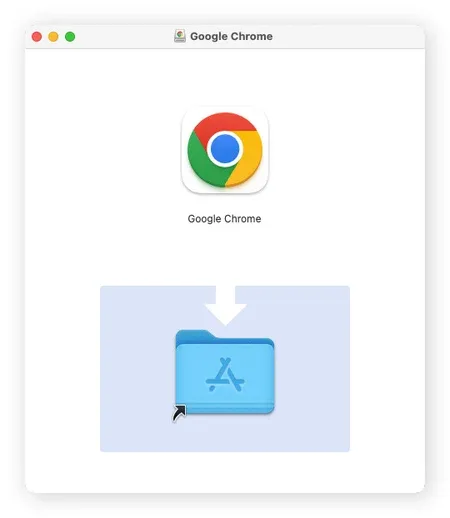
- Open the downloaded .dmg file.
- Drag Google Chrome into the Applications folder.
- Launch it from Launchpad or Applications.
- Sign in with your Google account if you want to sync data.
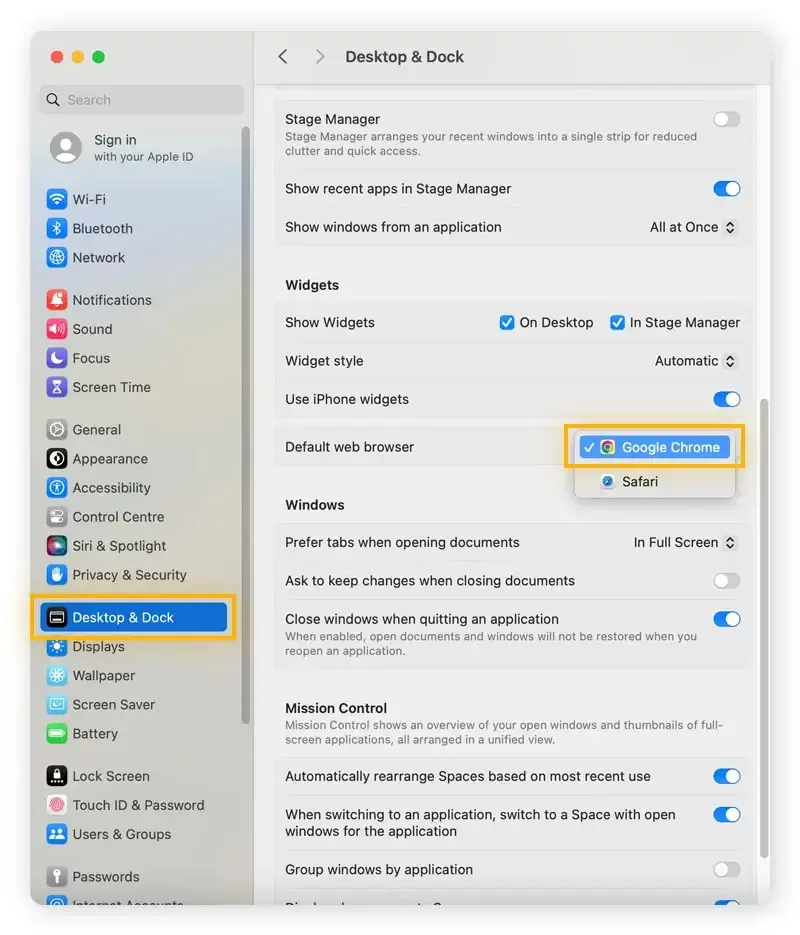
- Set Chrome as your default browser if preferred.
- Start browsing the web.
After installation, you can import bookmarks from another browser, install useful extensions, enable Google Sync, and customize Chrome to match your browsing habits.
How to Use Google Chrome on Mac?
Using Google Chrome is easy from the first launch.
- Open Chrome from the Applications folder.
- Sign in with your Google account to enable Sync.
- Import bookmarks and passwords from another browser.
- Install extensions from the Chrome Web Store.
- Organize tabs using Tab Groups.
- Browse securely with Safe Browsing enabled.
- Customize settings, themes, and privacy options.
As you continue using Chrome, you can sync your data across devices, manage multiple profiles, and personalize the browser for work, study, or everyday browsing.