Adobe Acrobat Reader Overview
Adobe Acrobat Reader for Mac opens, views, prints, and comments on PDF files at no cost, and it's the app most forms, digital signatures, and interactive PDF elements are actually built to be opened in. Fill & Sign lets you complete and sign a form without printing it first, and Adobe Document Cloud keeps a file in sync if you started it on your phone or tablet. It's free for all of this, with no watermark or feature paywall on the core viewing and commenting tools. Anyone filling out a government or business form, students and professionals reviewing documents with comments and markup, and people who just need PDFs to open correctly every single time all end up with it installed.
Why Choose Adobe Acrobat Reader Mac App
Compatibility is the real reason to reach for this over a lighter third-party PDF viewer. Forms with fillable fields, digital signatures, and interactive elements are built against Adobe's own PDF specification, and Reader is the one app guaranteed to display and interact with them the way the sender intended, something smaller viewers occasionally get wrong on complex documents. Fill & Sign covers the most common reason people open a PDF app in the first place: completing and signing a form without printing, scanning, or switching to a separate app. And because it connects to Adobe Document Cloud, a document you started marking up on an iPad picks up exactly where you left off when you open it on your Mac.
A few details are worth knowing specifically for the Mac version. It ships as a genuine universal binary, running natively on both Apple Silicon and Intel hardware, and it integrates directly with Safari so PDFs open inline in your browser instead of triggering a separate download. Recent updates added AI Assistant suggestions that surface contextual editing and conversion prompts based on what's actually in your document, along with MathML support so screen readers can navigate mathematical formulas in tagged PDFs. Translation prompts also appear automatically when a document's language doesn't match your system language, routing through Adobe Express for a translated copy.
Key Features
- Universal PDF compatibility: opens and correctly renders forms, digital signatures, and interactive elements some third-party viewers mishandle.
- Fill and Sign: complete and sign forms electronically without printing, scanning, or a separate app.
- Adobe Document Cloud integration: pick up a PDF on your phone or tablet exactly where you left off on your Mac.
- Commenting and markup tools: highlight, add sticky notes, and draw directly on any PDF for review purposes.
- AI Assistant: surfaces contextual suggestions for editing and converting PDFs directly inside the app.
- Browser integration: view PDFs inline in Safari without downloading them first.
- Accessibility support: includes MathML support so screen readers can navigate formulas and mathematical content.
- Translate PDFs: prompts to translate a document when its language differs from your system language.
- Universal binary: runs natively on both Apple Silicon and Intel Macs.
- Free core toolset: viewing, printing, and commenting stay free, with no watermark or feature paywall.
What's New in Adobe Acrobat Reader 26.001.21789 Version
Version 26.001.21789 shipped August 13, 2026 with a targeted fix: it resolved an issue that prevented printing a PDF containing a mix of A3 and A4 pages. It follows a run of larger feature updates over the summer:
- AI Assistant now surfaces contextual suggestions for editing and converting PDFs, with prefilled prompts based on your document's content.
- Translate PDFs prompts you to translate a document when its language differs from your app language, opening a translated copy in Adobe Express.
- Legacy shared review is now off by default, strengthening document security.
- MathML accessibility support lets screen readers engage with formulas and mathematical structures in tagged PDFs.
Supported macOS Versions
Adobe discontinued support for macOS 12.x as of June 2026, so Acrobat Reader now requires macOS 13 Ventura as a floor. Early macOS 26 Tahoe releases had a rocky start, with some users reporting system-wide crashes on versions released shortly after Tahoe's launch, but Adobe shipped a dedicated out-of-cycle update to address Tahoe compatibility, and the current release runs cleanly on it. As a universal binary, it performs identically on Apple Silicon and Intel Macs, though keeping Reader updated to its latest version is worth doing after any major macOS upgrade, given the app's history of needing a follow-up patch shortly after a new macOS release.
How to Download and Install Adobe Acrobat Reader on Mac?
Installing Acrobat Reader on Mac only takes a few steps after downloading, including one quick permission it needs to run properly.
- First click on the Download button given on this page that is fully secure and complete the downloading procedure.
- Open the downloaded installer file and follow the on-screen prompts.
- Enter your admin name and password when asked. These are the same ones you use to log into your Mac.
- Launch Acrobat Reader from Applications once installation finishes.
- Sign in with a free Adobe account if you want Document Cloud sync across your devices, or skip this to use it purely as a local PDF viewer.
Once the initial setup is done, Acrobat Reader won't ask for these steps again, future launches go straight to your last opened document.
How to Use Adobe Acrobat Reader Mac?
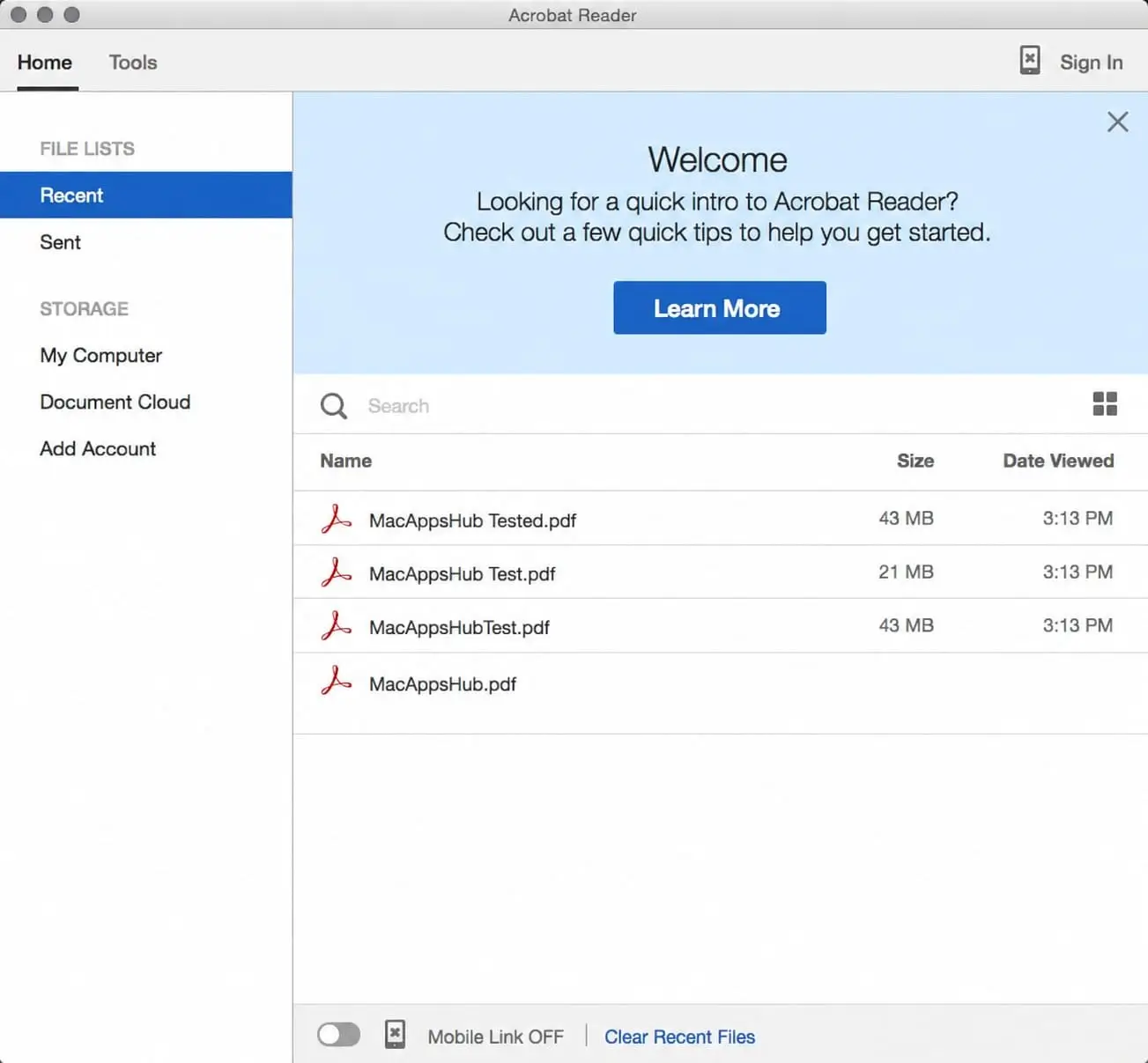
- Launch Acrobat Reader and open any PDF by double-clicking it in Finder, or via File > Open.
- Use the toolbar to add comments, highlights, or sticky notes for reviewing a document.
- Select Fill & Sign to complete form fields and add your signature without printing.
- Sign in with a free Adobe account to sync files through Document Cloud across your devices.
- Use the Convert panel to export a PDF to Word, Excel, or image formats when you need to edit it elsewhere.
- Print directly from the app, with the printed output matching exactly what's on screen.