
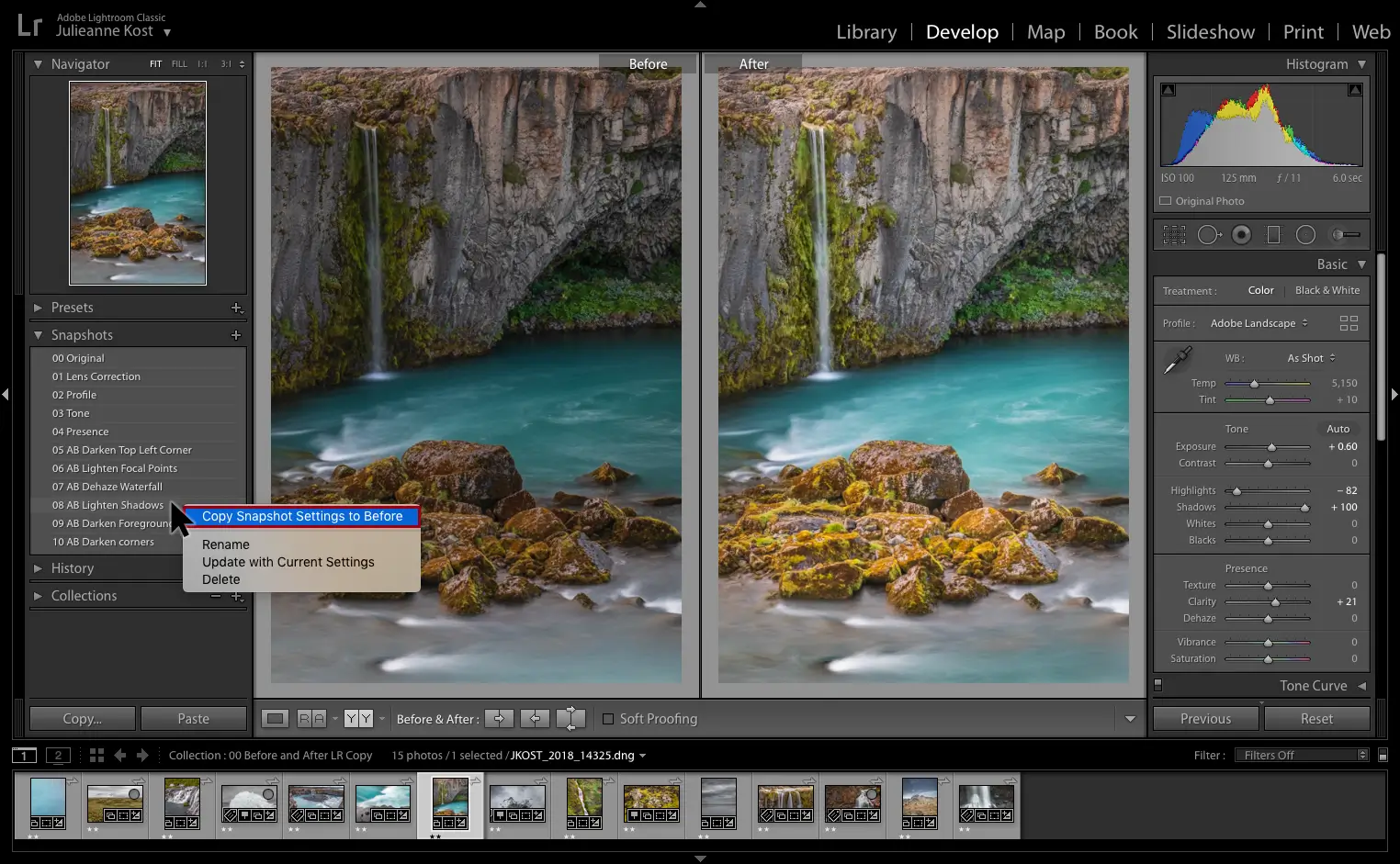
Adobe Lightroom Classic Overview
Adobe Lightroom Classic for Mac is a desktop-only photo editing and organization app. It stores your original files locally rather than in the cloud. This gives photographers full manual control over their library. It's part of Adobe's broader Lightroom ecosystem, sitting alongside the standard cloud-based Lightroom as the desktop-focused option. Recent features include powerful masking tools for precise adjustments, Content-Aware Remove for erasing distractions automatically, and Adaptive Presets for applying edits to specific parts of a photo. It also integrates directly with Photoshop for deeper pixel-level editing. Non-destructive editing keeps your original files untouched. Photographers use it for everything from basic color correction to full print and gallery output.
Why Choose Adobe Lightroom Classic for Mac
A lot of people confuse Lightroom Classic with the standard cloud-based Lightroom. It's worth being clear about the difference upfront. Lightroom Classic stores your original photos on your local hard drive. It uses manual keyword organization instead of automatic tagging. Regular Lightroom stores files in the cloud and syncs automatically across devices. Adobe recommends Classic specifically for photography experts who want that local, manual control. Cloud Lightroom is aimed at everyone else.
There's also a Mac-specific installation detail worth knowing. Lightroom Classic cannot be installed on a volume formatted with a case-sensitive file system. It also can't be installed on removable flash storage. This is the same restriction Adobe's other professional creative tools share. If you've hit this issue with software like CorelDRAW before, the same rule applies here.
Key Features
- Powerful masking tools for precise, localized photo adjustments
- Content-Aware Remove for automatically erasing distracting objects
- Adaptive Presets for applying edits to specific parts of a photo
- Local, folder-based photo organization with manual keyword tagging
- Advanced color and tone adjustment tools
- Print layout, digital presentation, and online gallery output options
- Tethered shooting support for importing directly from a connected camera
- Non-destructive editing that preserves your original files
- Batch editing and syncing settings across large photo libraries
- Integration with Photoshop for pixel-level editing when needed
What's New in 15.4.1 Version
Adobe Lightroom Classic 15.4.1 focuses on refinements and bug fixes. Recent changes include:
- A fix disabling the Delete Rejected Photos option from the Photo menu in Duplicates view
- Continued refinements to the masking toolset introduced in recent versions
- Ongoing Content-Aware Remove and Adaptive Presets improvements
- General stability and performance fixes
- Since Lightroom Classic is under continuous development as part of Adobe's subscription model, updates tend to arrive in smaller, more frequent increments rather than major yearly overhauls.
Supported macOS Versions
Lightroom Classic 15.4.1 requires macOS 12.0 or later. It runs natively on both Intel and Apple Silicon Macs. It needs at least 8GB of RAM, though Adobe recommends 16GB. It also needs 4GB of free disk space for installation. It cannot be installed on a case-sensitive file system or on removable flash storage. An internet connection is required for activation and some features.
How to Install Adobe Lightroom Classic on macOS?
Setting up Lightroom Classic on your Mac takes a few steps, along with an internet connection.
- Download the latest version of Lightroom Classic for Mac.
- Open the downloaded installer file.
- Follow the on-screen instructions to complete installation.
- Launch Lightroom Classic from your Applications folder.
- Sign in with your Adobe account to activate your subscription.
- Once activated, you can create a new catalog and start importing photos right away.
How to Use Adobe Lightroom Classic Mac?
- Open Lightroom Classic and create a new catalog for your photo library.
- Import photos from your hard drive or directly from a connected camera.
- Use the Develop module to adjust color, tone, and apply masking tools.
- Apply Adaptive Presets or Content-Aware Remove to speed up common edits.
- Organize your library using folders, collections, and manual keywords.
- Export your finished photos or send them to Photoshop for further editing.