Adobe DNG Converter Overview
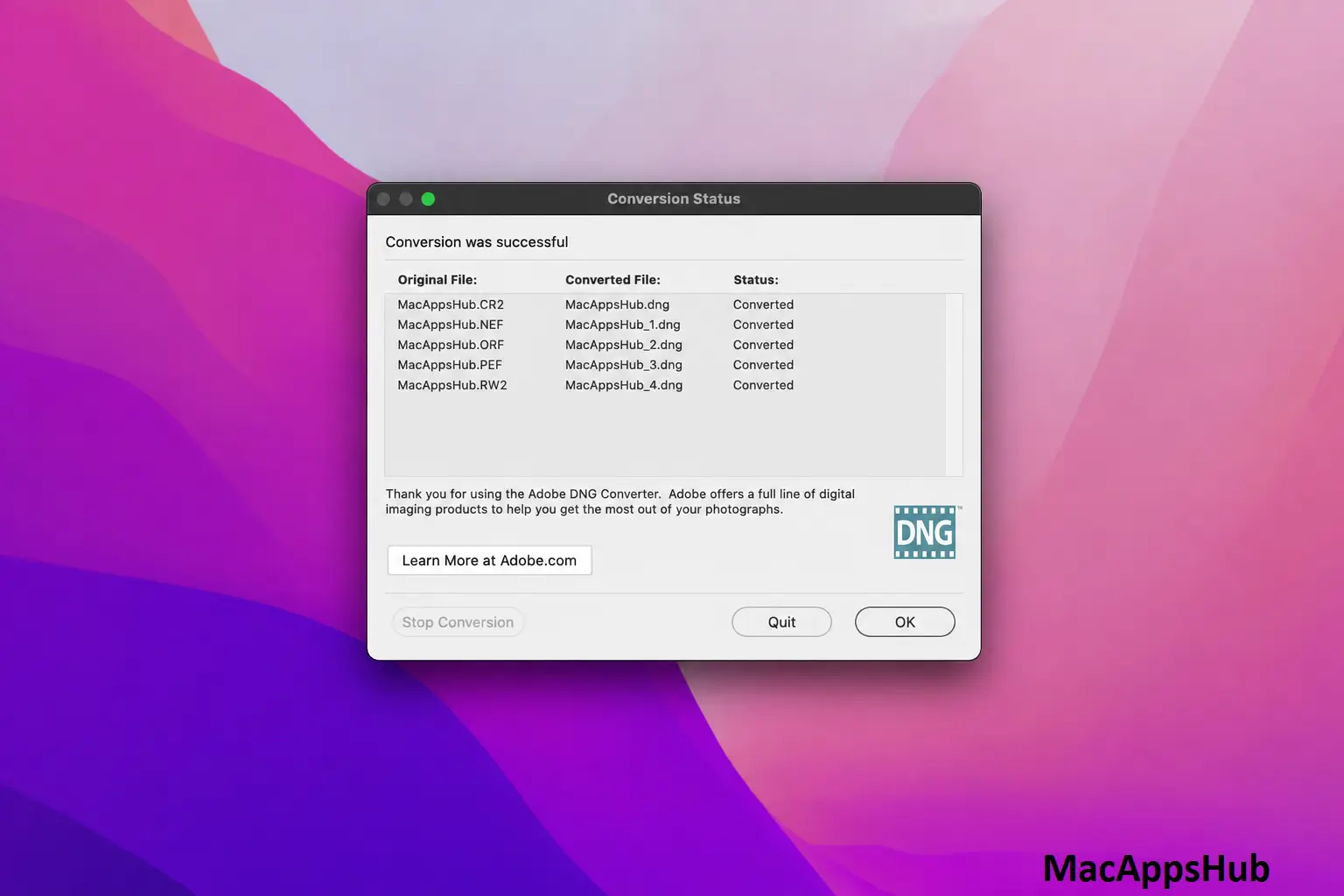
Adobe DNG Converter for Mac batch-converts proprietary camera RAW files, the kind produced by Canon, Nikon, Sony, Fujifilm, Panasonic, and hundreds of other camera models, into Adobe's open Digital Negative (DNG) format. DNG is built as an extension of the TIFF 6.0 specification, meaning it stays readable by future software long after a camera manufacturer's own proprietary format might be abandoned or poorly supported. The tool is strictly a one-way RAW-to-DNG converter, it doesn't convert DNG to JPG or PDF, and it doesn't edit photos itself. Photographers archiving years of shoots, anyone switching camera brands and wanting one consistent file format, and users preparing RAW files for Lightroom Classic or Photoshop all run it before anything else touches their files.
Why Choose Adobe DNG Converter for Mac
Camera manufacturers each use their own proprietary RAW format, and there's no guarantee software will keep reading a given brand's format decades from now. DNG solves that by being an openly published, TIFF-based specification that any developer can build support for, which is exactly why it's become the closest thing photography has to an archival standard. Running files through the converter once, at the time you import them, is far less painful than discovering years later that an old CR2 or NEF file won't open in current software.
The batch processing is what makes this practical at real volume. Point it at a folder of a few thousand RAW files from a shoot, and it converts the whole set unattended, preserving the original metadata, including camera settings and any embedded color profile information, rather than flattening it away. Adobe also keeps expanding camera support with each release, so a brand-new camera model usually gets added within a few months of its release rather than being left unsupported indefinitely.
Key Features
- RAW-to-DNG conversion: converts proprietary RAW files from Canon, Nikon, Sony, Fujifilm, Panasonic, and hundreds of other camera models into the open DNG format.
- Batch processing: point it at an entire folder and it converts thousands of files unattended, rather than one at a time.
- Metadata preservation: camera settings, timestamps, and embedded color profile data carry over into the converted file intact.
- TIFF 6.0-based open format: DNG's specification is publicly documented, so it isn't tied to any single company's continued support.
- Lossy compression option: optionally shrink file size for archival copies where the absolute original bit depth isn't needed.
- Fast-load preview embedding: embeds a JPEG preview inside each DNG so photo browsers display thumbnails instantly without decoding the full RAW data.
- Camera profile bundling: installs Adobe's color profiles for supported cameras alongside the converter itself.
- Native Apple Silicon support: runs as a universal binary on both Apple Silicon and Intel Macs.
- Command-line support: advanced users can script conversions from Terminal for automated workflows.
- Free, standalone tool: no Creative Cloud subscription or account required to download or use it.
What's New in 18.6 Version
Adobe doesn't publish a detailed public changelog for most Adobe DNG Converter releases; updates are typically framed around camera support rather than feature changes. Version 18.6 shipped August 26, 2026, continuing the pattern of recent releases: added support for newly released camera models from the past few months, and the current minimum requirement moved up to macOS 13 Ventura, up from macOS 14 as recently as version 18.2 in February 2026, an unusual case of a minimum requirement actually loosening rather than climbing.
Supported macOS Versions
Adobe DNG Converter 18.6 requires macOS 13 Ventura or later, a requirement that's actually eased slightly compared to a few versions back, when it briefly required macOS 14. It runs as a universal binary on both Apple Silicon and Intel Macs, and since RAW-to-DNG conversion is genuinely CPU-intensive work, especially with large batches of high-resolution files, an Apple Silicon Mac processes a folder of a few thousand RAW files noticeably faster than an older Intel machine. If you're on a Mac running an older macOS release, check Adobe's own site for legacy installers, since very old versions of the converter (back to 9.5.1) remain archived for exactly this situation.
How to Install Adobe DNG Converter on MacOS?
Installing Adobe DNG Converter is quick and simple.
- Download the latest version of Adobe DNG Converter for Mac safely to click above download button. Or you may get it from official website.
- Open the downloaded .dmg installer.
- Drag the application into the Applications folder.
- Launch Adobe DNG Converter.
- Select the folder containing your RAW photos.
- Choose the destination folder and conversion preferences.
- Start the conversion process and wait for your DNG files to be created.
After conversion, your DNG files can be imported into compatible editing applications such as Adobe Lightroom Classic and Adobe Photoshop.
How to Use Adobe DNG Converter Mac App?
- Launch Adobe DNG Converter and select the folder containing your camera's RAW files.
- Choose a destination folder, or select the option to save converted files in the same location as the originals.
- Pick a file naming convention for the converted DNG files under Preferences.
- Choose whether to preserve full image data or apply lossy compression to save space on archival copies.
- Click Convert and let the batch process run; large folders can take several minutes depending on file count and resolution.
- Open the resulting DNG files in Lightroom Classic, Photoshop, Preview, or any DNG-compatible app to confirm the conversion.
Alternatives
RawTherapee: A free, open-source RAW processor that can export to DNG alongside its own full editing toolkit, useful if you want RAW development and DNG conversion in one app.
Darktable: A free, open-source photography workflow application with DNG support, built around a non-destructive editing pipeline similar to Lightroom's.