Camtasia Overview
Camtasia for mac is a screen recording and video editing app from TechSmith that captures a Mac's screen, webcam, microphone, and system audio on separate tracks, then edits the result with AI-assisted tools. Its Audiate engine lets you cut a video by editing its transcript, strip filler words automatically, generate AI voiceovers or on-screen avatars, and translate narration into other languages. Beyond straightforward screen capture, it handles green-screen backgrounds, cursor smoothing, branded templates, and exports to formats like MP4 and WebM. The full editor downloads free, with the watermark removed only after upgrading to a paid plan.
Why Choose Camtasia Mac App
A built-in screen recorder like QuickTime captures footage, but cleaning it up still means finding separate tools for noise removal, captions, or background swapping. Camtasia keeps that whole pipeline in one app: recordings split into independent screen, webcam, mic, and system-audio tracks the moment they're captured, and the Audiate engine layered on top handles transcription-based editing, AI voiceovers, and automatic filler-word removal without switching programs. For anyone producing tutorials, training videos, or product demos regularly, that consolidation saves real time compared to stitching together a recorder, an audio cleaner, and a separate editor.
The Mac-specific detail worth knowing before recording anything: Camtasia only works from local drives, so a project folder living in iCloud Drive, Dropbox, or OneDrive has to be copied locally first, since cloud-synced locations aren't supported during recording or editing. That's the kind of quirk a generic screen recorder wouldn't need to warn about, but it catches new users off guard often enough that it's worth planning for before starting a project.
Key Features
- Multitrack recording: screen, webcam, microphone, and system audio are captured as separate, independently editable tracks.
- Audiate text-based editing: automatic transcription turns cutting a mistake into deleting a word instead of scrubbing the timeline.
- AI voices: generates lifelike narration as a stand-in for recording your own voice.
- AI avatars: creates an on-screen digital presenter for videos that don't need a real camera appearance.
- AI translation: dubs or captions narration into 7 languages and 9 dialects.
- One-click noise removal: strips unwanted background audio from a recording without manual filtering.
- Video background removal: swaps a webcam background for an image or animated backdrop without needing an actual green screen.
- Cursor effects via Screentelligence: smooths, resizes, or repositions the recorded cursor after the fact, based on locally analyzed metadata.
- Chroma key editing: removes a solid-color background for anyone recording with a physical green screen.
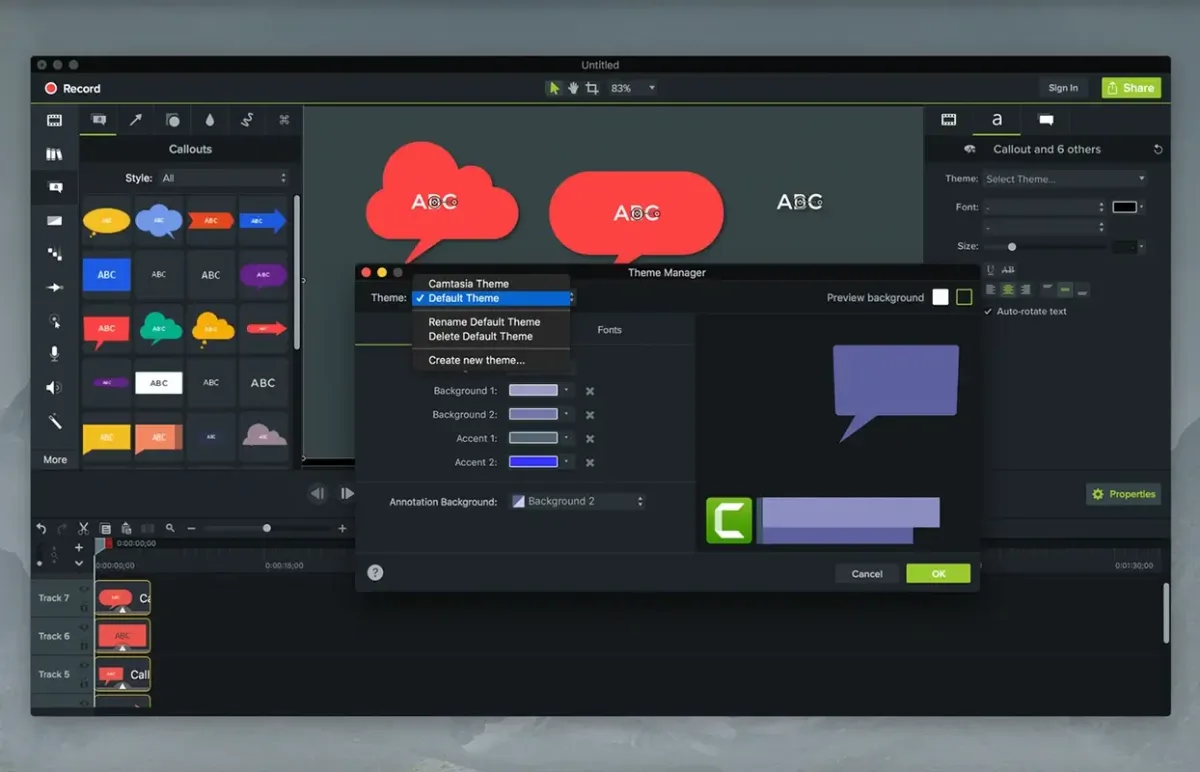
- Custom themes and templates: keeps a team's videos visually consistent without rebuilding branding each time.
- Royalty-free asset library: built-in music, video clips, and icons ready to drop into a project.
- Step Capture to Video: turns a Snagit step-by-step capture into an edited timeline with transitions and lower-third titles automatically.
Screenshots
What's New in Camtasia 2026.2.1 version
The current 2026.2.1 build, released August 26, 2026, is a bug-fix patch addressing a crash that could occur with certain assets, with no new features added. The last feature release, 2026.2.0 on August 13, 2026, is where the real additions landed:
- Automatic training video creation: grab step-by-step screenshots in Camtasia Snagit 2026.3.0 or later, then send them to Camtasia Editor to build a ready-to-share training video automatically
- WebM video export, adding a smaller-file, transparency-supporting option alongside existing export formats
- Curved remix arrow callouts, a new annotation style for pointing out details on screen
- A Standard vs. Delayed update channel setting, letting users choose faster access to new features or a more stability-tested release
- Customizable Animations in Camtasia Assets, along with improved support for Lottie animation files
That release also shipped a batch of under-the-hood library and dependency updates (FFmpeg, Sparkle, and others) aimed at IT-managed deployments, plus fixes for AI Noise Removal from the Rev workflow and a few interface glitches. Script and Narration Generation, mentioned in earlier TechSmith release notes for this cycle, specifically requires an active Camtasia Audiate, Create, or Pro subscription.
Supported macOS Versions
Camtasia runs on macOS 14.0 at minimum, but TechSmith's recommended configuration calls for macOS 26.0 or later paired specifically with an Apple silicon M1 Pro or M1 Max chip, not just any M-series Mac. That distinction matters because the AI features (background removal, noise removal, Audiate-powered editing) and multitrack timelines put real load on a system, and the base M1 or M2 chip in an entry-level MacBook Air will feel that more than a Pro or Max variant built for sustained rendering. Intel Macs from the 7th Generation onward are still supported, though anyone regularly exporting long multitrack projects will notice render times run longer than on Apple Silicon.
How to Download and Install Camtasia on Mac?
Installing Camtasia on Mac only takes a few steps after downloading, including one quick permission it needs to run properly.
- Click the Download button above to securely download the setup file OR you may get it from official website.
- Open the downloaded file, then follow the installer prompts to move Camtasia into your Applications folder.
- Launch Camtasia from Applications. If macOS shows an "unidentified developer" warning, go to System Settings → Privacy & Security and click Open Anyway.
- Grant Screen Recording and Microphone access when prompted, so Camtasia can capture your screen, camera, and audio.
- Sign in with a free TechSmith account when prompted, since one is required to start the trial.
Once signed in, Camtasia opens to its recording toolbar and won't ask for these permissions again on future launches.
How to Use Camtasia Mac App?
- Choose what to capture from the recording toolbar: full screen, a selected area, webcam, microphone, and system audio.
- Click Record, then Stop when finished; the recording opens automatically in the Camtasia Editor timeline.
- Trim, cut, or rearrange clips on the timeline, or send the recording to Audiate to edit it as text instead.
- Add callouts, transitions, cursor effects, or the background removal effect from the properties panel.
- Apply a theme or template to keep the video's branding consistent.
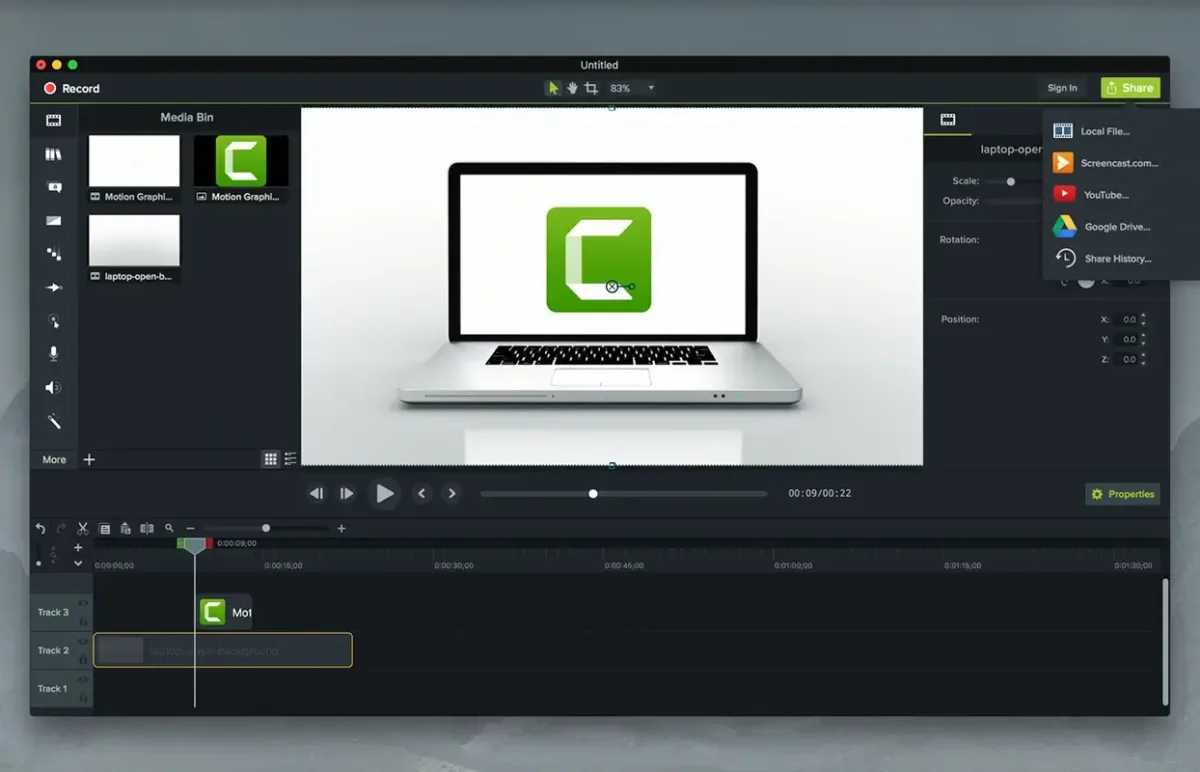
- Export the finished video as MP4 or WebM, or share it to Camtasia Online for feedback before finalizing.
Alternatives to Camtasia
OBS Studio: Free, open-source screen recorder with multitrack audio capture and live scene switching, though it leaves editing to a separate app.
DaVinci Resolve: Free, professional-grade video editor with color grading and multitrack timelines, with a steeper learning curve than Camtasia's more guided workflow.
Shotcut: Free, open-source video editor that runs natively on Apple Silicon and Intel Macs, with wide format support through FFmpeg and basic screen capture built in.