Visual Studio Code Overview
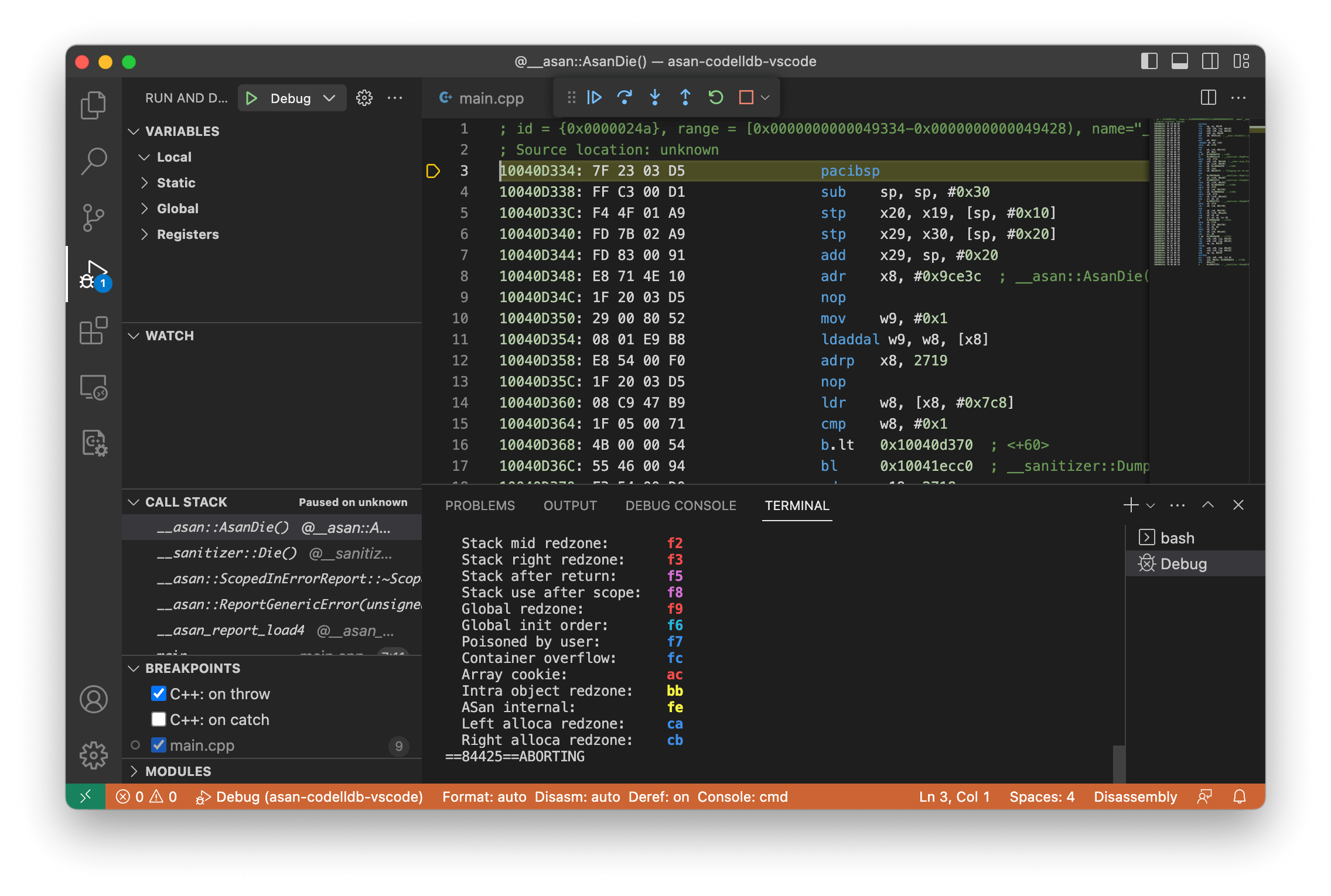
Visual Studio Code, commonly called VS Code, is Microsoft's free source code editor, first released in 2015 and now used by more than 75% of developers surveyed in recent Stack Overflow developer surveys. Built with Electron, it runs identically on Mac, Windows, and Linux, with the current version requiring macOS 12 or later. It includes built-in Git integration, IntelliSense code completion, a debugger, and an integrated terminal, along with a marketplace offering thousands of extensions for nearly every programming language. It's technically proprietary freeware, though it's built on top of Microsoft's open-source "Code - OSS" project. For developers who want one consistent editor across every platform they work on, VS Code remains one of the most widely used options available.
Why Choose Visual Studio Code for Mac?
Most code editors force a choice between being lightweight or being fully featured. VS Code manages both by staying a text editor at its core while letting extensions add exactly what you need, whether that's Python support, Docker tooling, or AI-assisted coding. Its extension marketplace has grown large enough that most languages and frameworks have solid, actively maintained support.
One thing worth knowing specifically as a Mac user: Microsoft doesn't distribute VS Code through the Mac App Store. The only official source is Microsoft's own website, so if you come across a similarly named app on the App Store, it isn't the same product and shouldn't be confused with genuine VS Code. Beyond that, since VS Code runs on Electron rather than as a fully native Mac app, some users report it feeling less snappy than lightweight native editors, which is a fair trade-off to weigh if raw speed matters more to you than cross-platform consistency.
Key Features
- Built-in Git integration for commits, branches, and diffs without leaving the editor
- IntelliSense code completion based on variable types and function definitions
- Integrated debugger for stepping through code directly in the editor
- Built-in terminal for running commands without switching windows
- Massive extension marketplace covering nearly every language and framework
- Support for over 30 programming languages out of the box
- Syntax highlighting, auto-indenting, and code snippets
- Multi-root workspace support for working across several projects at once
- Built-in AI coding assistance through GitHub Copilot integration
- Fully customizable themes, key bindings, and settings
What's New in 1.139.0 Version
Welcome to the 1.139 release of Visual Studio Code. This release helps agents work in your project's development environment, gives Codex sessions more flexibility, and keeps completed sessions organized.
New
- Remote Dev Container sessions: Run agents inside your project's Dev Container on SSH, Tunnel, and WSL hosts.
- Session list improvements: Load large session lists faster, fit more sessions on screen, and in-place session renaming.
- Editor experience: Identify wrapped lines at a glance and avoid duplicate closing brackets as you type.
Supported macOS Versions
Visual Studio Code requires macOS 12 or later and ships as a Universal Binary, meaning the same download runs natively on both Intel and Apple Silicon Macs without a separate build. The Mac version typically runs between 150MB and 250MB depending on your Mac's processor architecture. Since it's Electron-based rather than a fully native Mac app, memory usage can climb on older Macs when many extensions or large projects are open at once, so keeping extensions limited to what you actually use helps performance.
How to Install Visual Studio Code Mac?
- Installing Visual Studio Code on your Mac takes just a few steps.
- Download the latest version of Visual Studio Code for Mac.
- Open the downloaded .zip file to extract the application.
- Drag the Visual Studio Code icon into your Applications folder.
- Launch Visual Studio Code from your Applications folder.
- Install the "code" command in your PATH if you want to open projects from the terminal.
- Once installed, you can open a folder or project and start editing right away.
How to Use Visual Studio Code Mac?
- Open Visual Studio Code and open a folder to start a new project.
- Use the Extensions panel to install support for your programming language.
- Write and edit code, using IntelliSense for auto-completion as you type.
- Use the built-in terminal to run commands without leaving the editor.
- Use the Source Control panel to stage, commit, and push changes with Git.
- Set breakpoints and use the debugger to step through your code when needed.