
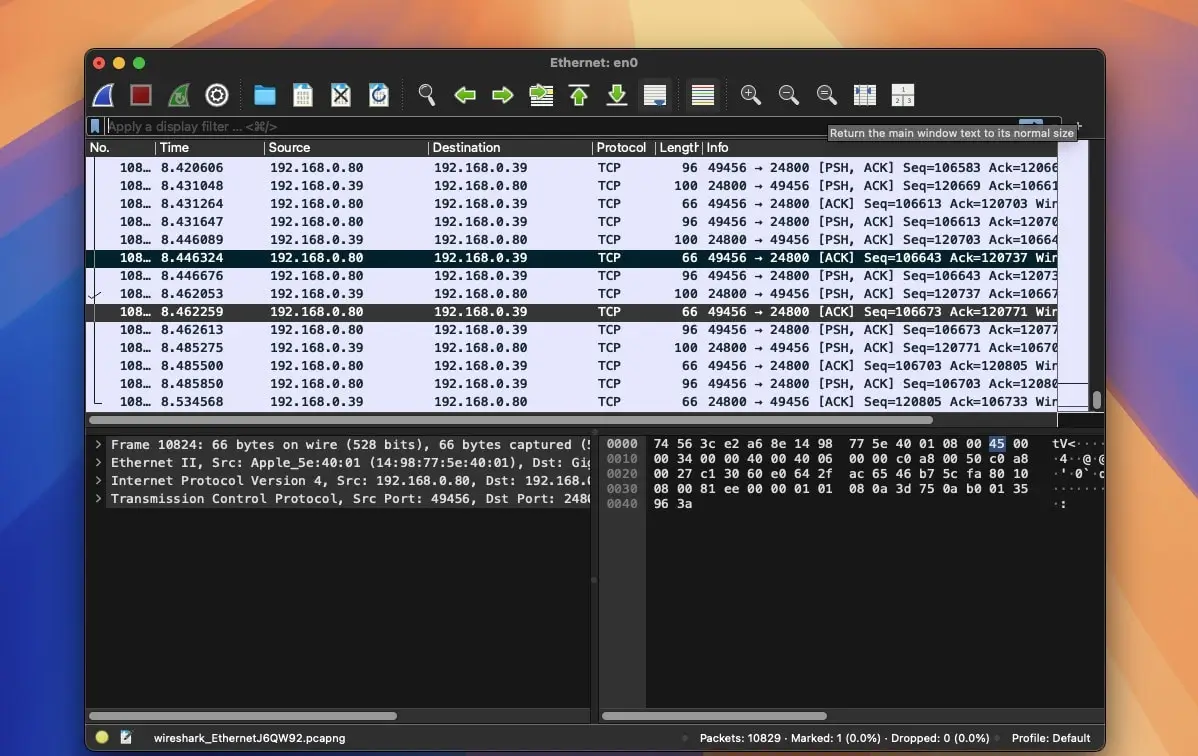
Wireshark Overview
Wireshark for Mac captures live network traffic and dissects it protocol by protocol, from the Ethernet frame up through HTTP, TLS, and hundreds of other supported protocols. It's built around what's widely considered the most powerful display filter syntax in network analysis, letting you isolate exactly the packets you need out of a capture with millions of them. Both live capture and offline analysis of saved capture files are supported, and it reads and writes dozens of file formats so captures from tcpdump, Sniffer Pro, or Microsoft Network Monitor all open without conversion. Network engineers troubleshooting a connectivity issue, security researchers inspecting suspicious traffic, and students learning how protocols actually work on the wire all reach for it as the standard tool for the job.
Why Choose Wireshark Mac App
No other packet analyzer matches Wireshark's protocol depth. Hundreds of protocols are dissected automatically, with new ones added every release, so opening a capture usually means Wireshark already understands what it's looking at rather than showing raw hex you have to decode by hand. The display filter language is the real differentiator: instead of scrolling through thousands of packets, a filter like `http.request.method == "POST"` or `ip.addr == 192.168.1.1` narrows a massive capture down to exactly the traffic that matters in an instant. Live capture and offline analysis both work the same way, and broad file format support means a capture handed to you from a colleague's tool, whatever it was made in, almost always just opens.
The 4.6 branch brought changes that matter specifically for Mac users. It now ships as a single universal DMG covering both Apple Silicon and Intel, replacing the separate Arm64 and Intel downloads earlier versions required. The macOS build runs on Qt 6.9.3, and Light or Dark mode can be set independently of your system-wide appearance setting if you want Wireshark to stay in one mode regardless of what the rest of macOS is doing. A new Plots dialog adds scatter plots alongside the existing I/O Graphs histograms, and improved decryption support now covers NTP traffic secured with Network Time Security, on top of existing TLS and MACsec decryption.
Key Features
- Deep protocol support: automatically dissects hundreds of network protocols, with new ones added every release.
- Industry-leading display filters: isolate exactly the traffic you need with the most powerful filter syntax in the field.
- Live capture and offline analysis: capture traffic in real time or analyze saved capture files whenever you need to.
- Broad file format support: reads and writes dozens of capture formats, including tcpdump/libpcap, Sniffer Pro, and Microsoft Network Monitor.
- Plots dialog: scatter plots for visualizing traffic patterns, alongside the classic I/O Graphs histograms.
- TShark command-line analyzer: script captures, analysis, and remote packet capture without the GUI.
- VoIP analysis tools: inspect and reconstruct voice traffic for troubleshooting call quality issues.
- Follow Stream: reconstruct and view an entire TCP, UDP, or media stream in one readable view.
- Coloring rules: apply custom color rules to the packet list so patterns jump out visually.
- Decryption support: decrypt TLS, MACsec, and NTP (via NTS) traffic when the right keys or secrets are available.
What's New in Wireshark 4.6.8 Version
Version 4.6.8 is primarily a security and stability release, fixing close to twenty dissector and file-parser crashes across protocols including RDP, Kerberos, Bluetooth ATT and HFP, UMTS FP, and several forensic file formats. None introduce new functionality on their own, but keeping Wireshark current matters more than usual for a tool that regularly parses untrusted, potentially malicious capture data.
The broader 4.6 branch it belongs to brought the headline Mac-relevant changes: a single universal DMG for Apple Silicon and Intel, Qt 6.9.3 under the hood, independent Light/Dark mode control, the new Plots dialog, and expanded NTP decryption via Network Time Security.
Supported macOS Versions
Wireshark 4.6.8 requires macOS 12 Monterey as a floor and runs cleanly through macOS 26 Tahoe. Since version 4.6.0, it ships as a genuine universal binary in a single DMG, so Apple Silicon and Intel Macs both install from the same download rather than needing separate architecture-specific packages like older releases required. Packet capture and dissection lean more on disk I/O and single-thread performance than raw multi-core power, so both Apple Silicon and Intel Macs handle typical captures well, with Apple Silicon pulling ahead noticeably on very large capture files.
How to Download and Install Wireshark on Mac?
Installing Wireshark on Mac only takes a few steps after downloading, including one important permission it needs to capture live traffic.
- First click on the Download button given on this page that is fully secure and complete the downloading procedure.
- Open the downloaded .dmg file, then drag Wireshark into your Applications folder.
- Launch Wireshark from Applications. If macOS shows an "unidentified developer" warning, go to System Settings → Privacy & Security and click Open Anyway.
- During setup, install the ChmodBPF helper when prompted. This lets Wireshark capture live traffic without needing administrator access every time.
- Restart your Mac if prompted, so the capture permissions take effect.
Once the initial setup is done, Wireshark won't ask for these permissions again — future launches go straight to the interface list.
How to Use Wireshark Mac?
- Launch Wireshark and select a network interface from the list to begin a live capture.
- Click the blue shark fin icon to start capturing traffic on the selected interface.
- Type a display filter, such as `http` or `ip.addr == 192.168.1.1`, to isolate the traffic you care about.
- Right-click any packet and choose Follow > TCP Stream to reconstruct a full conversation.
- Use Statistics > Plots or I/O Graphs to visualize traffic patterns over time.
- Save your capture as a .pcapng file to analyze later or share with a colleague.