Blackmagic Desktop Video Overview
Blackmagic Desktop Video for mac is the official driver and software suite from Blackmagic Design for its DeckLink, UltraStudio, Intensity, and Teranex capture and playback hardware. Version 16.2, the current release, requires macOS 15.0 or later and installs as a universal binary, covering both Intel and Apple Silicon Macs. The package includes Blackmagic Desktop Video Setup for configuring your device, Blackmagic Media Express for capture and playback, and plugins for editing software like Final Cut Pro, DaVinci Resolve, Adobe Premiere Pro, and Avid Media Composer. It's free, since it's the required driver layer for Blackmagic's own capture hardware to function on a Mac at all.
Why Choose Blackmagic Desktop Video for Mac
If you own a DeckLink, UltraStudio, or Intensity capture card, this isn't optional software, it's the driver layer that lets macOS recognize the hardware at all. Installing the right version matters more than with typical apps, since an outdated driver can cause capture dropouts or stop your card from showing up in editing software entirely.
There's a Mac-specific step worth knowing before you install: after running the installer, macOS will likely require you to approve the driver under System Settings, General, Login Items & Extensions, since third-party hardware drivers need explicit user approval to load on modern macOS. Blackmagic's own documentation also notes that if you installed the drivers before installing editing software like DaVinci Resolve or Premiere Pro, it's worth uninstalling and reinstalling Desktop Video afterward, since that ensures plugin components land in the right place for each app.
Key Features
- Native drivers for DeckLink, UltraStudio, Intensity, and Teranex hardware
- Blackmagic Desktop Video Setup for configuring capture and playback settings
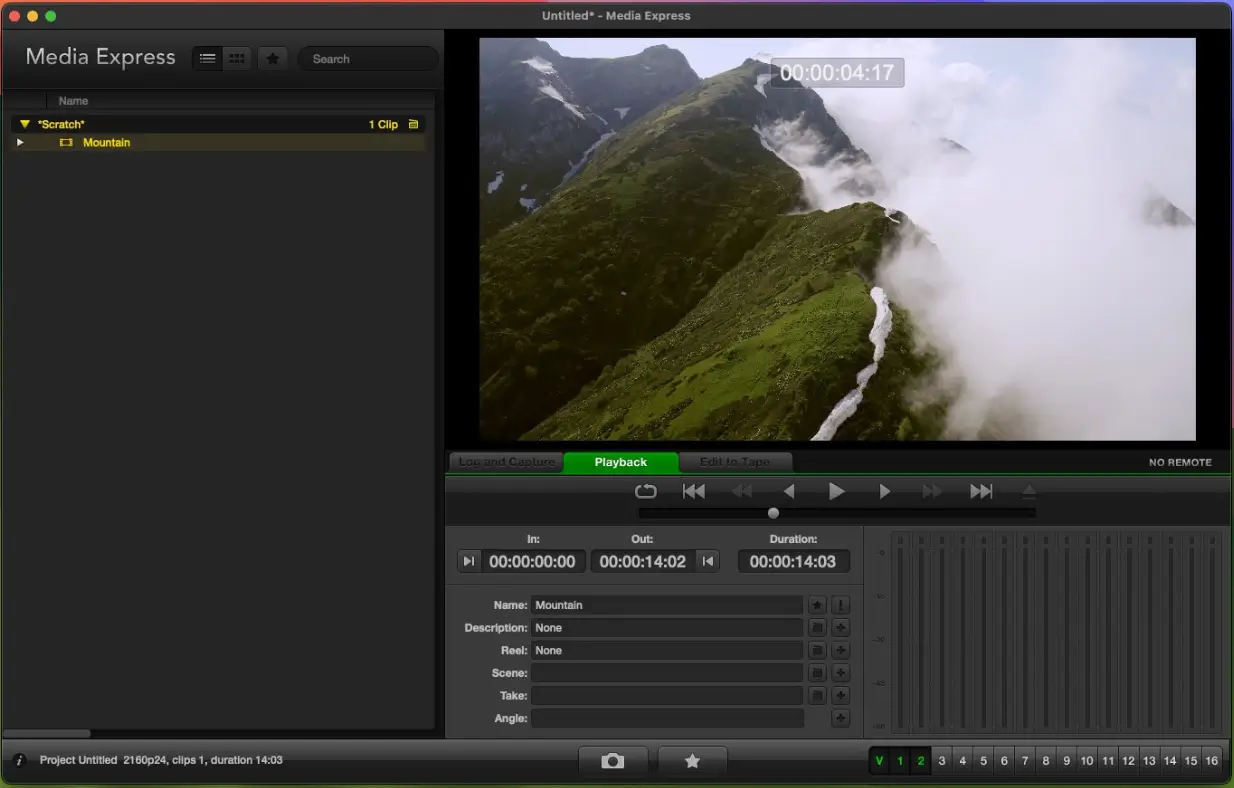
- Blackmagic Media Express for direct capture, playback, and clip management
- Support for resolutions up to 4K DCI
- Plugins for DaVinci Resolve 20/21, Fusion Studio 20/21, and Apple Final Cut Pro
- Plugin support for Adobe Premiere Pro, After Effects, Photoshop, and Character Animator (CC 25/26)
- Additional compatibility with Avid Media Composer, Avid Pro Tools, Autodesk Flame, Magix Vegas Pro, and Foundry Nuke
- Disk speed benchmarking tools to confirm your storage can handle your capture format
- Support for both Apple Silicon and Intel-based Macs
- Real-time processing built for live broadcast and time-sensitive workflows
What's New in 16.2 Version?
Blackmagic Desktop Video 16.2 focuses on expanded hardware support. Recent changes include:
- Added support for UltraStudio Mini Monitor 12G
- Added support for UltraStudio Mini Recorder 12G
- Added support for UltraStudio Mini Replay 12G
- Continued compatibility updates for current macOS releases
- General stability improvements across supported capture devices
Since this software is tied directly to physical hardware, updates tend to track new device releases and macOS compatibility rather than adding standalone features.
Supported macOS Versions
Blackmagic Desktop Video 16.2 requires macOS 15.0 (Sequoia) or later, with support continuing through macOS 26 (Tahoe). It runs on both Apple Silicon and Intel-based Macs, needs at least 8GB of system memory, and requires a USB port, Thunderbolt connection, or PCIe slot to connect your capture device. Unlike most apps, this driver doesn't update automatically, so it's worth checking Blackmagic's site periodically, especially after a macOS update, since driver compatibility issues are a common cause of capture cards not being detected.
How to Install Desktop Video on MacOS?
Installing Blackmagic Desktop Video correctly takes a few extra steps compared to typical software.
- Quit any apps currently using your Blackmagic device, such as video editors or capture software.
- Disconnect your Blackmagic capture device from your Mac.
- Download the latest version of Blackmagic Desktop Video for Mac.
- Open the downloaded disk image and run the uninstaller first if you're updating from an older version, then restart.
- Run the installer from the same disk image and follow the prompts.
- Reconnect your Blackmagic device and approve the driver under System Settings, General, Login Items & Extensions if prompted.
Once installed, your capture card should be detected automatically the next time you open compatible editing software.
How to Use
- Open Blackmagic Desktop Video Setup to configure your connected capture device.
- Choose your preferred video format and output settings for your hardware.
- Use Blackmagic Media Express if you want to capture or play back clips directly.
- Open your editing software, such as DaVinci Resolve or Final Cut Pro, to confirm your device appears as an input or output option.
- Run the included disk speed test if you're capturing high-resolution footage, to confirm your storage can keep up.