Canva Overview
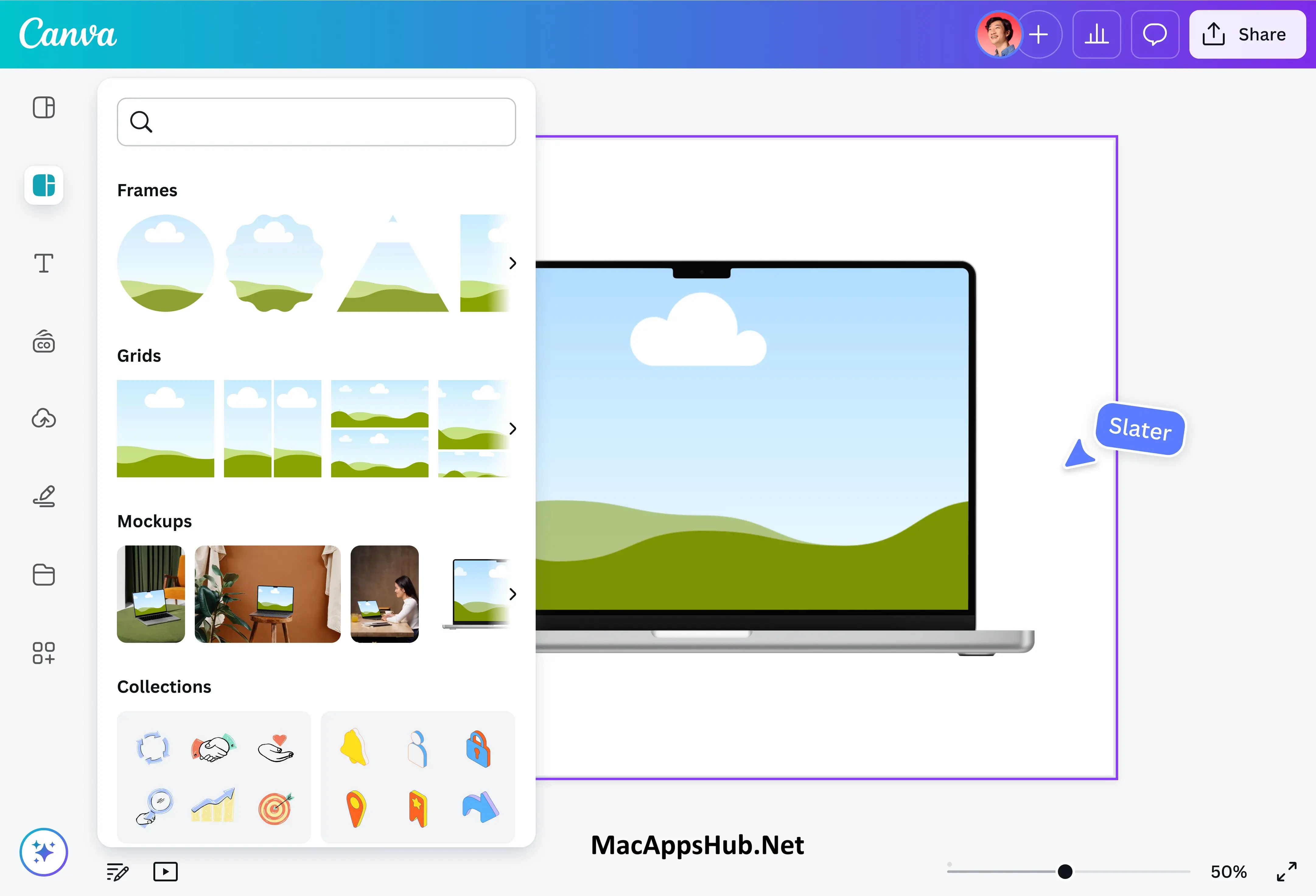
Canva for Mac is a drag-and-drop design platform for building social posts, presentations, documents, videos, and print materials without needing traditional design software skills. The free plan alone includes 1.6 million-plus templates and 4.7 million-plus photos, videos, graphics, and audio clips to start from. Magic Studio's AI tools handle the harder parts automatically: Magic Media generates images and video from a text description, Magic Eraser removes an unwanted object from a photo, and Magic Switch instantly resizes one design for a dozen different platforms. Small business owners building their own marketing materials, students putting together a presentation, and social media managers producing daily content all use it instead of juggling separate design tools.
Why Choose Canva Mac App
The free plan is the real reason this stands out from a lot of "free" design software that turns out to be a limited trial. Every design type, the full drag-and-drop editor, and millions of templates and stock assets are available without paying anything, so most casual and small-business design needs never actually require an upgrade. Magic Studio narrows the gap between a professional designer's toolkit and everyone else's: removing a background, generating a custom image, or resizing a poster into an Instagram story used to mean separate software or separate skills, and now it's a couple of clicks inside the same canvas.
A few details matter specifically for the Mac desktop experience. Canva Offline, a newer addition, lets you keep working on a design without an internet connection, useful on a flight or anywhere connectivity isn't guaranteed. Access to Affinity's professional photo, vector, and layout tools now comes bundled even into the Free plan, adding real depth for anyone who outgrows basic templates. And Brand Kit keeps a business's logo, color palette, and fonts in one place, so a design made by anyone on a team still looks like it came from the same brand.
Key Features
- Drag-and-drop editor — build professional-looking designs without the learning curve of traditional design software.
- Massive template and asset library — enough free stock content that a paid subscription genuinely isn't required to start designing.
- Magic Studio AI tools — a suite of AI shortcuts covering image and video generation, object removal, and one-click resizing across formats.
- Visual Suite — dedicated tools for social posts, presentations, documents, websites, whiteboards, and print materials in one platform.
- Brand Kit — the fix for a team where everyone's version of "the brand blue" is slightly different.
- Canva Offline — a design open on a flight doesn't have to sit untouched until you land.
- Access to Affinity — professional photo, vector, and layout editing tools included even on the free plan.
- Video and photo editing — trim video, remove backgrounds, and enhance photos without leaving the app.
- Magic Layers — separate an image into distinct editable layers for more precise editing control.
- Real-time collaboration — share a design link and work on it together with comments and assigned tasks.
What's New in Canva 1.124.0 Version
Detailed release notes for this specific build weren't published by Canva. The desktop app ships as a single universal DMG covering both Apple Silicon and Intel Macs, and recent additions across the platform, including Canva Offline for working without a connection and Magic Layers for splitting an image into editable layers, are both now available in trial form on the Free plan.
Supported macOS Versions
Canva 1.124.0 requires macOS 12 or later and runs cleanly through macOS 26 Tahoe. As a genuine universal binary, confirmed by its own "universal" installer naming, it supports both Apple Silicon and Intel Macs from a single download, and since most of the heavy processing for AI features like Magic Media happens in the cloud rather than on your Mac, performance stays fairly consistent across chip types for everyday design work.
How to Download and Install Canva on Mac?
Installing Canva on Mac only takes a few steps after downloading, including one quick permission it needs to run properly.
- Click the Download button above. You may briefly land on our file host's page before the download begins.
- Open the downloaded .dmg file, then drag Canva into your Applications folder.
- Launch Canva from Applications. If macOS shows an "unidentified developer" warning, go to System Settings → Privacy & Security and click Open Anyway.
- Sign in with an existing account, or create a free one to get started.
Once the initial setup is done, Canva won't ask for these steps again, future launches go straight to your designs.
How to Use Canva Mac App?
- Choose a design type or search a template that matches what you're making.
- Drag and drop text, images, and elements onto the canvas to build your design.
- Use Magic Studio tools like Magic Eraser or Magic Media when you need an AI-assisted edit.
- Save your logo, colors, and fonts to a Brand Kit for consistent use across future designs.
- Export your finished design as PDF, JPG, or PNG, or share it directly via a link.
Alternatives
Adobe Express: Adobe's free-tier template-based design tool, aimed at the same quick social and marketing content Canva covers.
Figma: A free-tier design tool built around real-time collaboration, stronger for UI and interface design than templated marketing content.
GIMP: A free, open-source photo editor with a steeper learning curve, suited to more hands-on image editing than Canva's templates.