
Microsoft Outlook Overview
Microsoft Outlook for Mac is a powerful email and productivity application that helps you manage emails, calendars, contacts, tasks, and meetings from one place. Designed for personal and professional use, it integrates seamlessly with Microsoft 365, Exchange, Outlook.com, Gmail, iCloud, and other popular email services, making communication and scheduling more organized across macOS.
Key Features
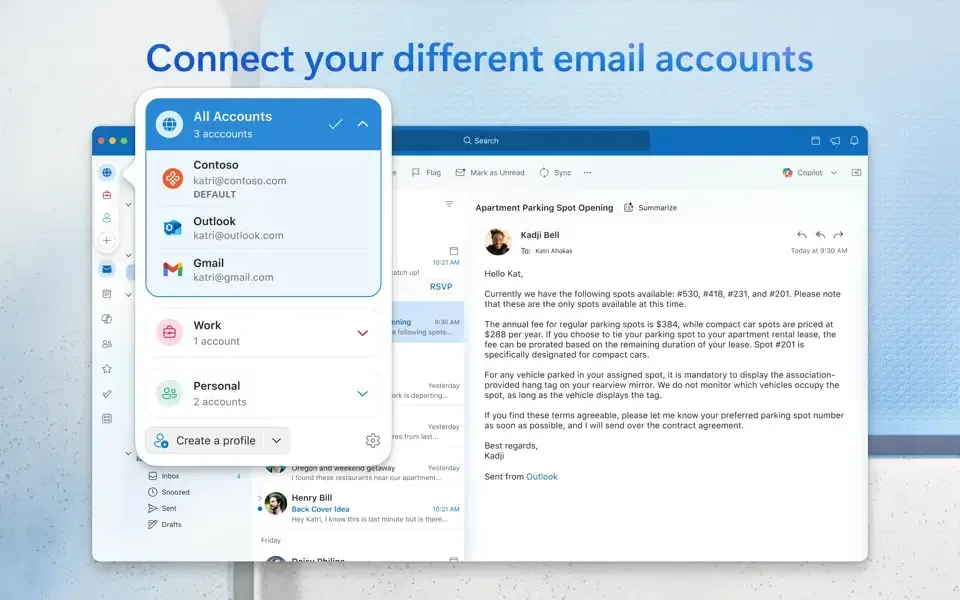
- Manage multiple email accounts in one place.
- Built-in calendar and meeting scheduler.
- Smart inbox with focused email organization.
- Supports Microsoft 365, Exchange, IMAP, and POP.
- Gmail, Outlook.com, Yahoo, and iCloud compatibility.
- Contact and address book management.
- Integrated task and reminder support.
- Fast email search with advanced filters.
- Sync emails across multiple devices.
- Optimized for Apple Silicon and Intel Macs.
- Secure spam and phishing protection.
- Dark Mode support for macOS.
- Cloud synchronization with Microsoft services.
- Regular feature and security updates.
- Clean and user-friendly interface.
What's New in 16.113.3 Version?
The latest version of Microsoft Outlook for Mac introduces improvements focused on productivity, performance, and collaboration. Recent updates include:
- Fixed: an issue where a blank line after the signature could disappear when reopening a saved reply draft.
- Fixed: an issue preventing some users from being able to use the application.
- Fixed: an issue preventing users to send email under Report as False Positive DLP scenario.
- General quality and performance enhancements.
- Fixed an issue preventing sharing documents and content from other Office applications to Outlook.
Resolved Issues
- Mail: The unread-count badge in the Dock now initializes correctly at startup.
- Mail: Improved the experience for viewing and interacting with Loop components in Outlook messages.
- Add-ins: Attachments added or removed by add-ins now synchronize more reliably, including during rapid or overlapping draft saves.
Feature Updates
- Calendar: Outlook Settings now let users manage work hours and work-location schedules for supported accounts.
- Calendar: Users can choose whether accepted invitations are removed from the Inbox and whether conflicting events are automatically declined on supported accounts.
- Mail: Replies forwards, initial content, and signatures now automatically follow the left-to-right or right-to-left direction of the referenced message.
- Mail: Added Editor Settings to customize spelling and grammar by language.
- Mail: Added a remove button to make deleting recipients easier when composing emails.
- Mail: Paste Options now supports converting Markdown to rich text.
- Mail: Paragraph Options now provide better control over advanced formatting.
- Contacts: Administrators can use cloud policy to control whether presence indicators appear for recipients and contacts in Outlook.
- Copilot: Eligible users can now see linked Microsoft account subscriptions associated with their Copilot account in Outlook Settings.
- Security: Outlook can automatically inherit an appropriate sensitivity label from labeled attachments
- General: Users can right-click Mail, Calendar, and People icons in the left rail to open them in a separate window.
- General: Users can personalize Outlook by choosing an accent color.
Screenshots


How to Install Microsoft Outlook on MacOS?
Installing Microsoft Outlook is quick and easy.
- Download the latest version of Microsoft Outlook for Mac.
- Open the downloaded installer or Microsoft Office package.
- Follow the installation instructions.
- Launch Outlook from the Applications folder.
- Sign in with your Microsoft account or Microsoft 365 subscription.
- Add your email account using Exchange, Microsoft 365, Gmail, IMAP, POP, or another supported provider.
- Allow Outlook to synchronize your emails, calendars, and contacts.
Once setup is complete, you can begin sending emails, managing appointments, and organizing your daily workflow from a single application.