Fantastical for Mac Overview
Fantastical is a calendar and tasks app for Mac. Type an event the way you'd say it, such as lunch with Sarah at 1pm tomorrow. It lands on your calendar. A mini window opens from the menu bar with one click or keystroke. It pulls iCloud, Google, Microsoft 365, Exchange, and other CalDAV accounts into one view. Events and tasks share the same list. Tasks work with iCloud Reminders, Todoist, and Google Tasks. DayTicker, Day, Week, Month, Quarter, and Year views cover every zoom level. A free plan handles the core calendar. Flexibits Premium adds scheduling tools, conference call detection, and unlimited Calendar Sets. The app runs natively on Apple Silicon and Intel Macs.
Why Choose Fantastical App
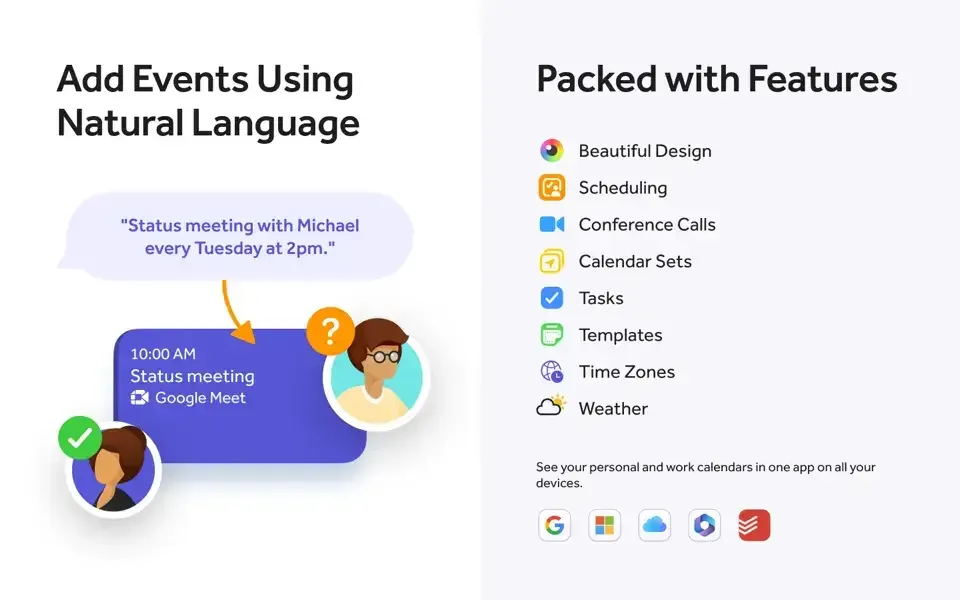
Adding an event to a standard calendar means filling in a form. Title, date, time, location, invitees, alert. Fantastical skips the form. Type a sentence and press Return. It reads the date and time from your words. It can pick out the location too. A live preview shows where the event will land. Open it from the menu bar. Add the event. Get back to work.
Your accounts stay in one place. iCloud, Google, Microsoft 365, and Exchange events sit side by side, so double bookings stand out. Privacy gets attention too. Events, tasks, and account logins stay on your Mac, and passwords live in the Keychain. The free plan works on its own. Premium is sold as a subscription, and that's the most common complaint from longtime users.
Key Features
- Natural language entry: turns a typed sentence into an event or task with the right date, time, and place.
- Apple Intelligence parsing: reads complex sentences with Apple Intelligence on macOS 26 and later.
- Event extraction: pulls details from an image dropped on the menu bar icon, or from forwarded emails with Premium.
- Unified accounts: shows iCloud, Google, Microsoft 365, Exchange, Fastmail, and CalDAV calendars together.
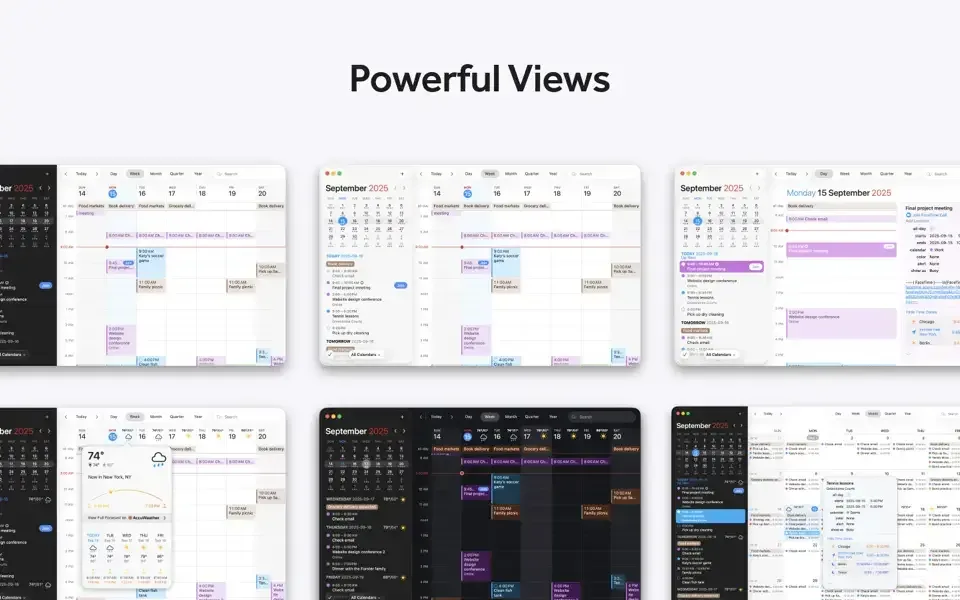
- Six views: switches between DayTicker, Day, Week, Month, Quarter, and Year.
- Tasks beside events: lists dated tasks next to events, with iCloud Reminders, Todoist, and Google Tasks support.
- Calendar Sets: toggles groups of calendars on and off with a click or keystroke, with one set on the free plan.
- Conference call detection (Premium): spots Zoom, Teams, Google Meet, Webex, and FaceTime links, with a Join button and menu bar item.
- Fantastical Scheduling (Premium): adds RSVP invitations, Openings links, and Proposals for finding a shared time.
- Weather forecast: shows AccuWeather forecasts inside calendar views, three days free and ten days with Premium.
- Favorite time zones (Premium): converts event times for the time zones you care about.
- Templates (Premium): saves frequent events and tasks so you can reuse them in one step.
Screenshots
What's New in Fantastical 4.2.2 version
- Added the option to drop an image onto the menu bar icon to start event extraction.
- Added link detection to invite responses.
- Improved detection of when repetition ends for events in emails and images.
- Improved search to deliver results more quickly.
- Improved syncing of Graph accounts.
- Updated Fantastical to use new Canadian time zones for Microsoft 365 accounts.
- Fixed an issue where mirrored events could be copied at the wrong time.
- Fixed an issue where mirrored events would not update when the original event was changed on an Exchange or Microsoft 365 account.
- Fixed an issue where all-day events could incorrectly get truncated in the list
- Fixed an issue where Meet With account discovery did not probe accounts in the order shown in Accounts settings.
- Fixed an error that could appear when updating through the App Store.
- Fixed time zone information to account for the change in Alberta, Canada.
- Fixed an issue where you couldn't create recurring tasks on Microsoft 365 accounts.
- Various fixes and improvements.
Supported macOS Versions
Fantastical needs macOS 12.4 or later. It runs natively on Apple Silicon and Intel Macs. The refreshed Liquid Glass design arrives on macOS 27. Apple Intelligence parsing needs macOS 26 and a Mac with Apple Intelligence. Separate legacy builds exist for Big Sur and earlier systems. Calendar work is light, so hardware speed rarely matters. A stable connection matters more, since sync and weather depend on it.
How to Download and Install Fantastical on Mac?
Fantastical is also on the Mac App Store. Installing the direct download takes a few steps.
- Click the Download button above to download the setup file.
- Open the downloaded file, then drag Fantastical into Applications.
- Launch it. If macOS shows a security prompt, open System Settings, then Privacy & Security, and click Open Anyway.
- Allow Calendar access when macOS asks, or add your Google, Microsoft 365, Exchange, or iCloud account directly.
How to Use Fantastical Mac App
- Open the mini window from the menu bar, or press your keyboard shortcut.
- Type an event the way you'd say it, such as "Lunch with Sarah at 1pm tomorrow," then press Return.
- Check the live preview to see where the event will land before you save it.
- Start a sentence with "todo" or "remind me to" to create a task instead of an event.
- Drop a screenshot of an invitation onto the menu bar icon to pull out the event details.
- Set up a Calendar Set to switch between Work and Personal with one keystroke.
Alternatives to Fantastical Mac App
Calendar (built into macOS): Free and included on every Mac. Works with iCloud, Google, and Exchange accounts, with a simpler feature set.
Calendr: Free, open-source menu bar calendar for macOS. Shows events and reminders from your Mac's calendars, and focuses on quick viewing rather than full calendar management.