
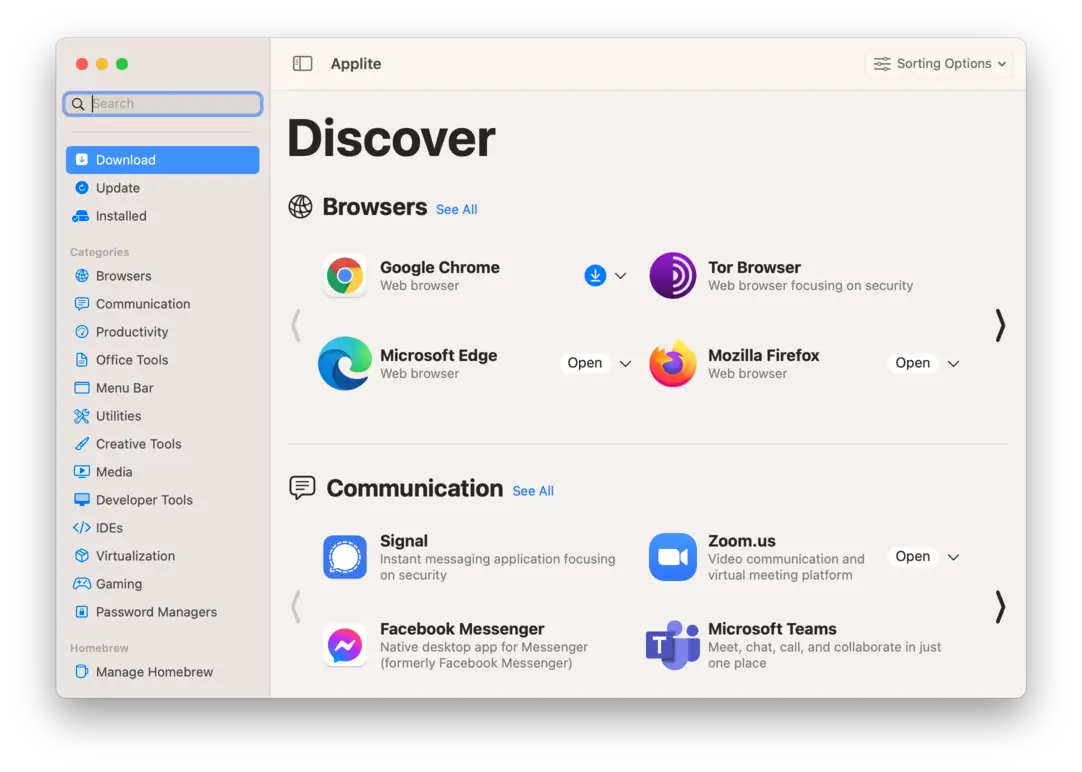
Applite Overview
Applite for Mac is a free, open-source graphical user interface designed by Milan Varady to manage third-party software through Homebrew Casks. Built with Swift and SwiftUI, it delivers a native App Store experience for desktop applications that are not available on the official Mac App Store. The software allows non-technical users to discover, install, update, and uninstall software packages with a single click. It operates using its own embedded Homebrew instance without requiring command-line tools, while also supporting custom system prefixes for existing Homebrew installations. Featuring local SQLite database indexing with FTS5 search, Applite eliminates complex terminal commands from everyday Mac app management.
Why Choose Applite Mac
Applite offers a visual solution for managing Mac applications without interacting with Terminal scripts or Xcode Command Line Tools. Unlike traditional package wrappers, it isolates Homebrew execution into a dedicated user directory or connects seamlessly to pre-existing setups. The interface organizes software into structured categories with instant full-catalog search, making third-party app deployment fast and transparent.
The application runs natively as a Universal Binary optimized for both Apple Silicon and Intel Mac architectures. Leveraging reactive SwiftUI components and GRDB SQLite caching, it renders app galleries and update status without locking system resources. Integrated Brewfile export and import tools allow users to back up or migrate complete app libraries to a new Mac in seconds.
Key Features
- One-Click App Management: Installs, updates, and uninstalls Homebrew Cask applications with single-tap actions.
- Standalone Setup: Embedded Homebrew installation runs without requiring Terminal or Xcode Command Line Tools.
- Full-Catalog FTS5 Search: Local SQLite database engine with BM25 ranking for rapid software searches.
- Brewfile Migration: Supports exporting and importing Brewfiles to restore app libraries on new Mac hardware.
- Custom Tap & Repository Support: Connects to custom Homebrew taps and third-party software repositories.
- Network Proxy Support: Built-in support for HTTP, HTTPS, and SOCKS5 proxy configurations.
- Existing Brew Compatibility: Seamlessly links with pre-installed Homebrew directories on macOS.
- Zero Telemetry & Open Source: Fully transparent MIT-licensed architecture with zero user tracking.
What's New in 1.4.0 Version
The v1.4.0 release upgrades internal database architecture, UI responsiveness, and system integration.
- Migrated catalog indexing engine to GRDB.swift with SQLite FTS5 for fast full-text searching.
- Added per-app selection sheets during Brewfile imports for granular migration control.
- Refined reactive background loading for brew list and outdated cask detection.
- Improved mirror download handling and configurable catalog fetch frequencies.
- Optimized interface components natively for macOS 15 Sequoia and Apple Silicon M4 hardware.
- These updates ensure stable app deployments, quick catalog queries, and reliable background update checks.
Supported macOS Versions
Applite 1.4.0 requires macOS 14.0 (Sonoma) or later, fully supporting macOS 15 Sequoia. It runs natively on Apple Silicon processors (M1 through M4 series) and 64-bit Intel chips. The installation requires approximately 50 MB of initial storage space, with a minimum of 4 GB RAM recommended for smooth image caching and database rendering.
How to Install Applite on macOS?
Setting up Applite on your Mac takes just a few steps.
- Download the latest version of Applite for Mac.
- Locate and open the downloaded installer package in your Downloads folder.
- Drag the Applite icon into your Applications folder.
- Launch Applite directly from your Applications folder or via Spotlight search.
- Grant any network access permissions macOS requests upon initial startup.
- Choose whether to use the embedded Homebrew environment or link your existing installation.
How to Use Applite Mac?
- Launch Applite to allow the initial app catalog and category database to build.
- Browse the curated category sections or use the search bar to locate a software package.
- Click the Install button next to any application to initiate background downloading.
- Access the Installed tab to view active software and check for pending update patches.
- Click Update All to refresh all installed Homebrew Casks simultaneously.
- Use the Settings menu to configure custom taps, SOCKS5 proxies, or export your Brewfile.