FileWorks Overview
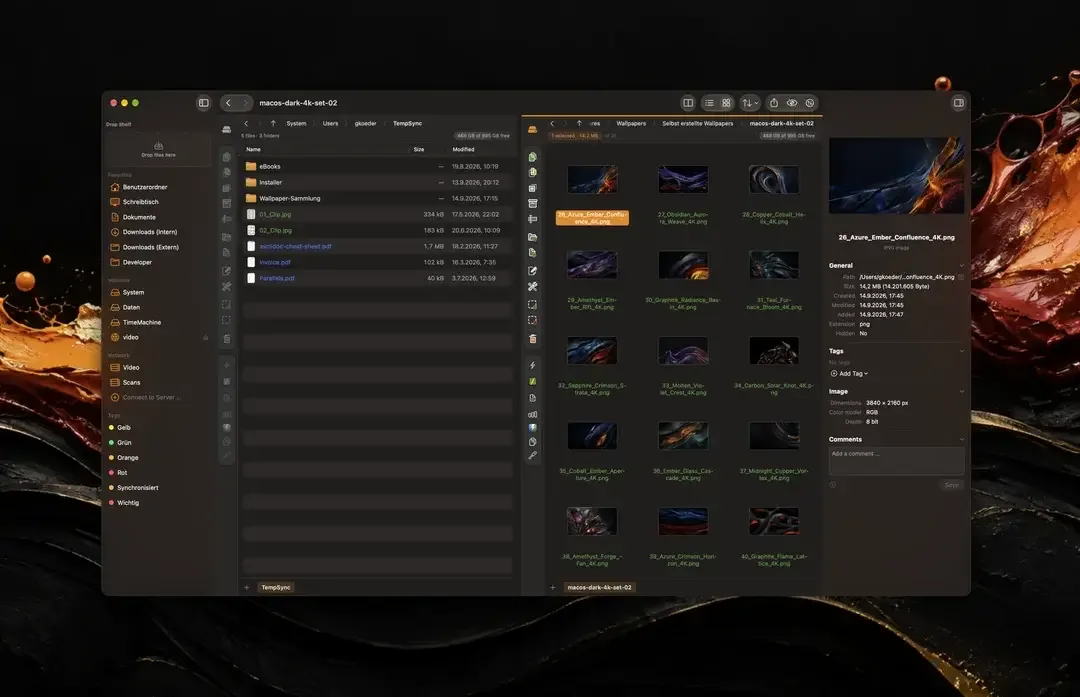
FileWorks is a native dual-pane file manager for Mac from Innovative Bytes. It shows a source and a destination side by side, which suits frequent copying and moving. A transfer queue runs jobs one after another with progress, speed, and time remaining. Archives open like folders, including ZIP, 7z, tar, rar, and ISO files. Multi-rename builds names from patterns, counters, and dates, with RegEx support. SHA-256 checksums verify copies. Finder tags are read and written. Dark mode and full keyboard control are included. The developer states that no data leaves your Mac and that the app is free. Version 1.7 runs on macOS 26 or later. It suits anyone who moves large sets of files.
Why Choose FileWorks Mac App
Finder handles one folder at a time, which makes big copy jobs feel clumsy. FileWorks puts both ends of the job on screen. The second pane can be hidden when you want a single view. A transfer queue keeps long jobs in order, and failures stay visible until you review them. Files are written to a temporary copy and swapped in at once, so a cancelled job restores the earlier state. That safety matters when you move many files at once.
The second reason is privacy and cost. The developer says the app has no account, no analytics, and no cloud backend. It never connects to the developer, even for update checks, so new versions are installed by hand from the release notes. Every release is notarized by Apple. The full app is free, with no trial, nag screens, or paywalled features. Support is optional, through a donation or a purchase of the developer's other app. The manual and interface are in English and German.
Key Features
- Dual panes: shows source and destination side by side, with the second pane hideable.
- Transfer queue: runs jobs in sequence with progress, speed, ETA, and cancel options.
- Archives as folders: browses ZIP, 7z, tar, rar, and ISO files, and creates password-protected archives.
- Multi-rename: builds names from patterns, counters, dates, and folders, with RegEx and a live conflict preview.
- SHA-256 checksums: verifies copy integrity, finds duplicates, and checks download authenticity.
- Finder tags: reads and writes standard macOS tags.
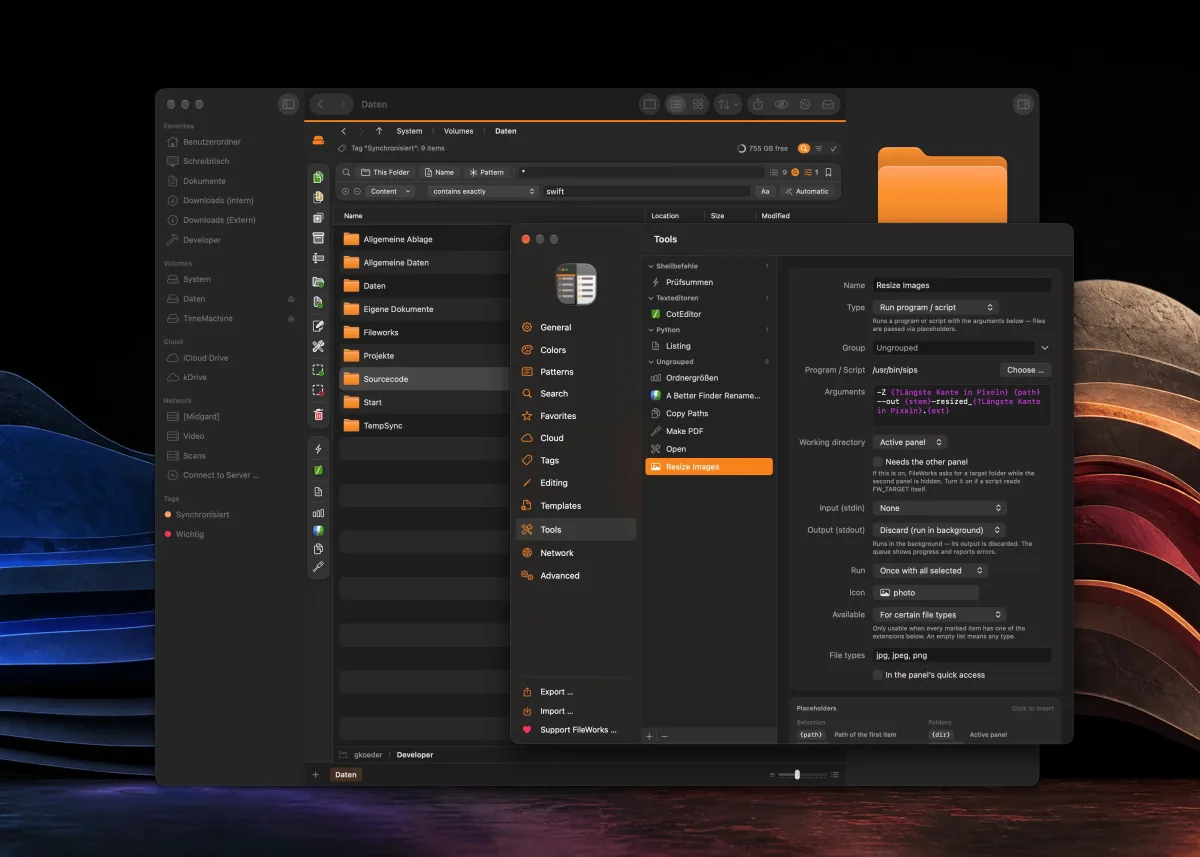
- Search: includes mask marking, quick filtering, recursive search, content search, up to four search rules, and saved searches.
- Drop Shelf: holds files from different folders to drag out, move, or copy together.
- Custom tools: turns apps, scripts, one-liners, or Shortcuts into buttons.
- Cloud file handling: downloads cloud-only files as part of a job so copies are complete.
Screenshots
What's New in FileWorks 1.7 Version
- Up to four search rules per search
- Content search for text and Office files, through Spotlight or direct file reading
- Saved searches in the sidebar
- A Drop Shelf for collecting files from different folders
- Folder searches on local disks about four times faster
- iCloud Drive and cloud services included in home-folder and whole-Mac searches
- Fixes for keyboard focus, selection, and symbolic-link folder bugs
- Fixed missing app and tool icons in the Open With and Tools menus on macOS 27
Supported macOS Versions
FileWorks 1.7 requires macOS 26 or later, and its macOS 27 fix shows the developer tracks new system releases. That is a high floor, so Macs stuck on macOS 15 or older cannot run this version. The developer does not say whether the app is built for Apple silicon, Intel, or both. Another listing shows both. The installer is about 50.2 MB, and the developer lists no RAM or storage needs. A dual-pane manager is light on resources. Content search and large transfers depend more on disk speed than on processor power. Cloud-only files need an internet connection to download first.
How to Download and Install FileWorks Mac?
Installing FileWorks on Mac takes under a minute.
- Click the Download button above to download the setup file.
- Open the downloaded file, then move FileWorks into your Applications folder.
- Launch FileWorks from Applications. If macOS asks you to confirm opening an app downloaded from the internet, click Open.
- Allow folder access if macOS asks, so FileWorks can browse your drives.
- Pick a source folder in the left pane and a destination in the right pane.
How to Use FileWorks Mac?
- Open a folder in each pane, or hide the second pane for a single view.
- Select files and copy or move them to the other pane.
- Watch the job in the transfer queue and review any failures.
- Open an archive like a folder, or create a password-protected archive.
- Use Multi-rename to build a pattern, check the live preview, and apply it.
- Verify a copy with a SHA-256 checksum.
- Run a content search or save a search to the sidebar for later.
Alternatives to FileWorks
Finder: Built into macOS and free, it handles everyday file work with tabs. It has no dual-pane mode or transfer queue. It is listed from general knowledge, so confirm its features on your macOS version.
Marta: File manager for Mac with a dual-pane layout. It is listed from general knowledge, so check its current price, macOS support, and features before choosing it.