
FileZilla Overview
FileZilla is a free, open source FTP client for Mac. It connects to servers using FTP, FTP over TLS (FTPS), or SFTP. You can drag and drop files between your Mac and a remote server. The Site Manager stores your server logins for one-click reconnecting. Large files over 4GB resume automatically if a transfer drops. A tabbed interface lets you manage several connections side by side. FileZilla ships as two separate downloads, one for Apple Silicon and one for Intel. Both run the same free, ad-free client with no watered-down feature set.
Why Choose FileZilla Mac App
A lot of file transfer apps hold real features behind a paywall. FileZilla doesn't. FTP, FTPS, SFTP, the Site Manager, directory comparison, all of it ships free. There's no trial timer and no feature to unlock later. For anyone who just needs to move files to a server without spending money, that's rare.
On Mac, FileZilla ships as two separate builds instead of one universal app, one for Apple Silicon and one for Intel. A recent update also worked around a macOS 27 bug that caused AppKit crashes when the system locale was set to a non-English language, a fix aimed squarely at Mac users on the newest OS.
Key Features
- FTP, FTPS, and SFTP support: connects using all three major file transfer protocols.
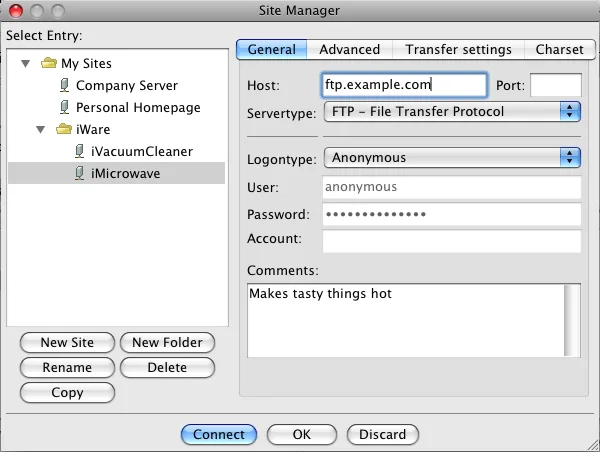
- Site Manager: stores server addresses, usernames, and connection settings for one-click reconnects.
- Resume large transfers: picks up interrupted transfers of files over 4GB right where they left off.
- Tabbed interface: keeps multiple server connections open in separate tabs.
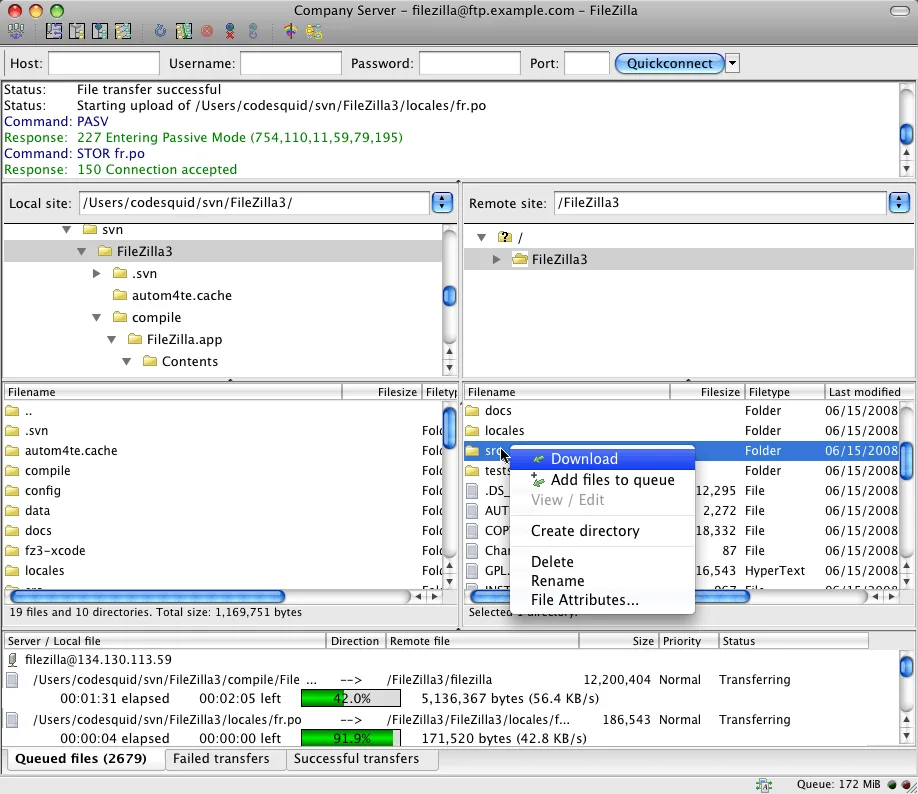
- Drag and drop: moves files between your Mac and a remote server by dragging them.
- Directory comparison: highlights differences between local and remote folders before you transfer anything.
- Synchronized browsing: mirrors your navigation on the remote server as you browse local folders.
- Remote file editing: opens a remote file in your default editor and uploads changes automatically on save.
- Configurable speed limits: caps upload and download speed to avoid saturating your connection.
- Filename filters: hides or shows files based on name, size, or type while browsing.
- SOCKS5 and HTTP proxy support: connects through a proxy server when a direct connection isn't possible.
- Remote file search: searches for files on the server without downloading them first.
Screenshots
What's New in FileZilla 3.71.1 Version
Version 3.71.1 is a small maintenance release with two fixes:
- Works around a bug in macOS 27 where setting the system locale to a non-English language could crash AppKit
- Improves how SFTP handles keyboard-interactive login prompts on servers that don't offer standard password authentication
- Both fixes matter for specific setups. The first helps Mac users running a non-English system language. The second helps anyone connecting to older or more restrictively configured SFTP servers.
Supported macOS Versions
FileZilla requires macOS 10.13.2 or later. Unlike most modern Mac apps, it doesn't ship as one universal binary. Apple Silicon and Intel Macs each get their own separate download. Installing the wrong one for your chip means the app won't launch at all. A recent update specifically targeted macOS 27, fixing a crash that occurred when the system locale wasn't set to English. FileZilla's job is mostly moving data over a network connection, not heavy local processing. Even an older Intel Mac handles large transfers without much strain, as long as the network itself can keep up.
How to Download and Install FileZilla on Mac?
FileZilla ships as two separate downloads. Grab the version that matches your Mac's chip.
- Click the Download button above to safely download the setup file OR you may get it from official website.
- Open the downloaded .dmg file, then drag FileZilla into your Applications folder.
- Launch FileZilla from Applications. If macOS shows an "unidentified developer" warning, go to System Settings → Privacy & Security and click Open Anyway.
- That's it. FileZilla opens straight to its main window, with no account or sign-in required to start transferring files.
How to Use FileZilla Mac App?
- Enter a server address, username, password, and port in the Quickconnect bar, then click Quickconnect.
- Once connected, your local folders appear on the left and the server's folders appear on the right.
- Drag files between the two panes to upload or download them.
- Right-click a server in the Site Manager to save these details for future one-click connections.
- Use the transfer queue at the bottom to monitor progress, pause, or retry any transfer.
- Open Directory Comparison from the View menu to spot differences between local and remote folders before syncing.
Alternatives to FileZilla
Cyberduck: Free, open source FTP, SFTP, and cloud storage client for Mac with a clean, native interface.
muCommander: Free, open source dual-pane file manager with built-in FTP, SFTP, and SMB support.
Finder's Connect to Server: Built into every Mac at no cost, handling basic FTP and SFTP browsing without installing anything.