
MKVToolNix Overview
MKVToolNix for Mac is a free, open-source toolkit for merging, editing, and inspecting Matroska (MKV) video files. It bundles mkvmerge for combining video, audio, and subtitle tracks into one file, mkvextract for pulling tracks back out, and a header editor for tweaking metadata without a full re-mux. The project has been maintained since 2003, and the Mac build specifically has had renewed attention over the past year from community contributors who rebuilt its packaging from the ground up. Editors handling ripped Blu-rays, hobbyists merging subtitle tracks, and anyone who needs to check codec details before converting a file all lean on it as their go-to Mac muxing tool.
Why Choose MKVToolNix for Mac
Most MKV tools on Mac either lock core features behind a paywall or quietly stop getting updates after a year or two. MKVToolNix does neither. Every release ships with a public changelog you can actually read, down to the exact Codeberg-hosted issue number each fix closes. That kind of transparency is rare in a niche this small, and it means you're never guessing whether a bug you hit has already been fixed.
The deeper reason to pick this over a random converter app is what it doesn't do to your files. MKVToolNix remuxes and edits containers without re-encoding video or audio, so quality never degrades. Since version 99, every macOS DMG gets verified against an Apple developer account before it's packaged, and version 100 fixed a long-standing bug where Macs misreported Apple Silicon builds as generic "Intel" in System Information. Small details, but they're exactly the kind of macOS-specific polish a stale port wouldn't bother with.
Key Features
- mkvmerge: merges video, audio, subtitle, and chapter tracks from formats like MP4, AVI, and TS into a single MKV file.
- mkvextract: pulls specific tracks back out of an existing MKV, useful for grabbing just the subtitles or an audio track.
- Header editor: flips track flags like "default," "forced," or language tags without re-muxing the whole file.
- Chapter editor: builds or edits chapter markers, including reading them straight from Blu-ray playlists or ffmpeg metadata.
- mkvinfo: inspects codecs, bitrates, and track details before you commit to a merge.
- Searchable job queue: filters queued jobs by description, output, warnings, and errors once you've got several running.
- Native SVG icons: scalable icons across the whole app stay sharp on Retina and HiDPI displays.
- Universal binary: a genuine Universal DMG with native arm64 and x86_64 builds, rebuilt from the ground up by community contributors specifically for Apple Silicon.
- Subtitle handling: add, remove, or reorder SRT and ASS tracks, with automatic "forced" flag detection from file names.
- Command-line tools: mkvpropedit and friends ship alongside the GUI for anyone scripting batch jobs.
What's New in MKVToolNix 102.0 Version
Version 102.0 shipped September 14, 2026. It's a smaller release than 100.0, focused on a parser fix, a couple of GUI bugs, and an important under-the-hood library update.
Bug fixes:
- MKVToolNix GUI: executing actions, type "execute a program": all the variables (``) will now be replaced again in the argument list to the program to be executed. This was broken in v100. Fixes #6306.
Security fixes:
- CVE-2026-90783: avilib: fixed potential heap overflows/invalid memory access in the ODML index handling due to unsiged integer multiplication wrapping around (colloquially known as "overflowing") with specifically crafted AVI files. Affects only mkvmerge as the other tools do not read AVIs. Reported by Tristan Madani.
Supported macOS Versions
MKVToolNix 101.0 needs macOS 13 Ventura as a floor, but it runs cleanest on macOS 15 Sequoia and macOS 26 Tahoe, where Qt 6.11.1 (the framework behind the GUI) gets the most testing. Apple Silicon Macs get a native arm64 build and handle large 4K remuxes without breaking a sweat, since muxing is disk-and-CPU-light work rather than a GPU-heavy encode; Intel Macs are still fully supported through the x86_64 build in the same Universal DMG. If you're on an older Intel Mac with a slower drive, expect merge times to scale mostly with your disk speed rather than your CPU.
The Mac build's current state is worth knowing about. In January 2026, the sole developer announced he'd have to stop providing macOS binaries later in the year, since his build process relied on Apple's Rosetta translation layer, which Apple was discontinuing. Two community members, going by corticalcode and Touchstone64 (Graham Thompson), stepped in and rebuilt the macOS packaging from scratch instead: proper native Apple Silicon (arm64) binaries alongside Intel (x86_64) ones, a genuine Universal DMG, Apple notarization so Gatekeeper doesn't flag it as harshly, and GPG signature verification before packaging. Without that work, Mac support for this tool likely wouldn't exist today.
How to Download and Install MKVToolNix on Mac?
Installing MKVToolNix on Mac only takes a few steps after downloading, including one quick permission it needs to run properly.
- First click on the Download button given above and complete the downloading procedure.
- Open the downloaded .dmg file, then drag MKVToolNix into your Applications folder.
- Launch MKVToolNix from Applications. If macOS shows an "unidentified developer" warning, go to System Settings → Privacy & Security and click Open Anyway.
- Grant folder access when macOS asks for it, so MKVToolNix can read and write video files from Downloads or Desktop.
- Run your first job by dragging an MKV, MP4, or subtitle file into the GUI's Input tab.
Once the initial setup is done, MKVToolNix for mac won't ask for these permissions again, future launches go straight to the multiplexer.
How to Use MKVToolNix Mac App?
- Open the MKVToolNix GUI and drag your video, audio, or subtitle files into the Input tab.
- Arrange track order and toggle which tracks to include using the checkboxes next to each one.
- Rename tracks or set languages and flags (default, forced) from the Properties pane.
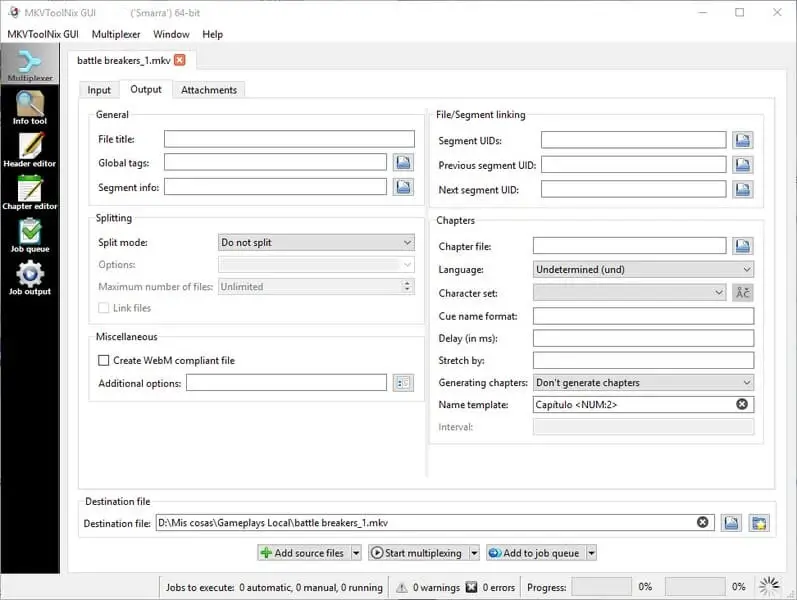
- Set your destination file name and folder on the Output tab.
- Click "Start multiplexing" to merge everything into one MKV file.
- Need to pull tracks back out later? Switch to mkvextract from the tool menu and select the file.
Alternatives
HandBrake: A free, open-source video transcoder for when you actually need to re-encode a file into a smaller size or different format, rather than just remux the container.
Subler: A free, open-source MP4 muxer built specifically for Apple device compatibility, useful when you want the final file in MP4 instead of MKV.
MakeMKV: A free (donationware) tool for ripping Blu-ray and DVD discs straight into MKV files, often used as the step right before MKVToolNix in the same workflow.