XDesign Overview
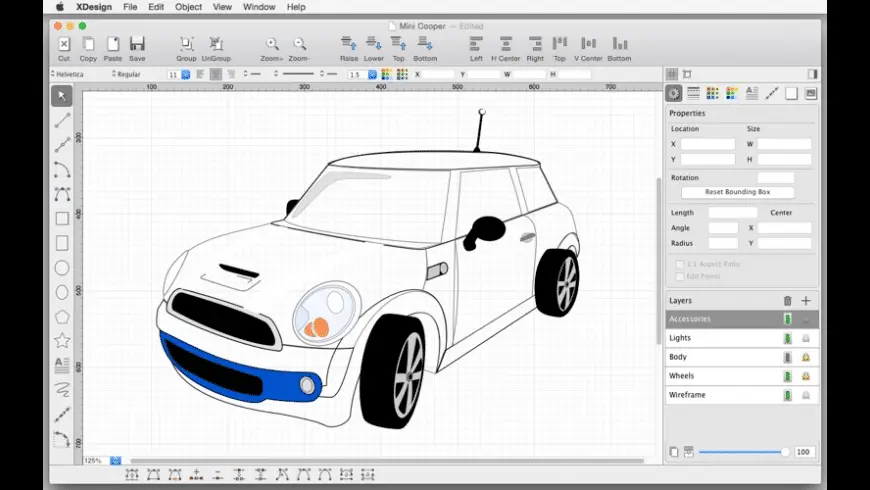
XDesign for Mac is a precision 2D vector drawing, drafting, and illustration application developed by TouchAware Limited. It provides engineers, architects, and graphic artists with exact geometric tools on a large canvas. The software offers seamless iCloud synchronization with its iOS counterpart, iDesign, allowing users to transition projects smoothly between desktop and mobile environments. With a scale range reaching up to 10,000x screen size and four-decimal-place accuracy, it handles intricate technical diagrams effortlessly. Its clean toolbar interface delivers fast access to path alignment, shape libraries, and custom RGB color controls without unnecessary workspace clutter.
Why Choose XDesign Mac
XDesign delivers a dedicated 2D vector sketching environment optimized specifically for macOS desktop displays. Unlike bulky CAD applications, it maintains a lightweight footprint while supporting multi-layered technical drawings, detailed architectural floor plans, and freeform vector art. Automatic iCloud integration ensures vector layers and line attributes remain identical across Mac computers and iPad devices.
The application runs natively as a Universal Binary on both Apple Silicon and Intel processors. Advanced trackpad support allows pinch-to-zoom control alongside customizable unit-aware grids and snapping rules. Its memory-efficient engine renders high-resolution vectors up to 12000x12000 pixels smoothly during SVG, PNG, and JPEG exports.
Key Features
- Precision Drawing Tools: Features lines, polylines, squares, circles, arcs, ellipses, polygons, stars, and path tools.
- iCloud Sync: Keeps project files updated automatically between macOS and the iOS iDesign app.
- Unit-Aware Grids: Supports Points, Inches, Feet, MM, CM, and Meters with precise snap controls.
- High-Scale Canvas: Allows zoom levels up to 10,000x with four decimal places of dimension accuracy.
- Advanced Path Editing: Includes point manipulation, shape merging, welding, exploding, breaking, and joining.
- Layer Organization: Creates infinite independent drawing layers with lock, show, and opacity controls.
- Custom Swatches & RGB: Offers pen and fill opacity controls along with multi-color palette mixers.
- Connector Tools: Enables drawing connected charts and flow diagrams with auto-adjusting line links.
- Multi-Format Vector Export: Exports artwork to SVG, PNG, JPEG, and PDF formats with custom scaling.
What's New in 2.0 Version
The major v2.0 release introduces upgraded core engine capabilities, performance refinements, and system compatibility enhancements.
- Upgraded graphics rendering engine for faster loading of complex vector groupings.
- Enhanced SVG export pipeline supporting Illustrator, InkScape, and Generic browser standards.
- Added full native optimization for macOS 15 Sequoia and modern Apple Silicon hardware.
- Fixed numeric property input fields and slider controls on modern macOS releases.
- Refined connector line drawing tools for creating technical flowcharts and schematics.
- These updates ensure consistent drawing precision and reliable file exports across current macOS releases.
Supported macOS Versions
XDesign 2.0 requires macOS 10.15 (Catalina) or later, running smoothly on macOS Sonoma and macOS Sequoia. It runs natively on Apple Silicon chips (M1 through M4 series) and 64-bit Intel processors without Rosetta emulation. The app needs a minimum of 4 GB RAM and 100 MB of disk space, though 4 GB RAM is recommended for large multi-layer projects.
How to Install XDesign on macOS?
Setting up XDesign on your Mac takes just a few steps.
- Download the latest version of XDesign for Mac using the download link below.
- Open the downloaded installer file in your Downloads folder.
- Drag the XDesign icon into your Applications folder.
- Launch XDesign directly from your Applications folder or via Spotlight search.
- Grant any storage permissions macOS requests to allow saving local project files.
- Begin creating vector illustrations or import existing CAD sketches to start drawing.
How to Use XDesign Mac?
- Launch XDesign and choose your preferred measurement unit under drawing properties.
- Enable grid lines and set your preferred snapping options for precise object alignment.
- Use the left toolbar to draw geometric shapes, lines, or custom path curves on the canvas.
- Open the Layers panel to separate background guides from main vector outlines.
- Apply stroke colors, fill shades, and line dash patterns using the styling palette.
- Export the final illustration as an SVG or high-resolution PNG file for client delivery.