Amadine Overview
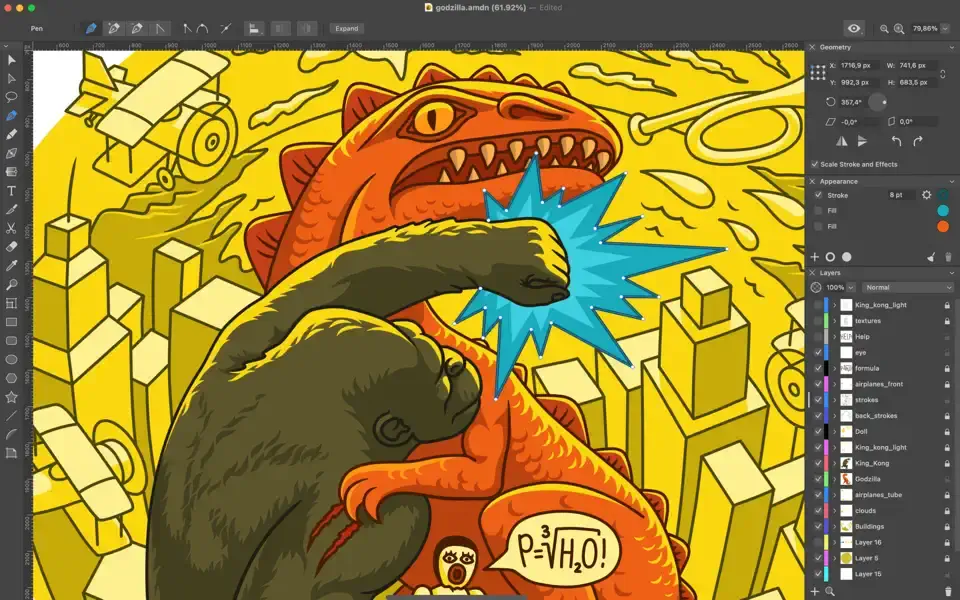
Amadine for Mac is a native vector graphic design application engineered by BeLight Software for macOS, with matching companion applications for iPad and iPhone. It supports industry-standard formats including SVG, PDF, AI, JPEG, PNG, TIFF, and HEIC, along with its native .amdc file format for saving multi-layered projects. Illustrators, UI designers, and branding specialists use it to create logos, icons, vector art, and UI mockups with tools like Fusion, boolean shape operations, and pressure-sensitive drawing tablet support. It serves as an accessible alternative to Adobe Illustrator through a clean interface and flexible licensing model, keeping files in sync across Apple hardware via iCloud integration.
Why Choose Amadine Mac App?
Amadine delivers a dedicated vector creation environment built natively for macOS architecture rather than relying on heavy cross-platform frameworks. Designers benefit from precise pen and draw controls, adjustable anchor points, flowing text columns, and real-time isometric grids. Its streamlined toolset allows fast shape manipulation without hiding core vector operations behind complex multi-tiered menus.
The application runs natively as a Universal Binary on both Apple Silicon (M1 through M4 chips) and Intel processors. High-resolution canvas rendering remains smooth when applying non-destructive effects like inner glow, drop shadows, or complex gradients. Multi-device sync ensures that artboards, layer structures, and custom shape libraries remain accessible across Mac, iPad, and iPhone workflows.
Key Features
- Over 30 Precision Vector Tools: Features comprehensive pathing, selection, editing, slicing, and typography tools.
- Advanced Boolean Operations: Merges, subtracts, intersects, and excludes overlapping paths cleanly.
- Fusion & Shape Builder: Combines multiple overlapping contours and path segments into unified vector objects.
- Pressure-Sensitive Drawing: Full support for graphics tablets with smooth stroke width controls.
- Advanced Typography Tools: Supports text on path, text inside shapes, and multi-column flowing text layouts.
- Custom Object Libraries: Includes built-in vector graphics alongside custom reusable shape panels.
- Integrated Stock Assets: Direct built-in search access to free high-resolution stock photos from Pexels, Pixabay, and Unsplash.
- Non-Destructive Vector Effects: Applies customizable drop shadows, inner shadows, blurs, and outer glows.
- Stock image integration with Pexels, Pixabay, and Unsplash
- Multiple layers, sublayers, and blending modes
What's new in version 1.8.4?
The v1.8.4 release introduces major tool additions alongside system stability improvements for modern macOS builds.
- Integrated native image tracing to automatically convert raster bitmap images into editable vector paths.
- Added support for transparent sheet backgrounds alongside custom canvas color selection options.
- Improved performance and accuracy within the Offset Path and Expand shape editing tools.
- Refined the Simplify Path dialog to display resulting anchor points with higher precision.
- Fixed radial gradient rendering anomalies when reopening complex project files.
- Raised base system compatibility requirements to macOS 11.0 for improved system framework performance.
These improvements ensure predictable shape geometry during export and maintain document consistency across desktop and mobile devices.
Supported macOS Versions
Amadine 1.8.4 requires macOS 11.0 (Big Sur) or later, running smoothly on macOS Sonoma and macOS Sequoia. It runs natively on Apple Silicon chips (M1, M2, M3, M4 series) and 64-bit Intel processors without requiring Rosetta translation. A minimum of 4 GB RAM and 200 MB of available storage is required, though 8 GB RAM is recommended for complex vector artboards containing high-resolution raster effects.
How to Install Amadine on Mac?
Setting up Amadine on your Mac takes just a few steps.
- Download the latest version of Amadine for Mac.
- Locate and open the downloaded installer file in your Downloads folder.
- Drag the Amadine icon into your Applications folder.
- Launch Amadine directly from your Applications folder or via Spotlight search.
- Grant any storage or network permissions macOS requests upon initial startup.
- Choose a free trial or sign in with your license to begin creating vector artwork.
How to Use Amadine Mac App on MacOS?
- Launch Amadine and create a new document with your preferred canvas dimensions or artboard preset.
- Select the Pen, Pencil, or Draw tool to construct base vector paths and custom shapes.
- Combine overlapping elements using boolean operations or the Fusion shape-building tool.
- Open the Appearance panel to apply gradient fills, stroke widths, or non-destructive shadow effects.
- Add typography using the Text on Path or Text in Shape tools to create logos and emblems.
- Export your completed artwork in SVG, PDF, PNG, or EPS format for print or web delivery.
Tools:
- Use more that 30 tools for selecting, drawing, editing, slicing and typing.
- Select and modify objects: Move, Selection, Lasso, Eyedropper, Scissors, Eraser, Zoom.
- Draw and edit paths: Pen, Convert, Draw (combines Pencil and Brush), Width, Gradient, Rectangle, Rounded Rectangle, Ellipse, Polygon, Star, Line, Arc.
- Transform shapes: Free Transform, Symmetrical Distortion, Free Distortion.
- Organize artboards: Sheets.
- Type and edit text: Text (combines text in place and text in box), Text on Path, Text in Shape.