MusicBrainz Picard Overview
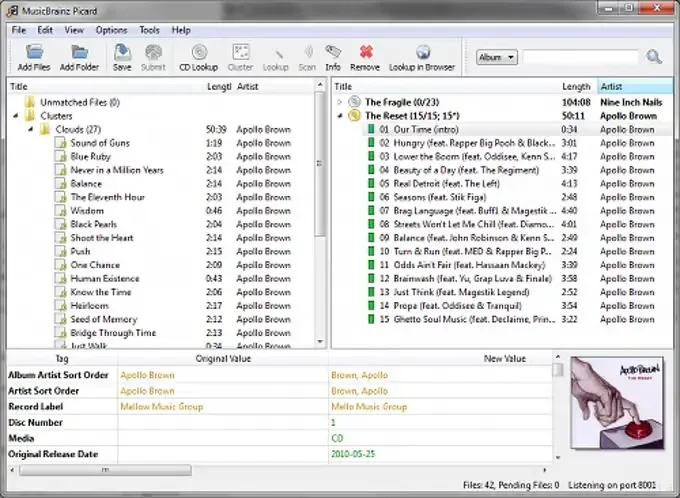
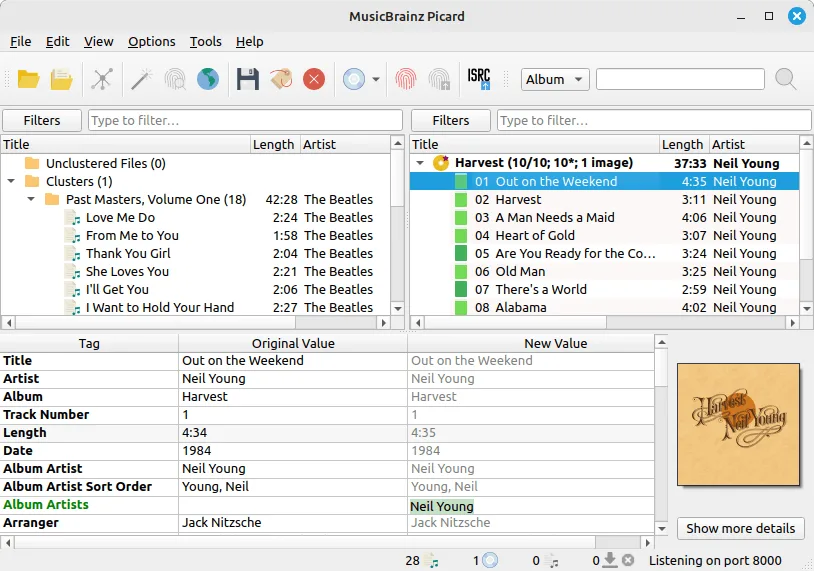
MusicBrainz Picard is a music tagger for Mac that fixes the metadata in your audio files. It matches albums and tracks against the MusicBrainz database. AcoustID audio fingerprints identify songs even when the tags are missing or wrong. Picard then writes artist, album, track number, and cover art into the files. It also renames files and sorts them into folders using a scripting language. Plugins add extra features. Drag and drop makes importing whole folders simple. Cover art is found and downloaded for each matched release. Supported formats include MP3, FLAC, Ogg, M4A, WMA, and WAV. Version 3.0.2 runs on macOS 13.0 or later, with separate Apple silicon and Intel builds. It suits collectors with messy music libraries.
Key Features
- MusicBrainz lookup: matches albums and tracks against the MusicBrainz database.
- AcoustID fingerprinting: identifies songs by audio content when tags are missing.
- CD lookup: finds album information for a disc.
- Cluster and Scan: groups loose files and matches them to releases.
- Cover art download: finds artwork for the matched release.
- Tag writing: saves artist, album, track, and date tags to the files.
- File renaming and sorting: moves files into folders by a pattern you set.
- Scripting language: controls file names and tag output with flexible rules.
- Plugins: adds features from the website or from your own code.
- Wide format support: works with MP3, FLAC, Ogg, M4A, WMA, and WAV files.
- Drag and drop: imports files and folders from a folder tree or by dropping them on the window.
- Audio player options: previews tracks inside the app.
- Customizable settings: covers metadata, naming, and cover art behavior.
Screenshots
What's New in MusicBrainz Picard 3.0.2 Version
- Fixed hardcoded link styling in the Audio Player options
- Fixed a sticky grey background in the metadata pane
- Fixed a crash after the setup wizard in builds made without auto-update
- Fixed text color issues in dark mode for the metadata pane and placeholder text
- Fixed the plugin manager "View Repository" action failing silently for a local path
How to Download and Install MusicBrainz Picard Mac?
Installing Picard on Mac takes a couple of minutes. Pick the build that matches your processor.
- Click the Download button above to safely dpwnload the setup file.
- Open the downloaded file, then move MusicBrainz Picard into your Applications folder.
- Launch Picard from Applications. If macOS asks you to confirm opening an app downloaded from the internet, click Open.
- If macOS blocks the app, open System Settings, go to Privacy & Security, and click Open Anyway.
- Follow the setup wizard to choose your tagging and naming options.
- Back up your music folder before your first save, since tagging changes files in place.
Alternatives to MusicBrainz Picard
Kid3: Free, open-source audio tagger under the GPL with builds for Apple silicon and Intel Macs. It edits ID3v1.1, ID3v2.3, and ID3v2.4 tags across many files at once and imports album data from MusicBrainz and Discogs.
beets: Music library manager that improves metadata using the MusicBrainz database and installs with pip. It is command-line based, and its license was not confirmed on the site.