Piezo Overview
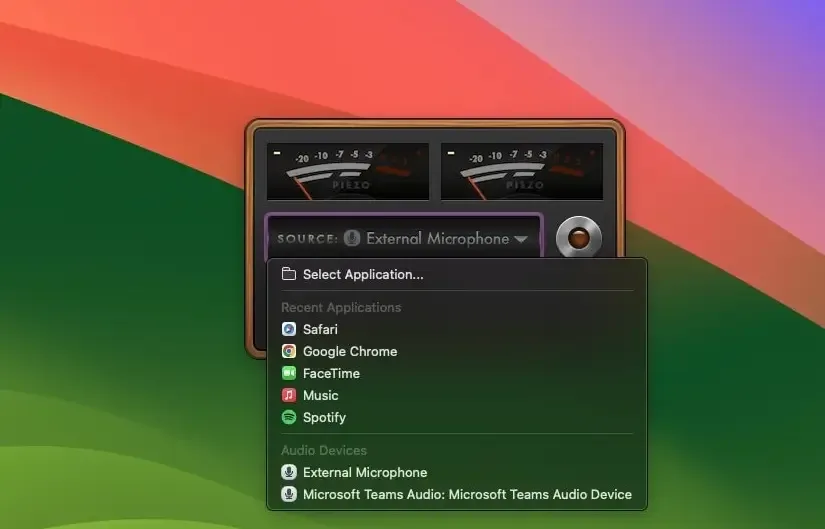
Piezo is a simple audio recording app for Mac from Rogue Amoeba. Pick a source, an app or a physical audio device, then click Record to capture it as a file. VoIP call recording works with dozens of specific apps, including Zoom, FaceTime, Skype, Teams, Slack, Discord, and WhatsApp, automatically splitting each caller onto a separate channel for easier editing. It records web audio from any browser, streaming music from services like Spotify, and sound bites from video players like VLC and IINA just as easily. Recording presets simplify format and quality choices, and Play-Thru lets you hear audio live while it's being captured. Standard, non-administrator Mac accounts can record without extra setup.
Why Choose Piezo Mac App
Recording audio on a Mac usually means picking apart a bigger, more complicated app just to grab one clip. Piezo strips that down to almost nothing. Choose what to capture, hit one button, and it's running. There's no session to configure and no routing to set up first, just a single button that does exactly what it says.
VoIP call recording is where the simplicity really pays off. Piezo doesn't just grab raw system audio and hope for the best. It recognizes the specific calling app in use and keeps each person's voice on its own track, so cleaning up a recorded interview afterward doesn't mean untangling two voices from one mixed-down file. The current version confirms full compatibility with macOS 27, and standard, non-administrator Mac accounts can record without needing an admin's help first.
Key Features
- One-click recording: captures audio from any selected app or device the moment Record is pressed.
- VoIP call recording: recognizes Zoom, FaceTime, Skype, Teams, Slack, Discord, WhatsApp, Signal, and dozens more, saving each caller to a separate channel.
- Web audio recording: captures audio playing in Safari, Chrome, or any other browser.
- Streaming music capture: records from services like Spotify, Apple Music, and similar apps.
- Video sound bites: grabs audio from movies or clips playing in VLC, IINA, QuickTime, or other video players.
- Recording presets: simplifies format and quality choices instead of requiring manual configuration.
- Clip naming and comments: labels a recording and adds notes before or after saving it.
- Play-Thru: plays the source audio live through your speakers or headphones while it's being recorded.
- ARK-powered setup: gets running on a new Mac in seconds, with no restarts or administrator password required.
- Standard account support: lets non-administrator Mac users record without needing extra permissions granted first.
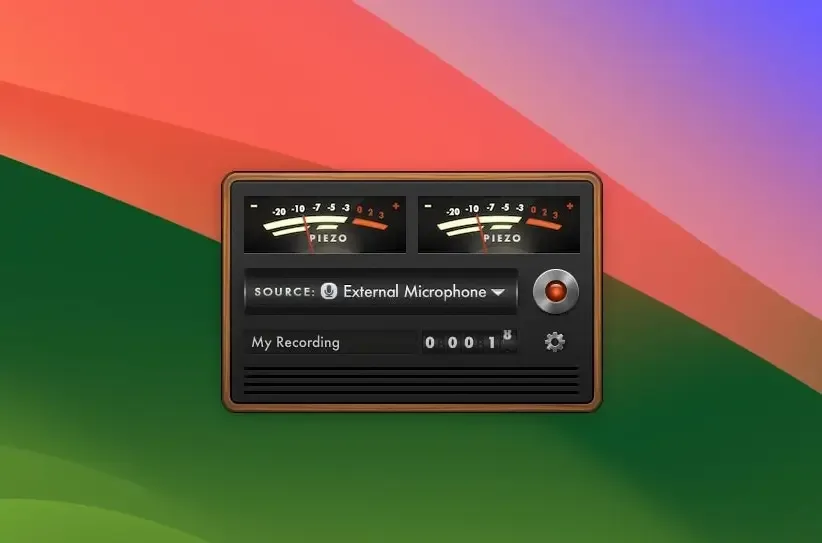
- Minimal interface: keeps the entire recording process to a source picker and a single Record button.
- Recording indicator: shows recording status directly from the Dock icon.
Screenshots
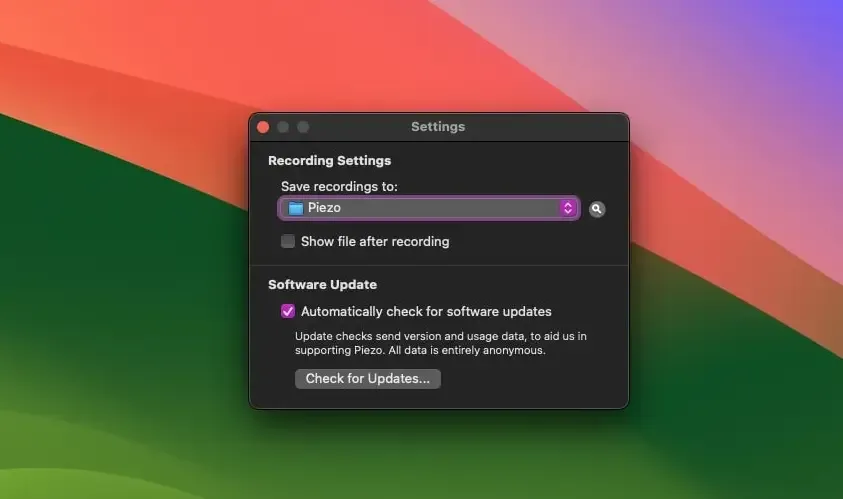
What's New in Piezo 1.9.10 Version
Version 1.9.10, released August 14, 2026, focuses on macOS 27 readiness:
- Confirmed support for macOS 27 (Golden Gate), with the launch warning removed and no known issues reported
- Test release notifications moved from the hidden Debugging window into the main Settings interface
- The previous release, 1.9.9, added support for recording the Quo VoIP app (formerly OpenPhone) and raised the minimum system requirement to macOS 14.4.
Supported macOS Versions
Piezo 1.9.10 requires macOS 14.4 or later, with a separate legacy build automatically covering macOS 11 through 14.3.1. The current version confirms full compatibility with macOS 27, the newest release, with no known issues reported. Piezo's job, recording an audio stream to a file, is about as light as Mac software gets. Hardware speed rarely factors in at all, and even a years-old Mac records cleanly as long as the source app itself runs smoothly.
How to Download and Install Piezo on Mac?
Installing Piezo on Mac only takes a few steps after downloading.
- Click the Download button above to safely downlaod the setup file.
- Open the downloaded file, then drag Piezo into your Applications folder.
- Launch Piezo from Applications. If macOS shows an "unidentified developer" warning, go to System Settings → Privacy & Security and click Open Anyway.
- Grant System Audio Access when prompted, so Piezo can record from the apps you choose.
Piezo opens as a full trial with every feature available. Purchasing a license later unlocks it permanently through the License window.
How to Use Piezo Mac App?
- Choose a source from the Source menu, either an app or a physical audio device.
- Open the settings popover to pick a recording format and quality, and name the clip if needed.
- Click Record to start capturing audio.
- Click Stop when finished; the finished file saves automatically to the chosen folder.
- Enable Play-Thru if you want to hear the audio live while it's being recorded.
- For VoIP calls, select the calling app as the source before the call starts to capture both sides automatically.
Alternatives to Piezo
QuickTime Player: Free and built into every Mac, capable of a basic audio recording through its "New Audio Recording" option.
Audacity: Free, open source audio recorder and editor that pairs with a virtual audio driver like BlackHole to capture app or system audio.