Loopback Overview
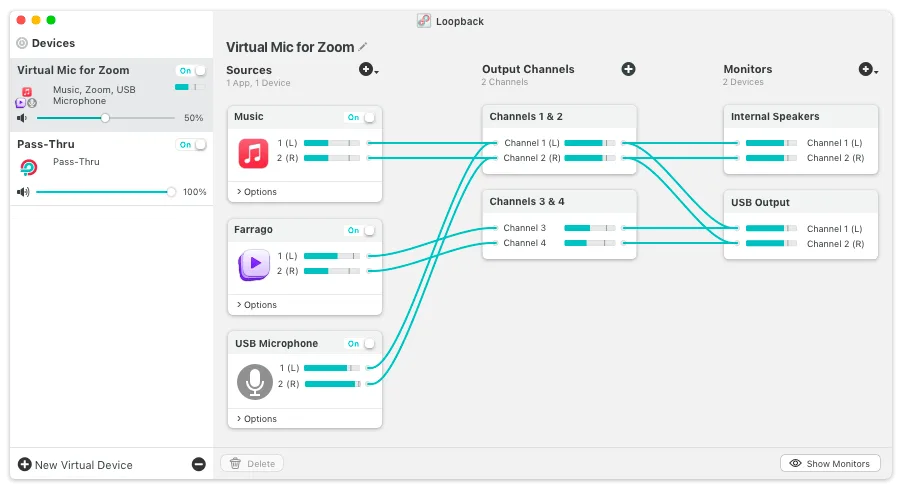
Loopback is a virtual audio routing app for Mac from Rogue Amoeba. It combines audio from applications and physical hardware devices into a single virtual device, usable as an input anywhere on the Mac. A wire-based interface makes routing visual, connecting each source to an output channel without any command-line tools. Pass-Thru devices route audio from one app directly to another with almost no setup. Virtual devices support up to 64 channels, custom channel mapping, and nested devices for genuinely complex configurations. Special Sources capture normally inaccessible audio, including Siri, VoiceOver, and Notification Center sounds.
Why Choose Loopback Mac App
Most apps only record from one audio source at a time: a microphone, or a single app's output, never both together. Loopback solves that by building a virtual audio device out of whatever combination of app and hardware sources is needed. Combine a microphone with music playing in another app, feed both into a single input, and any recording or calling app on the Mac sees it as one ordinary device.
The current version confirms full compatibility with macOS 27, the newest Golden Gate release, with the underlying ARK plugin updated specifically to cut CPU usage and reduce latency. Since Loopback's virtual devices show up system-wide, they work the same way inside Zoom, FaceTime, GarageBand, or dozens of other apps without any per-app configuration. Test releases, previously buried in a hidden debugging menu, are now toggled from the main Settings window instead.
Key Features
- Virtual audio device creation: combines any mix of application and hardware sources into a single device other apps can use as an input.
- Wire-based routing: connects sources to output channels visually, showing exactly how audio flows through a device.
- Pass-Thru devices: routes audio directly from one app to another with almost no configuration required.
- Up to 64 channels: supports large, complex device configurations for demanding studio setups.
- Custom channel mapping: manually assigns exactly which source feeds which output channel when the automatic default isn't right.
- Nested devices: embeds one virtual audio device inside another for advanced routing needs.
- Monitoring: listens to a virtual device's full audio, or just part of it, through a separate output device.
- Per-source volume control: adjusts the relative volume of each source feeding into a device.
- On/Off toggles: disables a source or monitor temporarily without deleting its configuration.
- Special Sources: captures audio that's normally inaccessible, including Siri, VoiceOver, Notification Center, and AirPlay Receiver audio.
- System-wide availability: makes virtual devices selectable in any Mac app, not just a specific set of supported programs.
- Dark Mode support: matches macOS's system-wide dark theme automatically.
Screenshots
What's New in Loopback 2.5.0 Version
Version 2.5.0, released August 31, 2026, centers on macOS 27 support:
- Confirmed support for macOS 27 (Golden Gate), with the launch warning removed and no known issues reported
- ARK plugin updated to version 13.5, cutting CPU usage and latency while improving audio processing reliability
- Fixed a rare issue affecting pass-thru audio processing
- Test release notifications moved from the hidden Debugging window into the main Settings interface
- macOS 14.5 or higher is now required to run this version.
Supported macOS Versions
Loopback 2.5.0 requires macOS 14.5 or later. A separate legacy build automatically covers Macs running macOS 11 through 14.4.1, so nobody gets left without a working version over a single OS update. Loopback's job is routing audio rather than processing it heavily, so even older Macs handle multiple virtual devices without real strain. The bigger factor is how many channels and sources get combined into a single device, not which Mac or macOS version is running it.
How to Download and Install Loopback on Mac?
Installing Loopback on Mac only takes a few steps after downloading.
- Click the Download button above to safely download the setUp file.
- Open the downloaded file, then drag Loopback into your Applications folder.
- Launch Loopback from Applications. If macOS shows an "unidentified developer" warning, go to System Settings → Privacy & Security and click Open Anyway.
Grant the permissions Loopback requests, such as Microphone Access, so it can capture audio from the sources you choose.
How to Use Loopback Mac App?
- Click "New Virtual Device" to start building a device.
- Drag application or hardware sources into the Sources column.
- Wire each source to an output channel, or use a Pass-Thru source for a quick one-to-one connection.
- Add a Monitor if you want to hear the device's audio through speakers or headphones while it's active.
- Select the new virtual device as the input in any app that needs the combined audio.
- Adjust individual source volumes, or toggle a source off temporarily without deleting it.
Alternatives to Loopback
BlackHole: Free, open source virtual audio driver that routes audio between apps, though it lacks Loopback's visual mixing and channel mapping.
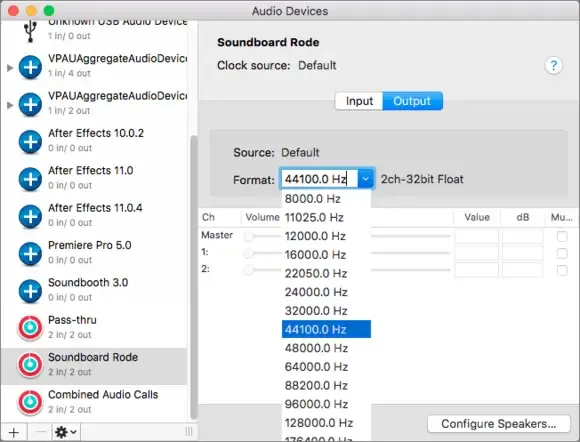
Audio MIDI Setup (built into macOS): Free and included on every Mac, capable of building basic Aggregate and Multi-Output devices for simpler routing needs.