PastePal Overview
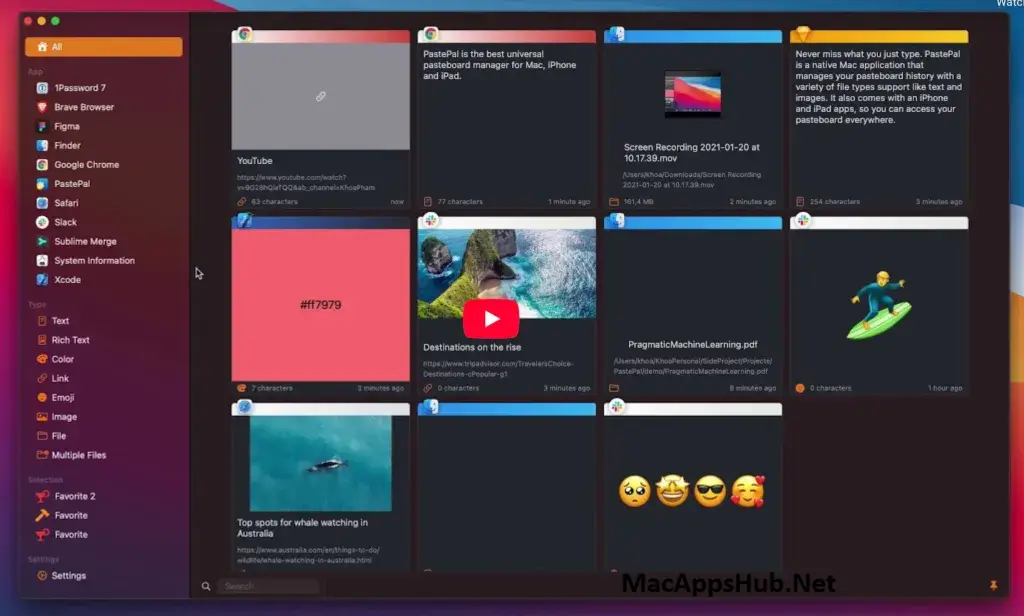
PastePal for Mac saves everything you copy, then lets you search, filter, and reuse it whenever you need it again. It runs from the menu bar with a flexible side window you can dock to any edge of your screen, and it's built natively in AppKit and Swift rather than wrapped through Catalyst, so it feels like part of macOS instead of a bolted-on utility. A one-time $14.99 purchase unlocks unlimited history and iCloud sync across Mac, iPhone, and iPad, with no subscription attached. Writers who paste the same snippets constantly, developers copying code blocks between files, and anyone tired of losing something they copied five minutes ago all rely on it to never lose a clipboard item again.
Why Choose PastePal Mac App
The pricing model alone sets PastePal apart from most clipboard managers still switching to subscriptions. One $14.99 purchase unlocks unlimited history and iCloud sync permanently, including future updates, and that same purchase is universal across Mac, iPhone, and iPad rather than charging separately per platform. It's also written natively in AppKit and Swift with no Catalyst involved, which shows up in how responsive the side window feels compared to clipboard tools that lean on a cross-platform framework.
The details that matter for daily use go beyond the pricing. Allow and ignore lists let you exclude specific apps, folders, or content patterns from ever being captured, useful if you don't want passwords or sensitive data landing in your history at all. The side window can dock to any edge of the screen with hot-edge activation, so pulling it up doesn't require memorizing a keyboard shortcut if you'd rather just move your cursor to a corner. Everything runs locally with no analytics or data collection baked in, and PastePal instances on the same local network can share clipboard content directly with each other, without routing through iCloud at all.
Key Features
- Flexible side window: position it on any edge of your screen for quick access, with hot-edge activation.
- Smart content detection: automatically recognizes and tags copied items by type and source app.
- Collections and filtering: organize clipboard history into collections, filtered by app or content type.
- iCloud sync: securely sync clipboard history across Mac, iPhone, and iPad once premium is unlocked.
- Allow and ignore lists: exclude specific apps, folders, or content patterns from ever being captured.
- Toolbar search (Cmd+F): instantly find any item in your clipboard history.
- Quick Look preview: view raw content in a popover before deciding to paste it.
- Local network sharing: share clipboard content between PastePal on different devices without iCloud.
- Auto-trim history: set a time frame to automatically clear out older clipboard entries.
- Keyboard shortcuts: toggle windows, copy, and delete history items without touching the mouse.
What's New in PastePal 2.21.7 Version
Version 2.21.7 shipped October 08, 2026 with search improvements and reliability fixes.
New
- MCP server support: connect MCP clients to search, create, and edit clips, and manage collections.
- Edit and reorder collections directly from the sidebar.
Improved
- Undo support for your changes.
- Confirmation prompt before closing unsaved edits, so nothing is lost by accident.
- Smarter collection selection when working with clips.
- More accurate app attribution when switching between apps.
More Reliable
- Items you re-copy after deleting are now tracked correctly.
- Smoother interface rendering on macOS 26
Supported macOS Versions
PastePal 2.21.7 requires macOS 13 Ventura as a floor, so Macs on Monterey or earlier need an older build. It runs cleanly on macOS 15 Sequoia and macOS 26 Tahoe, and since it's built natively in AppKit rather than through a cross-platform layer, performance stays light on both Apple Silicon and Intel Macs. Clipboard monitoring isn't demanding work for either chip, so the difference between an M-series Mac and an older Intel machine on a supported macOS version comes down to general system speed rather than anything PastePal itself asks for.
How to Download and Install PastePal on Mac?
Installing PastePal on Mac takes under a minute through the App Store, no separate download, unzip, or drag-and-drop needed.
- Click the Download button above, it opens PastePal's official listing on the Mac App Store.
- Tap Get to install the free app.
- Sign in with your Apple ID if prompted.
- macOS downloads and installs PastePal automatically in the background.
- Once installed, launch it from Launchpad or your Applications folder.
Because the App Store handles future updates automatically, you won't need to manually reinstall PastePal each time a new version ships.
How to Use PastePal Mac?
- Open PastePal from Launchpad after installing it from the App Store.
- Grant Accessibility permission when prompted, so it can monitor and manage your clipboard.
- Copy anything as normal, PastePal automatically saves it to your history.
- Press your chosen shortcut, or move your cursor to a screen edge, to open the side window and pick a past item to paste.
- Organize frequent items into Collections, or set Allow and Ignore rules for apps you don't want tracked.
- Turn on iCloud sync from Settings once you've purchased premium, to keep history current across devices.