Audio Hijack for Mac Overview
Audio Hijack is a Mac app from Rogue Amoeba that records audio from any application, device, or the entire system, including VoIP calls from Zoom and FaceTime. It builds a session out of modular blocks, chaining an audio source through effects like EQ, compression, or noise removal before saving the result or sending it out live. Beyond straightforward capture, this tool handles podcast production, VoIP call recording, internet radio broadcasting, and on-device speech-to-text transcription. It runs natively on both Apple Silicon and Intel Macs and exports to formats including MP3, AAC, WAV, and FLAC.
Why Choose Audio Hijack Mac App
Most Mac audio tools force a choice: a virtual driver that routes sound but can't record it, a screen recorder that grabs audio as an afterthought, or a DAW built for music production rather than simple capture. Audio Hijack skips that trade-off by treating capture, processing, and output as one connected pipeline. A single session can pull audio from an app, a microphone, or the whole system, run it through real effects like denoising or compression, and land it as a file, a live stream, or a text transcript, all without leaving the app or stitching together separate utilities.
The Mac-specific execution is what holds it together day to day. Its Transcribe block automatically turns on Metal-accelerated processing on Apple Silicon Macs, so speech-to-text runs faster on newer hardware without any manual toggling. Rogue Amoeba's ARK backend also means a fresh Mac can be set up to record in seconds, with no restarts or admin passwords required, and Tahoe users get a menu bar Apple didn't clutter with forced icons. For anyone still running an older Mac, Audio Hijack quietly serves a matching legacy build instead of leaving them stuck on an unsupported version.
Key Features
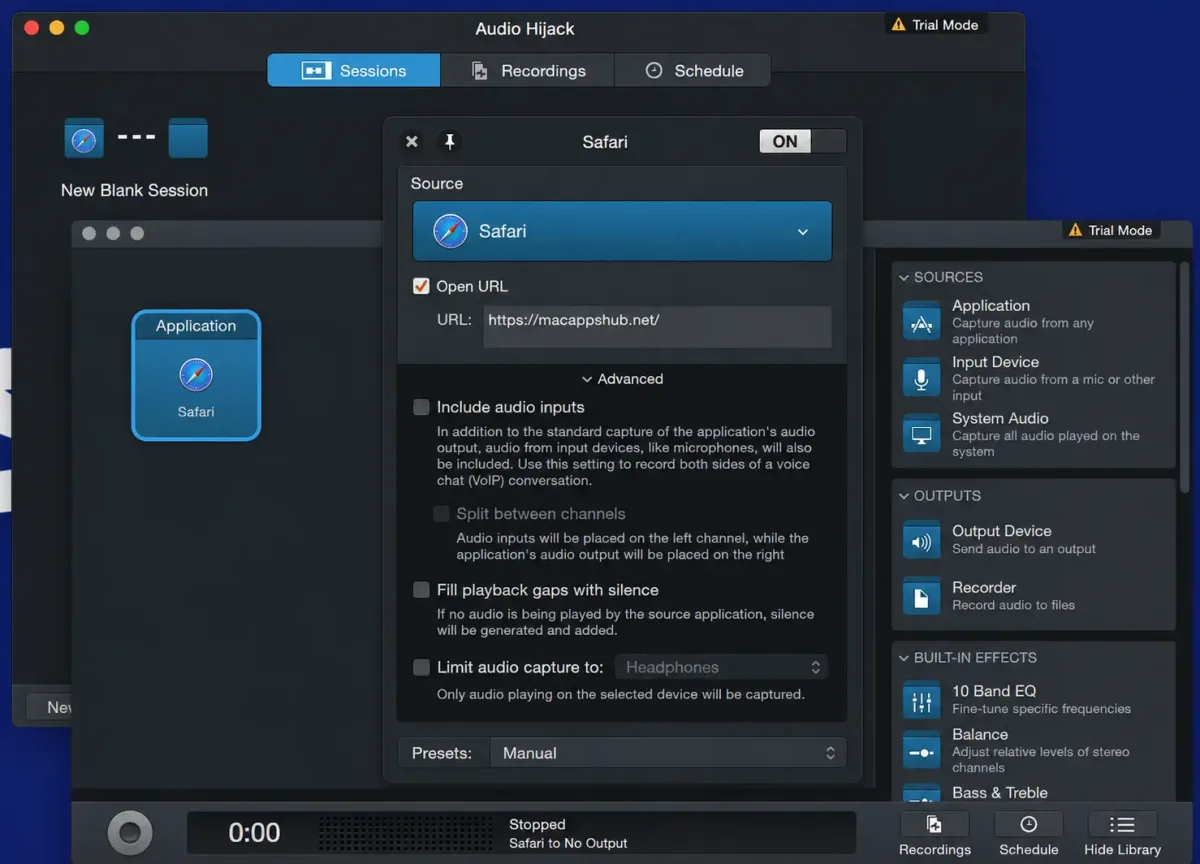
- Multi-source capture: Application blocks target specific apps like Safari or Zoom, Device blocks pull from mics and mixers, and a System-Wide Audio source grabs everything the Mac outputs at once.
- Built-in VoIP call recording: supports Zoom, FaceTime, the Phone app on macOS Tahoe, Zoho Meeting, Quo, Yandex Telemost, and more, capturing both sides of a conversation automatically.
- On-device Transcribe block: converts any captured audio to text using a local Whisper-based model, with no per-minute fees and Metal acceleration on Apple Silicon Macs.
- Live Stream output: pushes audio directly to RTMP destinations like YouTube Live, Twitch, and Facebook Live for real-time broadcasting.
- Broadcast block: sends audio to Shoutcast and Icecast servers, useful for running an internet radio stream.
- Real-time signal processing: Parametric EQ, 10-Band EQ, Simple Compressor, Speech Denoise, and FIR Filter blocks sit inline in a session's audio chain.
- Mixer and Magic Boost: Mixer blends up to five sources with independent volume and fades, while Magic Boost lifts quiet audio without touching louder passages.
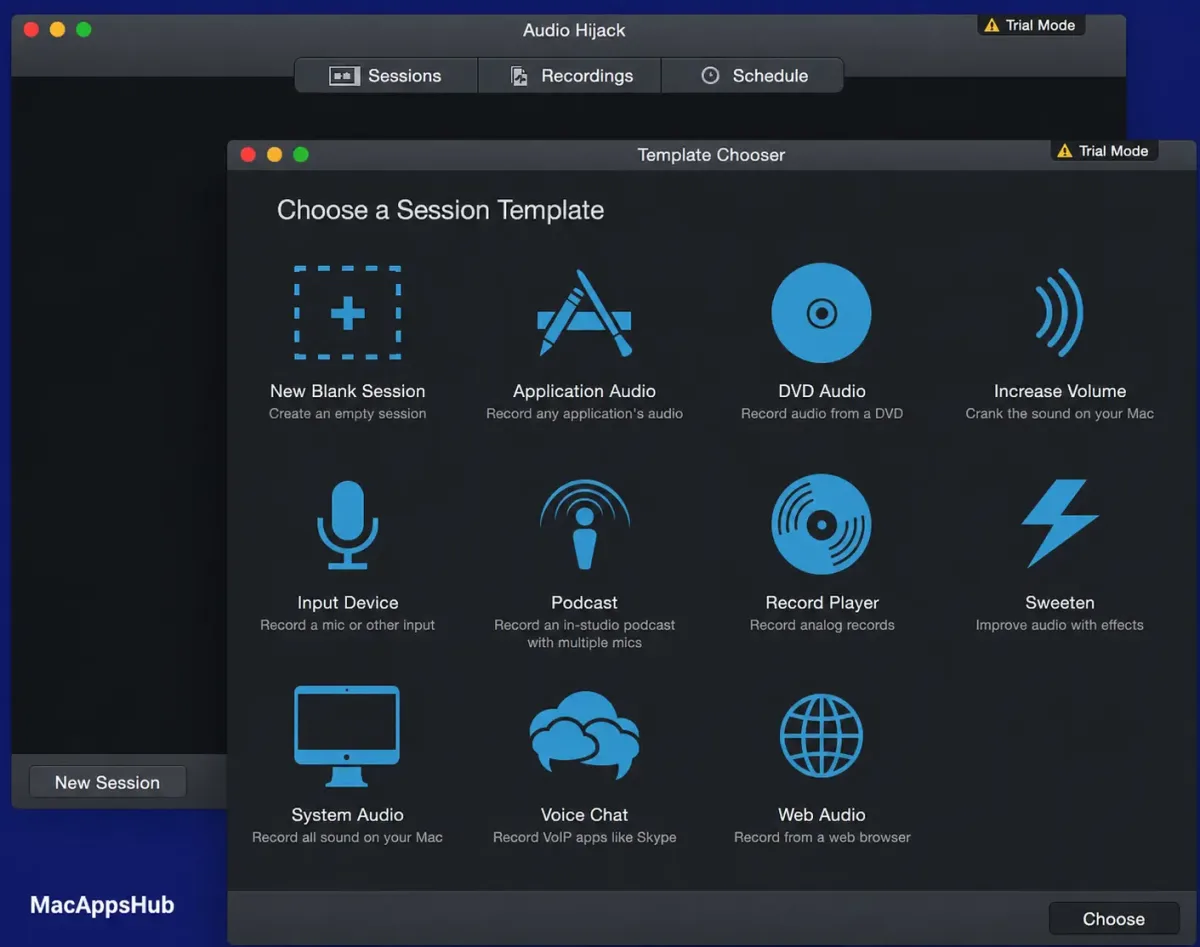
- Session templates and manual connections: pre-built templates like Podcast [Remote] and Live Stream speed up setup, or blocks can be wired manually for custom pipelines.
- Scripting and Shortcuts integration: sessions can trigger JavaScript automations on start or stop, and macOS Shortcuts can control Audio Hijack as part of a larger workflow.
- Flexible export formats: recordings save as MP3, AAC, AIFF, WAV, ALAC, or FLAC, matching whatever a podcast host or archive setup expects.
- Full VoiceOver accessibility: labeled controls, accessible block navigation, and screen-reader-friendly session windows throughout.
Screenshots
What's New in Audio Hijack 4.6.0 version
Audio Hijack 4.6.0, released August 27, 2026, focuses on macOS 27 beta readiness alongside Transcribe and VoIP updates:
- Preliminary support for macOS 27 (Golden Gate) betas, with no launch warnings on the beta OS
- Transcribe block adds a new "Recommended" transcription model plus an updated Whisper.cpp backend for better accuracy
- Yandex Telemost added as a supported VoIP capture source, recording both sides of a call automatically
- Menu options in the Actions and contextual menus now correctly disable while a recording is in progress
- Host tempo sync added for Audio Units that require it, such as Audiomodern's Panflow
- Test release opt-in moved out of the hidden Debugging window and into the main Settings interface
None of these changes affect existing sessions, so updating from 4.5.x is safe for anyone already relying on Audio Hijack day to day.
Supported macOS Versions
Audio Hijack 4.6.0 runs natively on macOS 14.4 (Sonoma) through macOS 26 (Tahoe), with preliminary support already in place for the macOS 27 (Golden Gate) betas. On Apple Silicon Macs, the Transcribe block turns on Metal-accelerated processing by default, which noticeably speeds up local speech-to-text on longer recordings; Intel Macs run the same block with that acceleration switched off, since older GPUs don't benefit the same way. Anyone still on macOS 11 through 14.3.1 isn't shut out either, since Rogue Amoeba automatically serves a matching legacy build with no manual version-picking involved. Tahoe users specifically get a decluttered menu bar, a fix that landed in version 4.5.7 to remove icons Apple's OS had forced into the app. For heavy podcast or livestream sessions running several Audio Unit effects at once, a recent Apple Silicon Mac handles the load most comfortably; lighter VoIP-only recording works fine on older Intel hardware too.
How to Download and Install Audio Hijack on Mac?
Installing Audio Hijack on Mac only takes a few steps after downloading, including one quick permission it needs to run properly.
- Click the Download button above to securely download the setup file or you may get it from official website.
- Open the downloaded .dmg file, then drag Audio Hijack into your Applications folder.
- Launch Audio Hijack from Applications. If macOS shows an "unidentified developer" warning, go to System Settings → Privacy & Security and click Open Anyway.
- Grant System Audio Access and Microphone Access when prompted, so Audio Hijack can capture audio from the applications and input devices you choose.
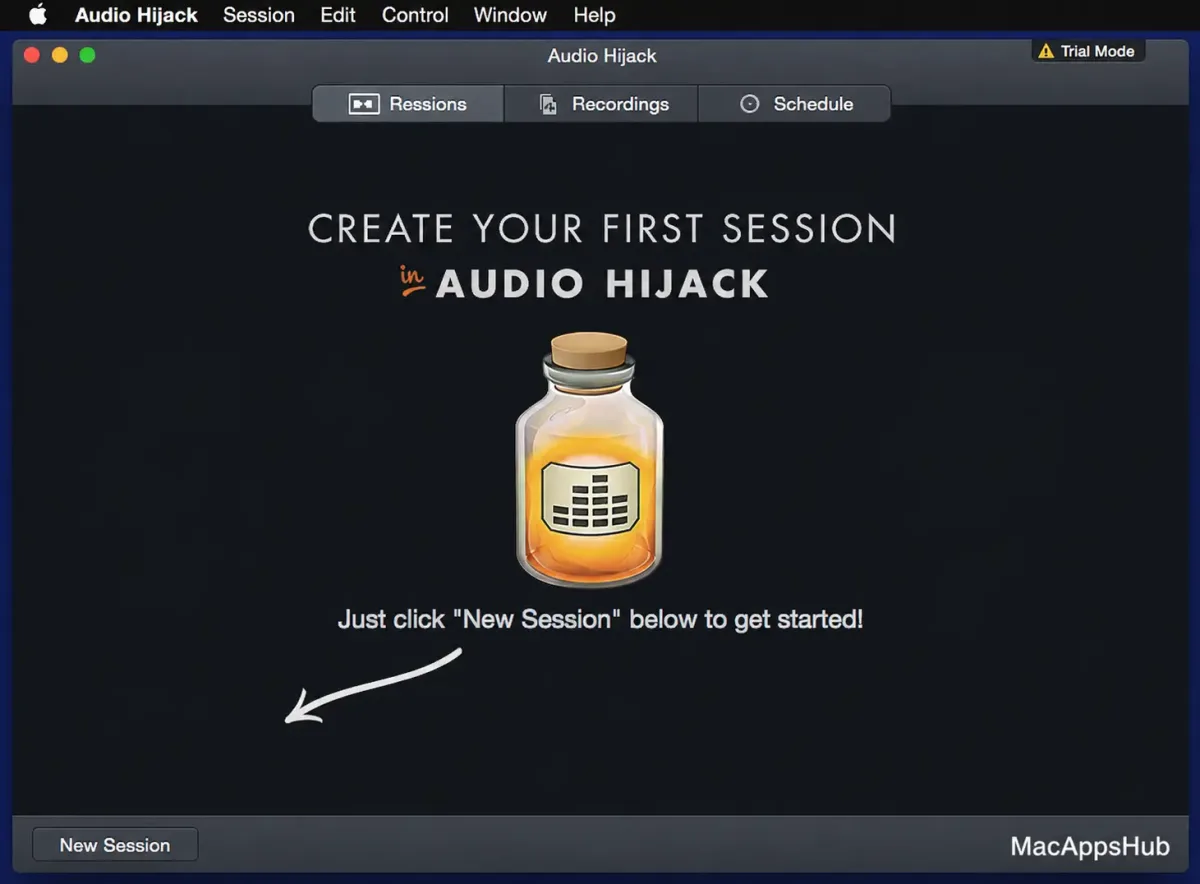
- Once permissions are approved, Audio Hijack opens straight to its Session List window, ready to build your first session.
Future launches skip these permission prompts entirely, since macOS remembers the approval, so Audio Hijack goes directly to the Session List every time after this.
How to Use Audio Hijack Mac App?
- Open the Template Chooser and pick a starting point, such as Podcast [Remote] or Live Stream, or start with a blank session.
- Add a source block (Application, Device, or System Audio) and select exactly what to capture.
- Drop in any processing blocks you need, like Parametric EQ or Speech Denoise, and connect them in the pipeline.
- Add a Recorder block, choose an output format such as MP3, WAV, or FLAC, and set a save location.
- Hit the Run/Stop button to start capturing; finished recordings appear in the session's Recordings tab.
- Save the session as a reusable template if this same setup will be needed again later.
Alternatives to Audio Hijack for Mac
OBS Studio: Free, open-source capture and streaming tool that mixes video, screen, and multiple audio sources into one output, with a built-in audio mixer and VST filter support.
BlackHole: A free, open-source virtual audio driver that routes system or app audio into any recorder with zero added latency, though it needs pairing with something like QuickTime Player to actually save a file.
Audacity: Free, open-source multitrack editor that records from any input device and pairs with BlackHole for capturing app or system audio, plus offers full waveform editing afterward.
QuickTime Player: Built into every Mac at no cost, with a basic "New Audio Recording" option that becomes a system-audio recorder once paired with a virtual audio driver.