WhatRoute Overview
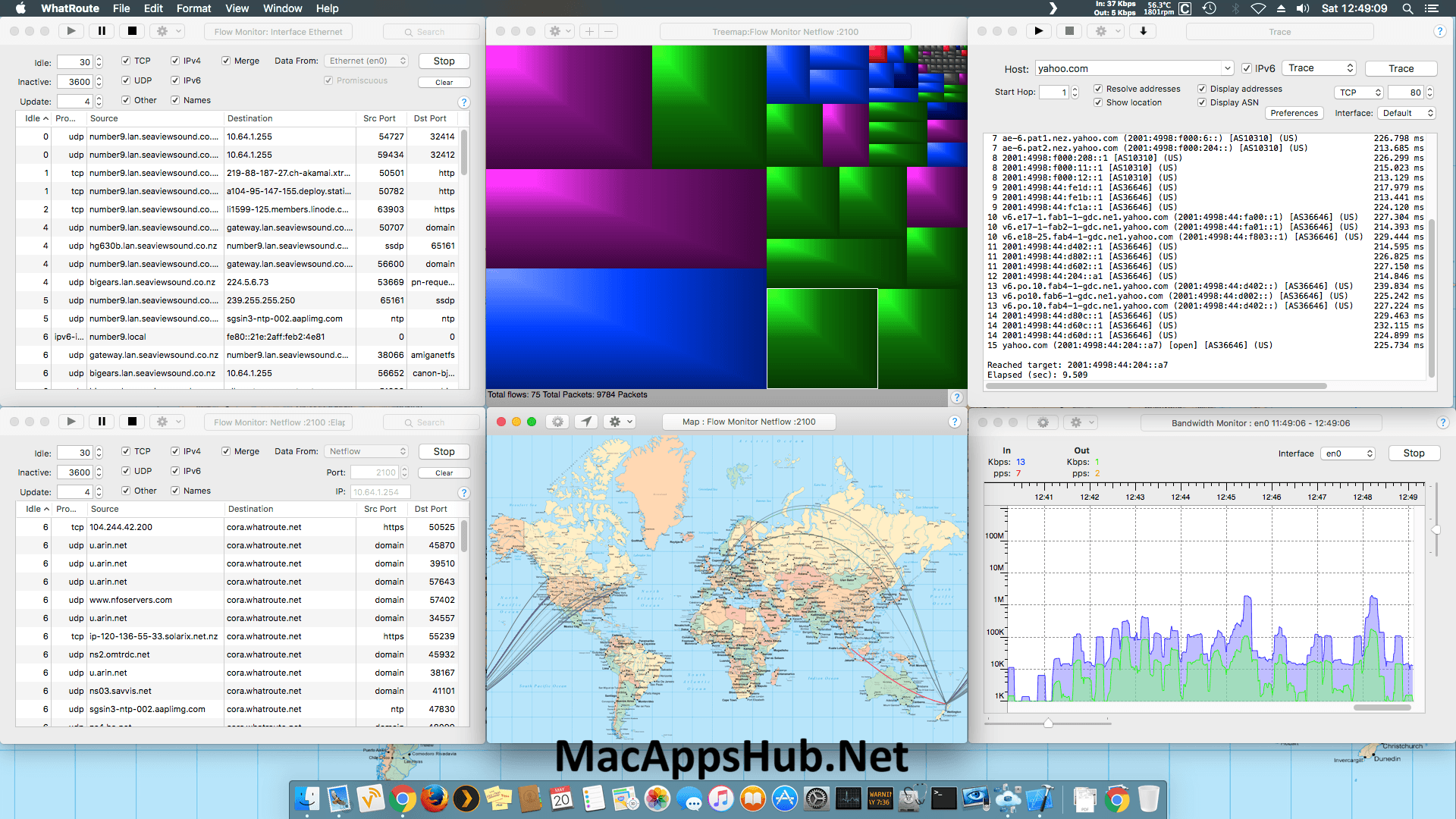
WhatRoute for Mac traces the path an IP packet takes to any destination, then plots each hop's physical location on a map so you can actually see where your traffic is going instead of just reading a list of IP addresses. Beyond traceroute, it bundles ping, whois, DNS lookup, ASN lookup, port scanning, network scanning, and a live network flow monitor into one app, so most day-to-day network diagnostics never need to touch Terminal. Flow Monitor goes a step further, showing exactly which process on your Mac is generating a given piece of traffic. Network admins tracking down a slow connection, developers debugging where a request actually goes, and anyone curious what's quietly using their bandwidth all reach for it instead of piecing together separate command-line tools.
Why Choose WhatRoute Mac App
Most network diagnostic work on Mac means bouncing between Terminal commands: traceroute here, ping there, whois in another tab. WhatRoute puts traceroute, ping, whois, DNS lookup, ASN lookup, port scan, network scan, and netstat behind one interface, so you're not memorizing flag syntax for half a dozen separate tools just to answer one question about a connection. The geo-tracing feature is the real standout: instead of a flat list of IP addresses, each hop in a trace gets plotted on a map using an external geo-location service, with an option to push the detailed view out to Google Earth, Apple Maps, or Google Maps for a closer look at exactly where your packets are traveling.
The features built specifically for watching what's happening on your Mac's network right now go further than a typical traceroute utility. Flow Monitor captures live network flows and shows which process or PID is behind each one, with a right-click option to terminate a misbehaving process directly from the table. The Local Network window visualizes every device active on your LAN with vendor-specific icons, and Network Quality wraps macOS's own `networkQuality` command in a proper GUI instead of leaving you to parse raw Terminal output. It's genuinely free too, distributed as donationware with no license key or feature paywall standing between you and any of it.
Key Features
- Geo-tracing: plots each hop of a traceroute on a map, using an external geo-location service for physical locations.
- All-in-one network toolkit: traceroute, ping, whois, DNS lookup, ASN lookup, port scan, network scan, and netstat in one app.
- Flow Monitor: captures live network flows and shows which process or PID is generating specific traffic.
- Local Network window: visualizes every device on your LAN with vendor-specific icons and sortable details.
- Network Quality test: a GUI wrapper around macOS's own networkQuality command for a readable results view.
- WiFi Monitor: shows current wireless network attributes, with optional monitor-mode packet capture.
- Bandwidth Monitor: graphs real-time upload and download traffic per network interface.
- Detailed map view: pushes trace results to Google Earth, Apple Maps, or Google Maps for a closer look.
- Menu bar bandwidth display: keeps an eye on network usage without opening the main window.
- CSV export: save flow data, trace results, or scan output for later analysis.
What's New in WhatRoute 2.8.1 Version
Version 2.8.1 focuses on how WhatRoute talks to its own privileged helper rather than adding new diagnostic features.
- Minimum deployment target raised to macOS Sonoma (14.6).
- Updated to Sparkle 2.9.5 for the auto-update mechanism.
- The privileged helper (whatroute2helper) was recoded in Swift using NSXPCConnection classes.
- Helper connections are now verified using code-signing requirements instead of PID verification, a more secure approach to confirming which app is talking to the helper.
Supported macOS Versions
WhatRoute 2.8.1 raised its minimum requirement to macOS 14.6 Sonoma, a real jump from the previous version's macOS Big Sur (11.5) floor, so anyone on an older release will need to stick with WhatRoute 2.7.x until they update macOS. It runs cleanly on macOS 15 Sequoia and macOS 26 Tahoe as a genuine universal binary, native on both Apple Silicon and Intel Macs since version 2.3.5. Since network diagnostic work like traceroute and DNS lookups isn't computationally demanding, performance stays consistent across chip types, with the version requirement mattering far more than raw processing power for whether the app runs at all.
How to Download and Install WhatRoute on Mac?
Installing WhatRoute on Mac only takes a few steps after downloading, including one quick permission it needs to run properly.
- First click on the Download button given on this page that is fully secure and complete the downloading procedure.
- Open the downloaded .zip file, then drag WhatRoute into your Applications folder.
- Launch WhatRoute from Applications. If macOS shows an "unidentified developer" warning, go to System Settings → Privacy & Security and click Open Anyway.
- Approve the privileged helper (whatroute2helper) when prompted, so WhatRoute can perform raw network operations like traceroute and ping.
- Grant network access when macOS asks, so WhatRoute can reach the geo-location service used for mapping.
Once the initial setup is done, WhatRoute won't ask for these permissions again, future launches go straight to the main window.
How to Use WhatRoute Mac?
- Launch WhatRoute and type a hostname or IP address into the Host field.
- Choose a command from the toolbar — Trace, Ping, Whois, DNS Lookup, or Port Scan.
- Watch the results populate in the main window, with each hop's location plotted on the built-in map.
- Open the Local Network window to see every device currently active on your LAN.
- Open Flow Monitor to watch live traffic and identify which process is generating it.
- Export any result set as a CSV file if you need to analyze it later.