
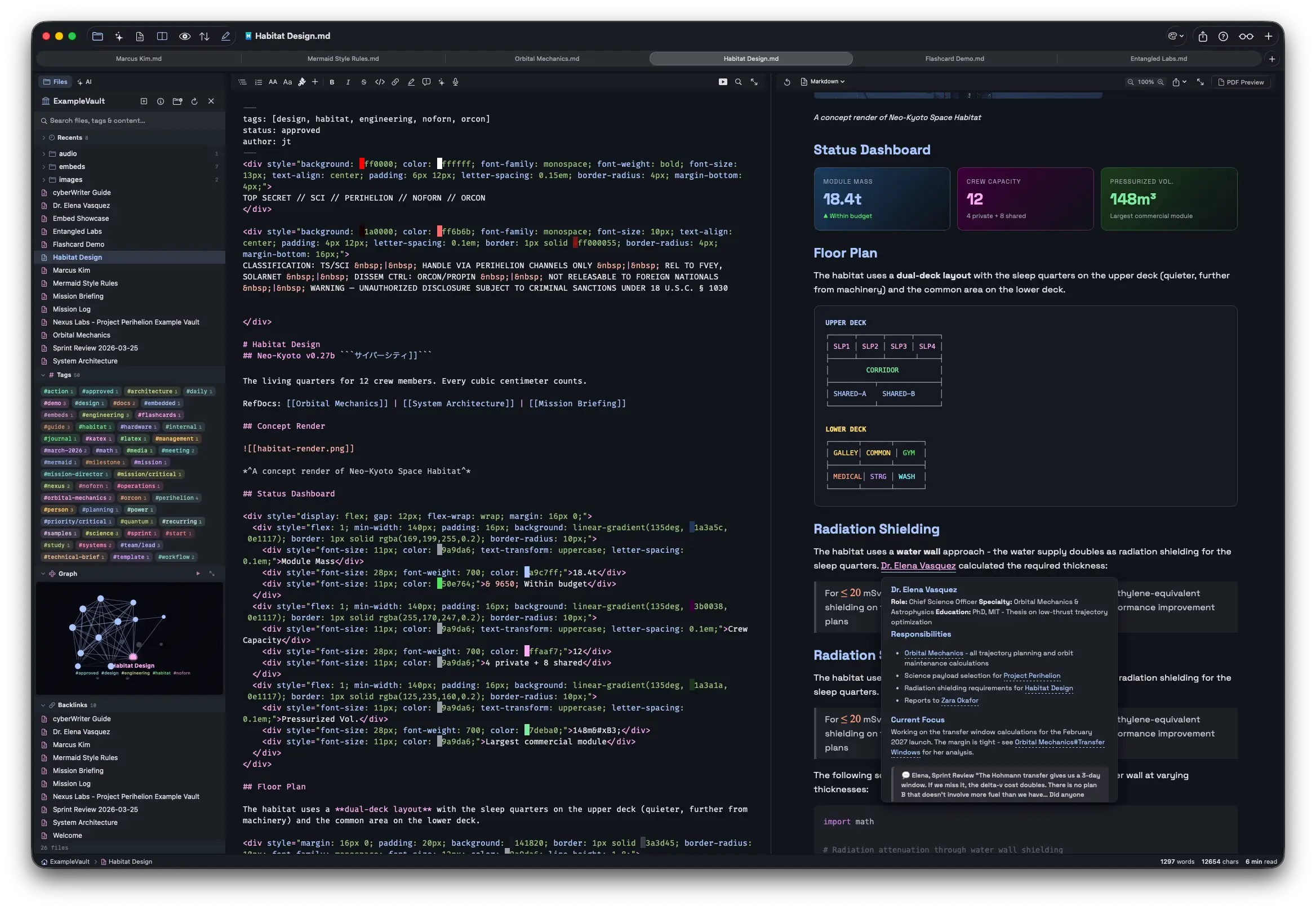
cyberWriter Overview
cyberWriter for Mac is a native Markdown editor built entirely in SwiftUI, designed for documents people actually have to send: reports with images, captions, references, and page breaks that land exactly where you put them. It combines plain Markdown editing with an optional rich-text view, LaTeX and Vega-Lite chart rendering, and Mermaid diagrams, all without installing Pandoc, LaTeX, or any external dependency. A built-in terminal called Glow lets you run standard shell commands and vault-native ones side by side with an AI model on the same command line. An AI workspace connects to Apple Intelligence on-device or to your own local or cloud model, letting you chat with an entire vault of notes as context. Researchers organizing linked notes, technical writers who need figures and citations in the same document, and anyone who wants Obsidian-style linking without leaving a single native app all use it as their Markdown workspace.
Why Choose cyberWriter for Mac App
Most Markdown-to-PDF workflows on Mac lean on Pandoc, a separate LaTeX distribution, or an Electron-based app that eats memory just sitting in the background. cyberWriter renders KaTeX math, Vega-Lite charts bound to data files, and 16 types of Mermaid diagrams directly inside a sandboxed, native SwiftUI app, with nothing extra to install. The figure handling is the detail that separates this from a plain text-to-PDF converter: a document with a dozen screenshots and diagrams keeps its numbering straight even after you move sections around, which is exactly the kind of thing that normally means a manual pass through a finished report before sending it anywhere.
The vault system is where this goes beyond a simple text editor. Point it at a folder you're already using with Obsidian and everything just works, wikilinks, backlinks, tags, the lot, with a 3D graph view that turns a pile of scattered notes into something you can actually see the shape of. What sets it apart further is that you never have to leave the app to work at a command line: Glow sits right inside the vault, so there's no switching to Terminal, manually navigating into your notes folder, and losing your place in the document you were just editing. The AI workspace itself keeps your data on your terms too: indexing a vault for AI use is opt-in, and any API keys you add live in the macOS Keychain rather than sitting in a plain file somewhere in your notes.
Key Features
- Glow Terminal: a built-in command line for your vault, running standard Unix commands alongside vault-native ones like backlinks and tags, with an AI model available directly on the prompt line.
- Dual editing modes: write in plain Markdown with a live preview, or switch to a rich-text view with live tables, charts, math, and diagrams.
- Image captions and figures: an image on its own line becomes a numbered figure automatically, renumbering itself as you reorder the document, and never splitting across a page break in PDF export.
- File vault with wikilinks: type `[[` to autocomplete a link from recent notes, titles, aliases, or folder paths, with an interactive 3D knowledge graph showing how everything connects.
- Custom CSS styling: write one real, editable stylesheet that applies to every preview and every export, version-controllable and syncable between Macs.
- Excalidraw whiteboard and live data: a full offline drawing canvas embeddable in notes, plus API blocks you can drop into a document and run, with the response rendering as a table that exports with the rest of the file.
- LaTeX, Mermaid, and Vega-Lite: KaTeX math, 16 Mermaid diagram types, and Vega-Lite charts bound to data files in your vault, all rendering identically in preview and export.
- AI workspace: chat with your whole vault as context using Apple Intelligence, or connect Ollama, LM Studio, Claude, or any OpenAI-compatible model.
- Native multi-format export: generate PDF, DOCX, and standalone HTML files natively, with no Pandoc or external tools required.
- Voice notes and dictation: record with a chosen input device and a live waveform, with audio embedded right next to its own transcript.
- Slides and flash cards: turn any document into a slideshow or a spaced-repetition flash card deck for studying.
- Media embeds: pull audio, video, PDFs, CSV data, and YouTube links directly into a document with `![[file]]` syntax, all encoded into portable exports.
What's New in cyberWriter 3.95 Version
Version 3.95 shipped five days ago and, per Apple's own listing, combines everything from versions 3.9 and 3.95 in one update.
- Wikilink autocomplete: type `[[` and cyberWriter suggests notes to finish the link, in both the Markdown editor and the rich-text view. Recent notes appear first, then filtering kicks in as you type across titles, aliases, and folder paths. Type `[[#` to search by tag instead.
- Image captions and figures: an image on its own line becomes a figure, using its alt text as the caption. Optional numbering adds "Figure 1." prefixes and renumbers automatically as you reorder, or you can pin a number manually. Figures never split across a page in PDF export.
- Bring Your Own CSS: one real, editable stylesheet now applies to every preview and every export: heading colors per level, line length, margins, and paragraph spacing, all in a file you can version-control or sync between Macs.
- Glow Terminal: a new command line built into the vault, combining familiar commands (`ls`, `cd`, `cat`, `grep`, `find`) with vault-native ones (`links`, `backlinks`, `tags`, `recent`, `stats`), plus an AI model on the prompt line that can search, write answers into notes, and edit files with undo support. This update adds a guided demo that runs on your own notes, saved session transcripts, and a vault-aware greeting.
- Plato appearance: a new warm phosphor visual theme across the app, including a rose-colored app icon and a matching knowledge graph style.
- Performance and polish: more reliable tooltips throughout, faster saves on large vaults, a file browser that no longer waits for the knowledge graph to finish drawing, correct resolution of images written as `` from anywhere in the vault, support for LaTeX written with `\(...\)` and `\[...\]` delimiters, and a friendlier starting point when opening the AI Workspace.
Supported macOS Versions
cyberWriter requires macOS 15 or later and runs as a universal app on both Apple Silicon and Intel Macs. The on-device Apple Intelligence features specifically require macOS 26, since they depend on system-level AI infrastructure introduced in that release; Macs on macOS 15 can still use the AI workspace by connecting a local model like Ollama or a cloud API instead. Vault operations and rendering aren't demanding tasks for either chip, though local AI model inference, if you choose that route, benefits meaningfully from Apple Silicon's Neural Engine.
How to Download and Install cyberWriter on Mac?
Installing cyberWriter on Mac only takes a few steps after downloading, including one quick permission it needs to run properly.
- Click the Download button above to safely download the file setup OR you may get it from official website.
- Open the downloaded .dmg file, then drag cyberWriter into your Applications folder.
- Launch cyberWriter from Applications. If macOS shows an "unidentified developer" warning, go to System Settings → Privacy & Security and click Open Anyway.
- Enter your license key if you purchased directly, or continue with the free trial to explore the app first.
- Grant any folder access macOS requests, so cyberWriter can open and save files in the vaults you choose.
- Once the initial setup is done, cyberWriter won't ask for these permissions again, future launches go straight to your last opened document or vault.
How to Use cyberWriter Mac App?
- Launch cyberWriter and open a folder as a vault, or start a new Markdown document.
- Write in Editor Only, Split View, or Preview Only mode, switching instantly between them.
- Insert LaTeX equations, Mermaid diagrams, or media embeds using the Insert menu or direct Markdown syntax.
- Open the AI Workspace to chat with your vault, generate a summary, or rewrite selected text.
- Use [[wikilinks]] to connect notes, and check the Backlinks panel to see what links back to any file.
- Export your finished document as PDF, DOCX, or HTML once you're ready to share it.
Alternatives
Obsidian: A free note-taking app built around the same wikilink and knowledge-graph concepts, with an extensive third-party plugin ecosystem.
Typora: A minimalist, one-time-purchase Markdown editor focused on a clean, WYSIWYG-style writing experience.