OwlOCR Overview
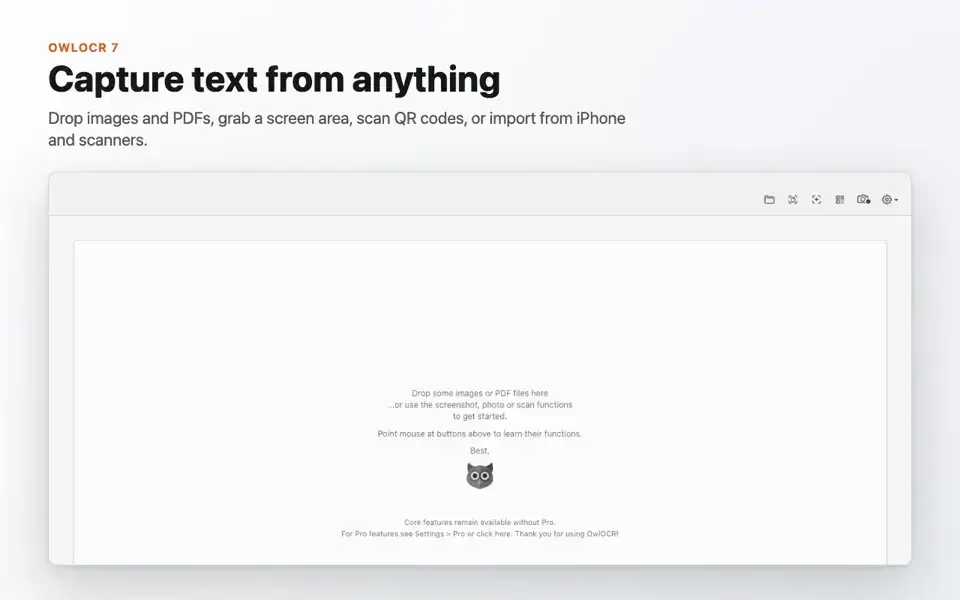
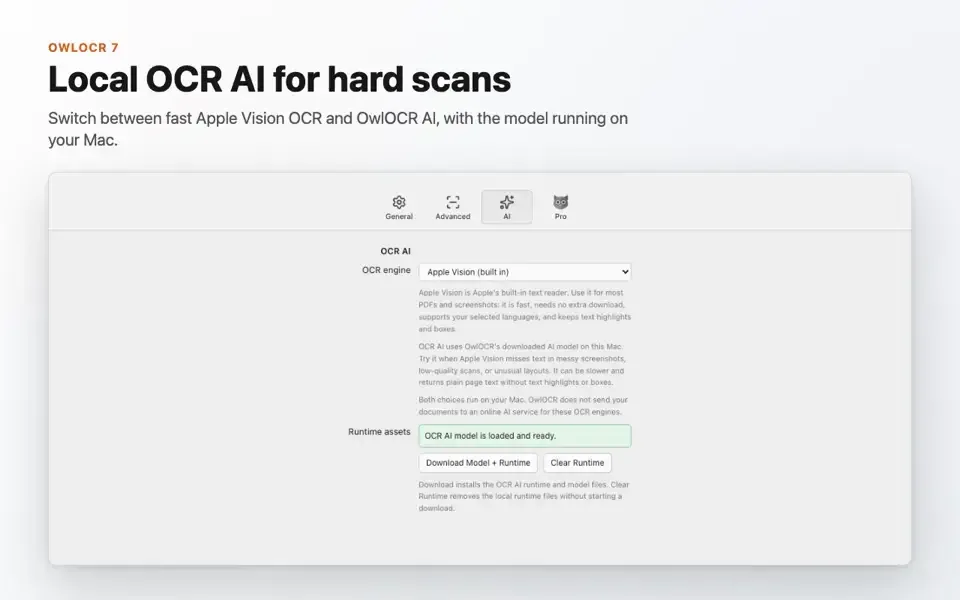
OwlOCR is an OCR app for Mac that turns screenshots, images, and scanned PDFs into editable text. Press a shortcut, drag a box over any part of the screen, and the recognized text lands on your clipboard. It uses Apple's Vision framework on your Mac, so no document is sent to an online service. An optional local OCR AI model gives difficult scans a second pass. Searchable PDF export adds an invisible text layer to scanned pages. QR code and barcode scanning are included. Version 7.22.2 runs on macOS 13.3 or later, on Apple silicon and Intel Macs. It suits students, researchers, and office users who copy text out of images.
Key Features
- Screen-region OCR: drag a box over text anywhere on screen and copy the result to the clipboard.
- Configurable shortcuts: starts capture with Cmd+F1 and Cmd+F2 by default.
- Apple Vision engine: recognizes text on-device, with languages depending on your macOS version.
- OCR AI (Pro): runs an optional local model for a second pass on difficult material.
- PDF and image OCR: reads PDF, BMP, GIF, HEIC, HEIF, JPEG, PNG, TIFF, and WebP files.
- Searchable PDF export: adds an invisible text layer so scanned pages can be searched and selected.
- Plain text export: saves recognized text as a text file or copies it to the clipboard.
- QR code and barcode scanning: reads codes found in images and on screen.
- Multi-area capture (Pro): combines up to 50 screen regions in one pass.
- Batch processing (Pro): runs multi-page OCR in parallel and works through Finder extensions.
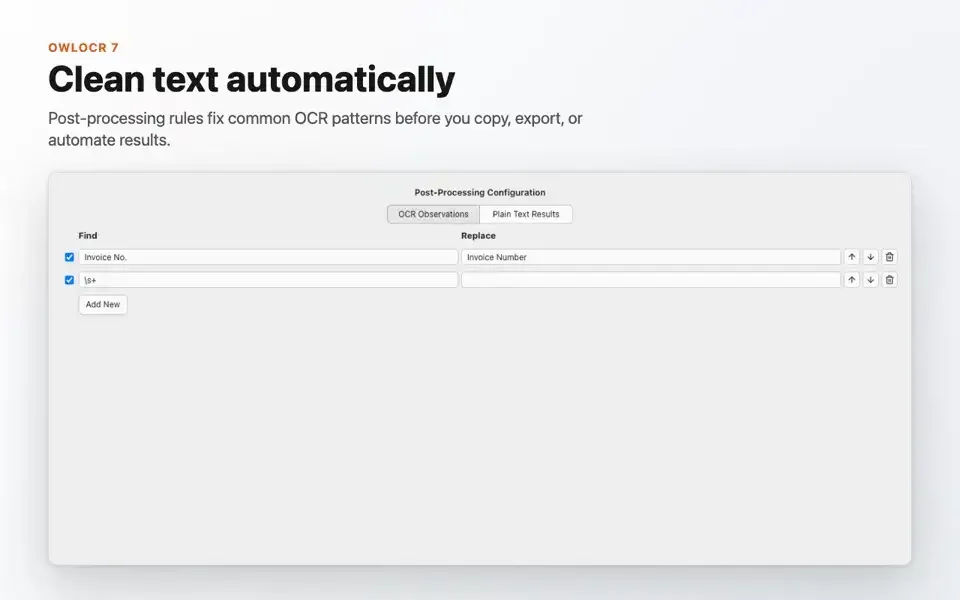
- Post-processing rules (Pro): applies Find/Replace and Smart Quotes to cleaned text.
- Custom dictionary: teaches the app terms that it often misreads.
- Command-line interface (Pro): runs OCR from scripts and automation tools.
- Finder Quick Actions: starts OCR from the right-click menu.
- Apple device camera scanning: captures paper documents through a nearby Apple device camera.
Screenshots
What's New in OwlOCR 7.22.2 Version
- Scheduled update checks no longer download the same pending update again
- Choosing Later dismisses restart reminders for that update until you reopen OwlOCR
- Turn Off Automatic Updates now appears in the restart dialog, and manual update checks still work
- Better compatibility with the update server avoids unnecessary full downloads
- Complex PDF pages are prepared for OCR AI with less repeated work
- Text placement for page previews and searchable PDF export is faster
- Large PDFs are checked and prepared for recognition faster
- The on-device OCR AI runtime and PDF processing components were updated
Supported macOS Versions
OwlOCR 7.22.2 requires macOS 13.3 (Ventura) or later, so Macs on macOS 13.2 or older cannot run this version. It supports Apple silicon and Intel Macs, and it follows Dark Mode. The developer does not list RAM or processor requirements. The listing shows a download size of about 199.6 MB. OCR on a single screenshot is light work for any supported Mac. Large scanned PDFs and the optional OCR AI model need more memory and processing time, so an Apple silicon Mac handles them best. Language coverage depends on Apple's Vision framework and your macOS release, so a newer system often recognizes more.
How to Download and Install OwlOCR Mac?
Installing OwlOCR on Mac takes a couple of minutes.
- Click the Download button above to safely download the setup file.
- Open the downloaded file, then move OwlOCR into your Applications folder.
- Launch OwlOCR from Applications. If macOS asks you to confirm opening an app downloaded from the internet, click Open.
- Allow Screen Recording access in System Settings if macOS prompts you, so the app can read text on screen.
- Restart OwlOCR if macOS asks, then press Cmd+F1 to try your first capture.
Alternatives to OwlOCR
Live Text in macOS: Built in and free, it selects and copies text from images in Preview, Photos, and Quick Look. It has no batch tools and no searchable PDF export.
OCRmyPDF: Free, open-source command-line tool under the Mozilla Public License 2.0 that adds a text layer to scanned PDFs. It installs on macOS with Homebrew, but it has no graphical interface.