CopyQ Overview
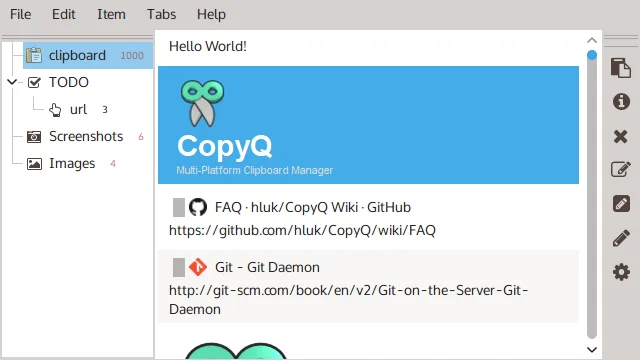
CopyQ is a free, open-source clipboard manager for Mac. It saves everything you copy and keeps it in a searchable history. You can sort items into tabs, tag them, pin the important ones, and paste any entry back with a keystroke. It handles plain text, HTML, images, and custom formats. The app sits in the menu bar and stays out of the way. It suits snippet collecting, research notes, and repeated paste tasks. Power users can add global shortcuts, custom commands, and scripts through a built-in command line and scripting API. Tabs can be encrypted, and copies from password managers are ignored. CopyQ 17.0.0 is the latest release. It ships as separate Apple Silicon and Intel builds.
Why Choose CopyQ Mac App
The built-in Mac clipboard holds one item at a time. Copy something new and the old item is gone. CopyQ fixes that with a history you can search, sort, and reuse. Items go into named tabs, so code snippets, email replies, and screenshots never mix. Tags and notes make an entry easy to find later. Pinned items stay put while the rest of the history rolls over.
CopyQ also goes further than most clipboard tools on automation. Every action in the app can be triggered from the command line. A scripting API lets you write commands that run when something is copied. You can filter text, rename items, or send a copy to another tool. Privacy is covered too. Tabs can be encrypted with keychain support, and entries copied from password managers are skipped by default.
Mac users should know two details. CopyQ is an unsigned app, so the first launch needs one extra click in System Settings. It also needs Accessibility access to paste into other apps. Both steps are covered in the install section below.
Key Features
- Tabbed clipboard history: organizes copied items into custom tabs, with up to 100,000 items per tab.
- Rich content support: stores plain text, HTML, images, and custom data formats.
- Fast search: filters history as you type, handles several words at once, and ignores accents.
- Notes and tags: adds labels and short comments to any item for quick retrieval.
- Pinned items: locks important entries in place so they stay at the top of a tab.
- Global shortcuts: opens the history, pastes the next item, or runs a command from any app.
- Custom commands: runs actions on copy or on demand, opened from the Command dialog.
- Command line and scripting API: controls the app from Terminal or from your own scripts.
- Tab encryption: protects sensitive tabs with a password and keychain support.
- Password manager awareness: ignores clipboard entries marked as concealed.
- Built-in editor with Vim-style keys: edits items with FakeVim, plus Emacs-style navigation.
- Themes and layout control: switches between light, dark, One Dark, and Nord-style looks.
- Synchronize plugin: keeps selected tabs mirrored with a folder on disk.
Screenshots
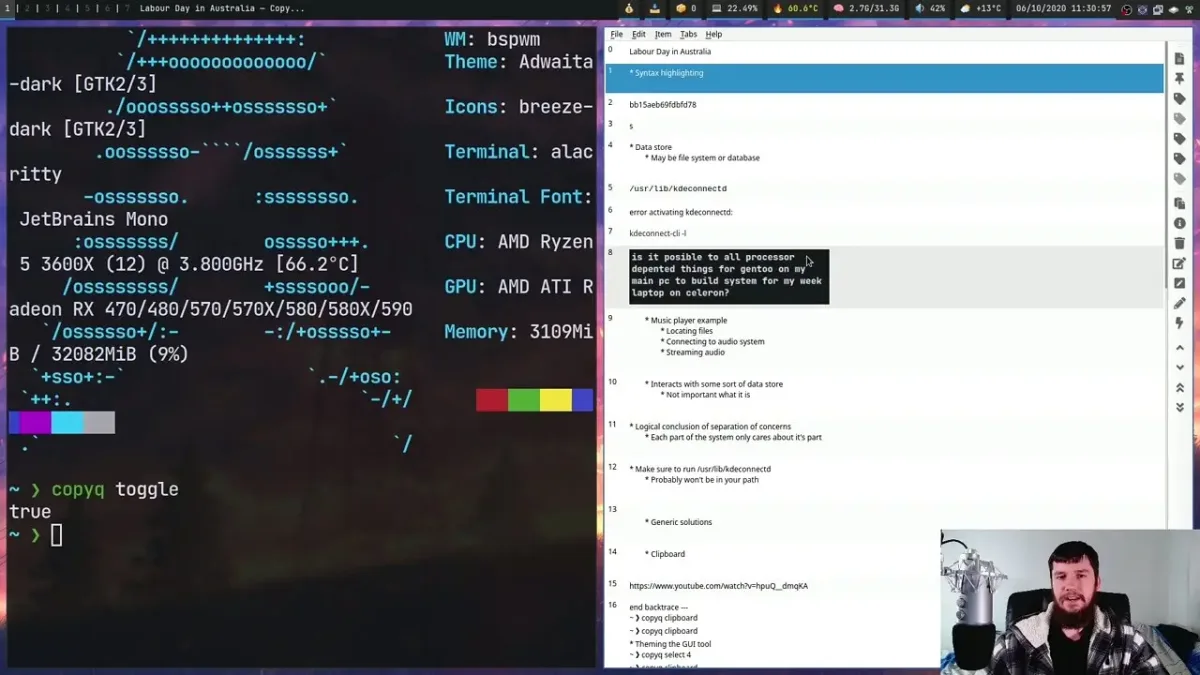
What's New in CopyQ 17.0.0 Version
CopyQ 17.0.0 changes where the app keeps its data. It follows 16.0.0, which added size limits for each clipboard format. The main changes on Mac are:
- App data and state now live in the standard `~/Library/Application Support` location, and the `COPYQ_STATE_PATH` variable can override it
- This change is not backwards compatible, so older versions cannot read data saved by 17.0.0
- FakeVim was updated for better Vim-style editing in the built-in editor
- A CPU usage problem in the audio engine was fixed
- Script dialogs now remember a sensible size
- Tab icon lookups are faster when many tabs are open
- Old tabs no longer reappear in the configuration
- A freeze in the Synchronize plugin was fixed
- Back up your items before upgrading. After the move, going back to an older version means losing access to the saved history.
Supported macOS Versions
CopyQ 17.0.0 supports macOS 13.0 (Ventura) or later. Apple Silicon and Intel Macs each get their own build, so pick the one that matches your chip. Apple Silicon builds are marked with an M1 label in the file name. The app is light on resources, so an older Intel Mac handles daily use without trouble. Very large histories with many images are the exception. They take more memory, and the per-format size limits from 16.0.0 help keep that in check. Support for macOS releases newer than the ones listed here has not been confirmed by the developer.
How to Download and Install CopyQ Mac?
Installing CopyQ on Mac takes a few steps, including two quick permission steps it needs to run properly.
- Click the Download button above to download the setup file.
- Open the downloaded .dmg file, then drag CopyQ into your Applications folder.
- Launch CopyQ from Applications. If macOS blocks it, go to System Settings → Privacy & Security and click Open Anyway.
- If macOS says the app is damaged, open Terminal and run `xattr -cr /Applications/CopyQ.app`, then launch it again. Use this only for a file from a source you trust.
- Grant Accessibility access in System Settings → Privacy & Security → Accessibility, so CopyQ can paste into other apps.
- CopyQ now appears in the menu bar and starts saving what you copy.
Accessibility access may need to be granted again after an update. Untick CopyQ in the list, tick it again, and relaunch the app.
How to Use CopyQ Mac?
- Copy text, links, or images as usual. Each one is added to the history automatically.
- Click the CopyQ icon in the menu bar to open the history, or use your global shortcut.
- Type in the search box to filter items. Press Return on an entry to paste it into the active app.
- Create new tabs for different kinds of content, then drag items between them.
- Add a tag or note to an item, or pin the ones you want to keep at the top.
- Press F6 to open the Command dialog and add a command, such as one that cleans up text on copy.
- Right-click a tab to turn on encryption for sensitive items.
Alternatives to CopyQ
Maccy: Free, open-source, lightweight clipboard manager that keeps history local and ignores password manager entries, though it has no scripting layer.
Spotlight Clipboard History: Built into macOS Tahoe and off by default, offering a simple recent-copies list with no extra app, but far fewer organizing and automation options.