GoToFile Overview
GoToFile is a keyboard-driven file finder for Mac. Type a few characters and matching files and folders appear instantly, even when letters are skipped. Results come from a small in-memory index, so they show up in under 50 milliseconds across 300,000 items on an M1 Max Mac Studio. Regular expressions, metadata queries, and file kinds narrow the list further. Once a file is found, GoToFile can open it, reveal it, copy its path, or type the path into Terminal. Copy, move, rename, and trash work inside the same window. It runs natively on Apple Silicon and Intel Macs.
Why Choose GoToFile Mac App
Spotlight is built to search everything: apps, mail, documents, web suggestions. That breadth has a cost when the goal is simply finding a file by name. GoToFile does one job. It matches names and paths only, keeps its index in memory, and updates that index in real time. The list reacts to every keystroke.
It also replaces a habit most people never question. The Application Filter, triggered with ⌘, limits results to files the frontmost app can open. That turns GoToFile into a faster File > Open dialog. Developers get extra value from the gtfs and gtfb command line tools, which start a search straight from Terminal. The app stays light too. With a 300,000-item test index loaded, the developer reports about 100 MiB of memory use, less than Safari showing a blank search page.
Key Features
- Fuzzy search: matches files even when characters are left out, with upper-case letters favoring word boundaries.
- Regular expressions: builds precise filename patterns with character classes and alternates.
- Metadata queries: filters by date, age, quarter, calendar week, size, tag, owner, or symbolic link status.
- Application Filter: shows only files the frontmost app can open, replacing its Open dialog.
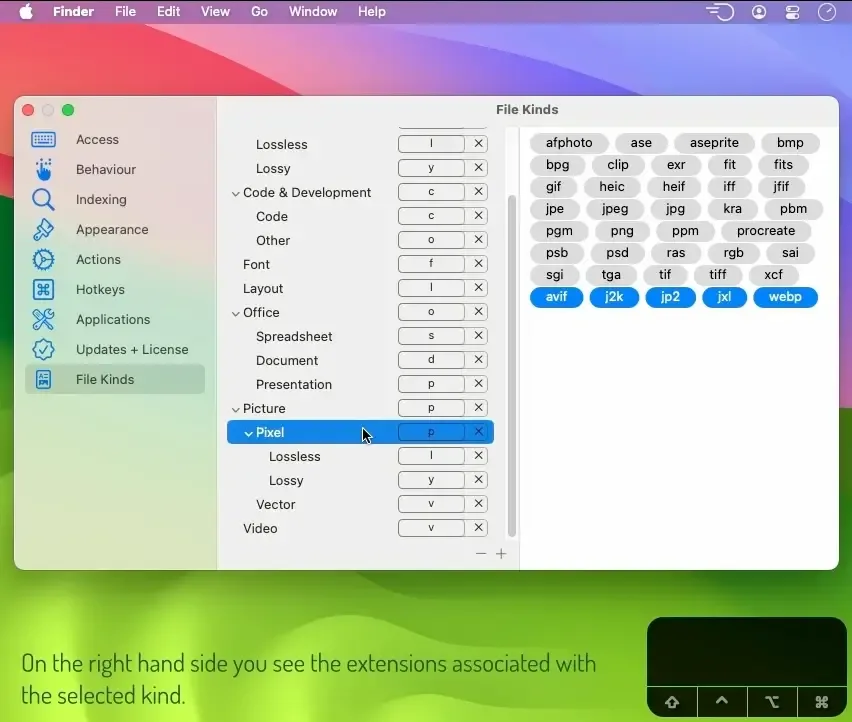
- File kinds: groups extensions into a user-editable hierarchy, such as Image, then Pixel, then Lossless.
- Live path filter: temporarily focuses on or ignores folders inside the current project.
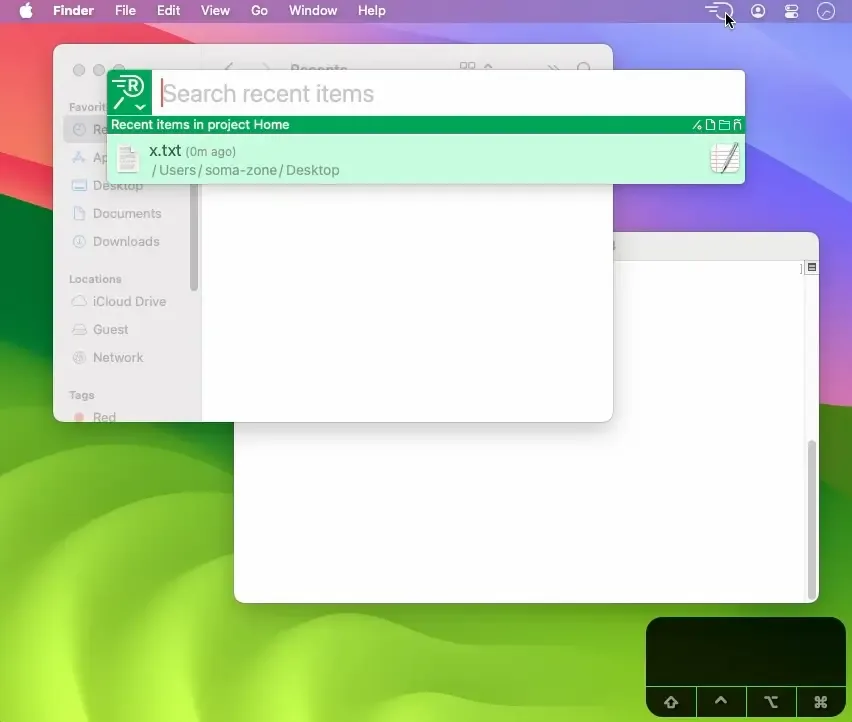
- Recent Items mode: lists the newest created or modified files first, however they were changed.
- Marked Items mode: collects files marked with one keystroke as a staging area for later actions.
- Browser mode: moves through folders like Finder while keeping the current query and selection.
- Built-in file management: copies, moves, renames, duplicates, and trashes items in every mode.
- User actions: runs any script or app on a selection and shows output in Terminal or as a searchable list.
- Search projects: defines sets of folders with include and exclude rules, so every search stays inside the right places.
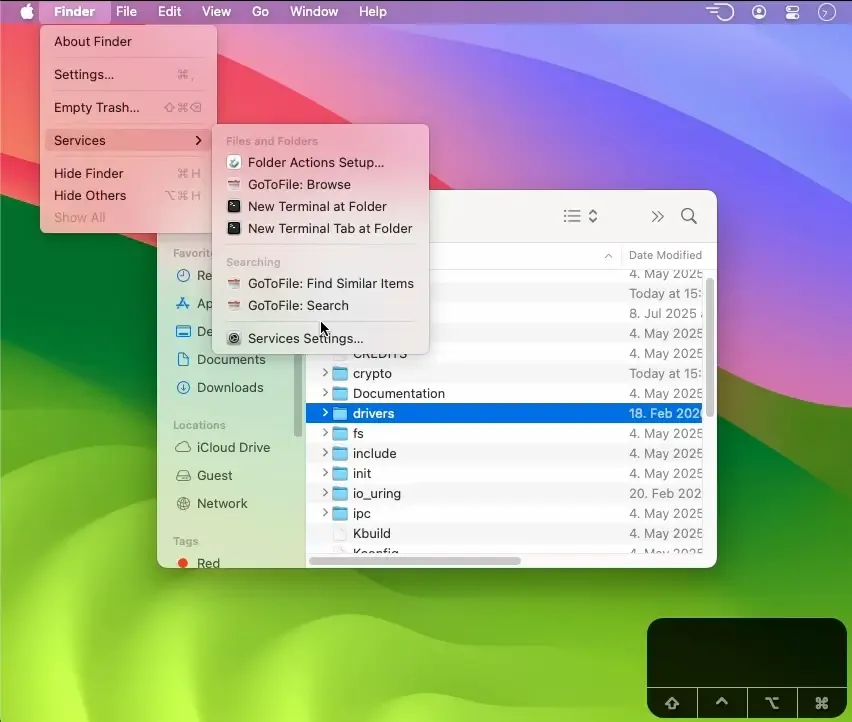
Screenshots
What's New in GoToFile 1.36.1 Version
Version 1.36.1, released September 27, 2026, is a fix release:
- Fixed Browser Mode selecting the last item instead of the first on its first use after launch
- Fixed state restoration skipping the Live Path Filter, Ignore Diacritics, Application Filter, and visible item types
- Fixed a crash after an item is moved out of the search scope
- The 1.36 series also added queries for filesystem relations, such as finding a folder that contains a given file. It fixed a crash on macOS 27 and sped up queries on indexes with millions of items.
Supported macOS Versions
GoToFile runs on every release from macOS Big Sur (11.5) through macOS Golden Gate (27). Both Apple Silicon and Intel Macs run it natively, so there's no translation layer. Index size grows with the number of files, so a Mac with fast storage and plenty of memory keeps large volumes responsive. Typical folder trees index quickly on any supported Mac.
How to Download and Install GoToFile Mac?
Installing GoToFile on Mac takes a few steps after downloading.
- Click the Download button above to safely download the setup file.
- Open the downloaded file, then drag GoToFile into your Applications folder.
- Launch GoToFile from Applications. If macOS shows a security prompt, go to System Settings → Privacy & Security and click Open Anyway.
Set a hotkey or menu bar access in Settings, then let GoToFile build its first index.
How to Use GoToFile Mac?
- Press your GoToFile hotkey to open the search window.
- Type a few characters of a file or folder name. Skipped letters are fine.
- Use the arrow keys to select a result, then press Return to open it.
- Press ⌘\ to limit results to files the frontmost app can open.
- Press ⌘⏎ to type the selected path into the frontmost app, such as Terminal.
- Switch to Recent Items or Marked Items using their default shortcuts to work from a shorter list.
Alternatives to GoToFile
Spotlight: Built into every Mac and free. Searches names, contents, apps, and more from one box, with results tied to the system index.
Raycast: Launcher with a free plan that includes file search, clipboard history, and a large extension library.
Alfred: Launcher with a free core app for opening apps and finding files. Its paid Powerpack adds workflows.