Growly Backup Overview
Growly Backup for Mac copies exactly the folders you choose onto a dedicated external drive, keeping the same folder structure as your original disk. There's no cloud account to sign into, no subscription, and no proprietary backup format to decode later; restoring a file just means opening the backup drive in Finder and dragging it back. It's meant to sit alongside Time Machine rather than replace it, giving you manual control over specific folders and destinations Time Machine doesn't handle the same way. Anyone keeping a rotating set of backup drives, people who want an offsite copy of just their critical files, and users who'd rather understand exactly what got backed up and where all find it does the job without any extra complexity.
Why Choose Growly Backup Mac App
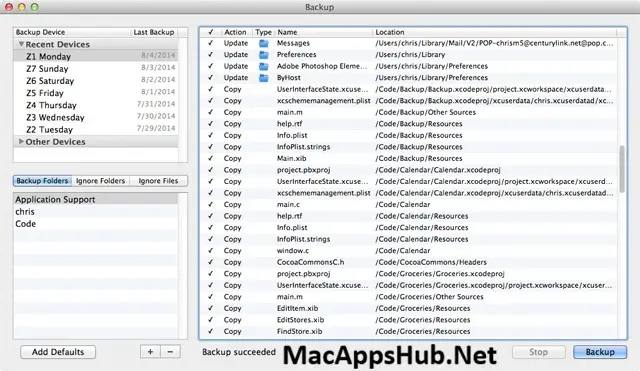
The whole appeal here is how little there is to think about. You pick what to back up, tell it what to skip, choose a dedicated device, and click Backup; that's the entire workflow, with no scheduling menus or settings to configure first. Because it mirrors your folder structure exactly onto the destination drive, there's nothing proprietary to worry about if you ever need to restore a file years later. Just open the drive in Finder, find the file where you'd expect it to be, and drag it back. No other software is required to read it, not even Growly Backup itself.
The way it's meant to fit into a Mac backup routine is worth understanding before you use it. It's explicitly built to complement Time Machine rather than compete with it, so pairing the two gives you both continuous versioned backups and a simple manual copy you fully control. A common approach is partitioning one external drive into several sections, one per day of the week, so you always have a handful of recent backups on hand without any complicated versioning system underneath. At 1.2 MB, it launches instantly and runs no background processes when you're not actively using it, and it's completely free with no premium tier hiding features behind a paywall.
Key Features
- Simple four-step workflow: choose a source, set exclusions, pick a destination, and click Backup.
- Exact folder mirroring: backups keep the same structure as your original disk, so restoring is just dragging a file back in Finder.
- Flexible source selection: back up your entire Home folder, just Documents, or any custom set of folders.
- Exclusion rules: skip large folders like Photos or Movies that you back up elsewhere or don't need duplicated.
- Dedicated backup devices: use a thumb drive, external hard drive, or a dedicated partition, kept separate from other data.
- Rotating partition support: split one external drive into multiple partitions for a day-by-day backup rotation.
- No account or cloud dependency: backups stay entirely local, with nothing to sign into or sync online.
- Universal binary: runs natively on both Apple Silicon and Intel Macs.
- Lightweight footprint: the entire app is about 1.2 MB, with no background processes running when idle.
- Completely free: no in-app purchases, subscriptions, or premium tier.
What's New in Growly Backup 1.5.6 Version
Detailed release notes for version 1.5.6 haven't been published by the developer, but the update continues GrowlyBird's steady, low-key maintenance cycle. Recent versions have focused on small reliability fixes around Finder attribute handling; version 1.4.3, for example, fixed folders being incorrectly flagged for updates when their tags or hidden-extension settings hadn't actually changed. User reports place recent updates arriving roughly every few months rather than on any fixed schedule.
Supported macOS Versions
Growly Backup supports macOS 10.10 Yosemite and later, one of the widest compatibility ranges you'll find in an actively updated Mac utility, useful if you're still running an older machine as a dedicated backup station. As a universal binary, it runs natively on both Apple Silicon and Intel Macs, and since copying files between folders isn't demanding work for any modern chip, performance stays essentially identical regardless of which Mac you run it on, all the way up through macOS 26 Tahoe.
How to Download and Install Growly Backup on Mac?
Installing Growly Backup on Mac only takes a few steps after downloading, including one quick permission it needs to run properly.
- First click on the Download button given on this page that is fully secure and complete the downloading procedure.
- Open the downloaded .dmg file, then drag Growly Backup into your Applications folder.
- Launch Growly Backup from Applications. If macOS shows an "unidentified developer" warning, go to System Settings → Privacy & Security and click Open Anyway.
- Grant Full Disk Access when prompted, so Growly Backup can read and copy files from the folders you select.
- Connect the external drive or thumb drive you plan to use as your backup device.
Once the initial setup is done, Growly Backup won't ask for these permissions again, future launches go straight to your backup settings.
How to Use Growly Backup Mac App?
- Launch Growly Backup and choose the folder or folders you want backed up, such as your Home or Documents folder.
- Add any folders you want excluded, like large Photos or Movies libraries you back up elsewhere.
- Connect and select a dedicated backup device, a thumb drive, external drive, or partition with nothing else stored on it.
- Click the Backup button and let Growly Backup mirror your selected folders to the device.
- To restore a file, open the backup device in Finder and drag the file back to your Mac.
- Repeat regularly, or use multiple partitions for a rotating day-by-day backup schedule.