
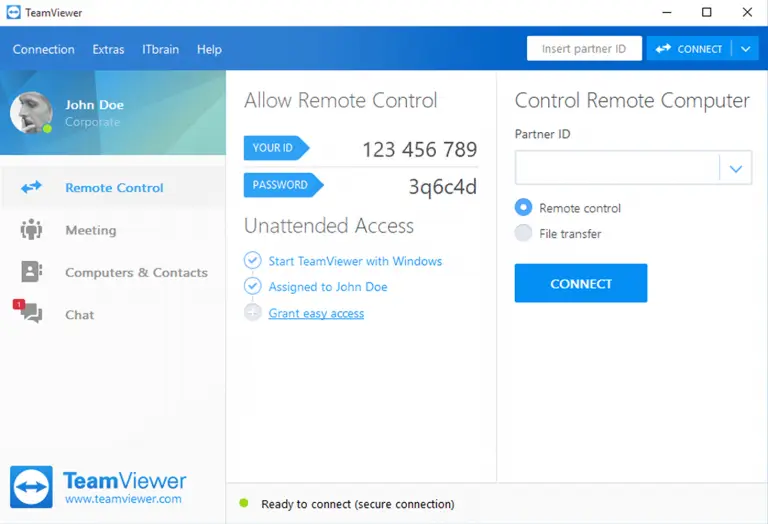
TeamViewer Overview
TeamViewer is a remote access app that lets you control another computer from your Mac, or let someone else connect to yours, within seconds. It's trusted by more than 200 million users worldwide for remote support, device management, and online meetings. It's free for personal, non-commercial use, with paid licensing available for business and team use. Beyond basic remote control, it supports file transfer, session recording, and administrative tools like Single Sign-On and device management for larger organizations. A recent update also patched a real security issue involving two-factor authentication on unattended Mac connections, which is now resolved. Connections work over the internet without needing router or firewall changes.
Why Choose TeamViewer for Mac
Setting up remote access usually means configuring network settings or installing something on both ends just to get a connection working. TeamViewer skips that friction: you install it, share a code, and the connection happens over the internet without router configuration or firewall changes.
It's worth knowing about a real security fix in a recent update, since it affects a meaningful use case. A security bulletin identified a business logic issue where Unattended Access on Mac could bypass configured two-factor authentication during connection approval. That's now resolved, but if you rely on unattended access with 2FA enabled, updating to the current version closes that gap.
Key Features
- Remote control of other computers within seconds, no network setup required
- Online meetings and screen sharing built into the same app
- File transfer between connected devices during a session
- Session recording for documentation or review
- Single Sign-On (SSO) support for business accounts
- Conditional Access rules using Company Profiles for trusted third-party access
- Device management tools for administrators overseeing multiple machines
- Free for personal, non-commercial use
What's New in 15.80.4 Version
TeamViewer 15.80.4 focuses on access control and security fixes. Recent changes include:
- Added support for Admin settings, device management, and Single Sign-On through Hybrid Conditional Access
- Added Conditional Access rules using Company Profiles, including a new External Company option for trusted third-party access
- Improved session connection options available directly from the command bar
- Fixed a bug causing remote control sessions to disconnect unexpectedly when free disk space was low
- Fixed an issue affecting the "Send key combinations" setting
- Resolved a security issue where Unattended Access on Mac could bypass configured two-factor authentication
- These updates combine real security hardening with expanded administrative controls for teams managing multiple devices.
Supported macOS Versions
TeamViewer requires macOS 13.5 or later and runs natively on both Intel and Apple Silicon Macs. Since recent updates include real security fixes, staying current is worth prioritizing, especially if you use unattended access or two-factor authentication for remote connections.
How to Install TeamViewer on macOS?
Setting up TeamViewer on your Mac takes just a few steps.
- Download the latest version of TeamViewer for Mac.
- Open the downloaded installer file.
- Follow the on-screen instructions to complete installation.
- Launch TeamViewer from your Applications folder.
- Grant any screen recording or accessibility permissions macOS requests.
- Once installed, you can share your ID and password to let someone connect, or enter theirs to connect to their computer.
How to Use TeamViewer Mac?
- Open TeamViewer and note your ID and password under Remote Control.
- Share that ID and password with whoever needs to connect to your Mac.
- To connect to another computer instead, enter their ID and password.
- Use the toolbar during a session for file transfer, chat, or recording.
- End the session when finished, or set up unattended access for future connections.