
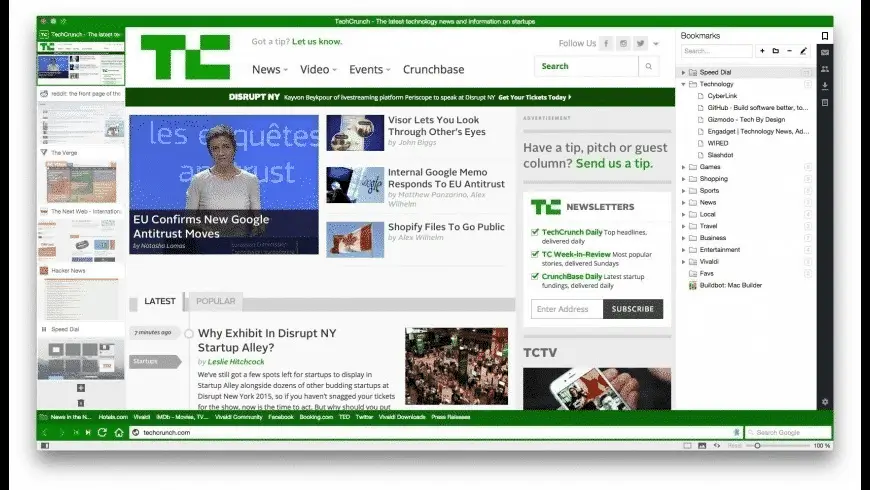
Vivaldi Overview
Vivaldi for Mac is a power-user web browser built on the Chromium engine by Vivaldi Technologies. Designed specifically for productivity enthusiasts on macOS, it provides native tab stacking, multi-pane tab tiling, and dockable side Web Panels. The browser integrates an end-to-end encrypted desktop sync, built-in ad/tracker blocking, and a integrated mail client without needing third-party extensions. Its modular user interface allows complete visual remapping, custom keyboard shortcuts, and mouse gestures tailored to your macOS desktop workflow. Operating natively on Apple Silicon, Vivaldi provides robust tab management while keeping RAM consumption efficient across heavy browsing sessions.
Why Choose Vivaldi Mac App
Vivaldi delivers deep interface customization unmatched by traditional macOS web browsers. Power users can group dozens of open pages into Workspaces, split views using side-by-side Tab Tiling, and dock active mobile sites directly into side Web Panels. It respects user privacy by default, blocking intrusive trackers and ad networks without building ad tracking profiles.
The application is distributed as a Universal Binary, ensuring peak optimization on M-series and Intel Macs. Memory management algorithms hibernate background tabs automatically, saving system resource allocation during prolonged multitasking. Native macOS notification integration, dark mode sync, and gesture controls ensure it integrates smoothly into the Mac desktop environment.
Key Features
- Two-Level Tab Stacks: Groups related tabs into sub-bars to eliminate messy tab bar clutter.
- Workspaces System: Separates browsing contexts like work, personal, and research within one main window.
- Split-Screen Tab Tiling: Displays multiple active web pages simultaneously in grid or column views.
- Sidebar Web Panels: Pins frequently visited tools, messaging apps, and notes alongside active tabs.
- Built-in Tracker & Ad Blocker: Blocks unwanted trackers and popups without requiring external add-ons.
- End-to-End Encrypted Sync: Synchronizes bookmarks, passwords, and open tabs across Mac and iOS devices securely.
- Native Mail, Calendar & Reader: Integrates IMAP/POP email, CalDAV calendar, and RSS feeds directly into the browser.
- Chrome Extension Compatibility: Fully supports Chrome Web Store extensions on top of native features.
What's New in 8.2.4133.84 Version
The latest Vivaldi 8.2 release updates the underlying browser core and refines daily browsing controls.
- Upgraded the core browsing engine to Chromium 150 for enhanced security and rendering performance.
- Enhanced drag-and-drop mechanics for split-screen Tab Tiling across large desktop monitors.
- Refined tab opening behavior and memory reclamation for hibernated background tabs.
- Resolved interface rendering edge cases on macOS Sonoma and macOS Sequoia releases.
- These updates guarantee fast page load speeds and strong protection against newly identified web vulnerabilities.
- [Chromium] Update to 152.0.7977.137 ESR includes security fixes from 153.0.8010.52/53
- [Tabs] 'Small tabs' display issue
Supported macOS Versions
Vivaldi 8.2 requires macOS 12.0 (Big Sur) or later, fully supporting macOS Sonoma and macOS Sequoia. It runs natively on Apple Silicon hardware (M1, M2, M3, M4 chips) and 64-bit Intel processors without Rosetta translation. The application requires a minimum of 4 GB RAM and 300 MB disk space, though 8 GB RAM is recommended for heavy multi-tab workflows.
How to Install Vivaldi on Mac?
Setting up Vivaldi on your Mac takes just a few steps.
- Download the latest version of Vivaldi for Mac using the download link below.
- Locate and open the downloaded disk image (.dmg) file in your Downloads folder.
- Drag the Vivaldi icon into your Applications folder.
- Launch Vivaldi directly from your Applications folder or via Spotlight search.
- Grant any network access or storage permissions macOS requests upon initial startup.
- Follow the setup wizard to import bookmarks or customize your default browser theme.
How to Use Vivaldi Mac App?
- Launch Vivaldi and select your preferred layout density during the initial setup screen.
- Drag one tab on top of another on the tab bar to create a stacked tab group instantly.
- Click the Workspace dropdown in the top left to create separate groups for work or research.
- Right-click selected tabs and choose Tile Tabs to view multiple pages side-by-side.
- Click the Plus icon on the left sidebar to add any site as a quick-access Web Panel.
- Open Settings to configure custom mouse gestures and keyboard shortcuts to speed up navigation.