VisualDiffer Overview
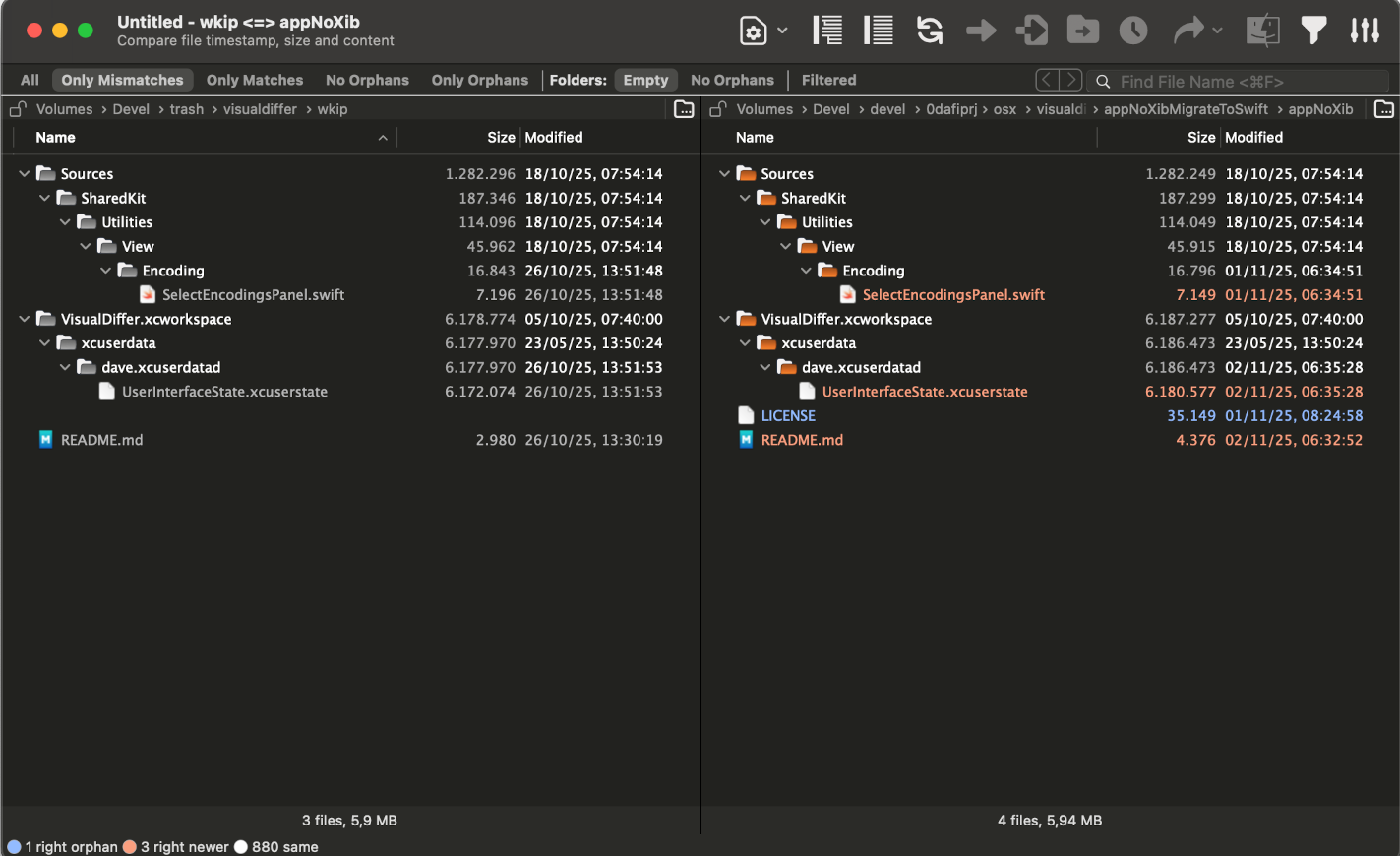
VisualDiffer for Mac compares files and folders side-by-side, showing exactly what changed between two versions without opening either one manually. Folder comparisons use color-coded status labels for new, modified, unchanged, and removed items across two directory trees, while file comparisons highlight additions, deletions, and modifications line by line with syntax highlighting. Include and exclude filter rules keep build artifacts, dependencies, and system files out of the results, so a comparison only shows what actually matters. Developers checking what changed between two code branches, anyone reconciling two folders after a messy backup or sync, and writers comparing draft revisions all use it to see differences at a glance instead of scanning files by eye.
Why Choose VisualDiffer Mac App
Speed is where independent testing has actually backed this up. One long-time user compared it directly against Beyond Compare, Kaleidoscope, and kdiff3 on a 90 MB text file, and VisualDiffer came out fastest of the four by a clear margin, with kdiff3 trailing well behind despite also being free. That performance holds up whether you're diffing a single large file or an entire folder tree, and the filtering system means a comparison of a real project folder doesn't get buried under noise from node_modules, build output, or hidden system files you never wanted compared in the first place.
The parts you don't see matter just as much here. VisualDiffer runs inside Apple's App Sandbox, a deliberate limit on what the app can touch on your system, and it collects no telemetry or usage data of any kind. Since the entire codebase sits publicly on GitHub under the GPL v3 license, nothing about how a comparison actually works is hidden behind closed-source logic, anyone can read the exact code making the decision about what counts as a difference. Updates install automatically, so new fixes and features reach you without a manual reinstall each time.
Key Features
- Side-by-side folder comparison: color-coded status for new, modified, unchanged, and removed files across two directory trees.
- Line-by-line file comparison: syntax-highlighted diffing that pinpoints additions, deletions, and modifications inside a file.
- Advanced filtering rules: write pattern-based rules once, and every future comparison in that folder automatically skips whatever you've told it to ignore.
- Option+Enter comparison shortcut: trigger a comparison of selected items without reaching for the toolbar.
- Unified Compare menu: one merged menu and toolbar icon covers both file and folder comparisons instead of two separate commands.
- Sandboxed architecture: the same containment model Mac App Store apps use, applied here even though VisualDiffer isn't distributed through the Store.
- Automatic updates: new releases install without a manual download each time.
- Multi-select search results: select every matching result from a search in one action instead of clicking through them individually.
- Keyboard-driven panel navigation: move focus between panels with Tab, even while the console is open.
- Open, auditable codebase: a bug report can point straight at the specific commit that caused it, instead of stopping at "it's broken, please fix."
What's New in VisualDiffer 2.2.1 Version
Version 2.2.0 shipped September 19, 2026 with a mix of new shortcuts, interface consolidation, and fixes.
- Added the ability to select all search results at once.
- Added an Option+Enter shortcut to trigger a comparison directly.
- Merged the separate "Compare Files" and "Compare Folders" menus into one Compare command with a matching toolbar icon.
- File Compare: compare files in the background with progress and a log console (#67) (0582ba8)
- Added the ability to open Finder or copy a file path directly by double-clicking it.
- File Compare now shows a count of ignored differences alongside the regular diff counter.
- Fixed keyboard focus not moving correctly between panels when using Tab or when the console closed.
- Fixed a leftover visual divider handle that could remain on screen after it was no longer needed.
- Fixed several save-related issues, including keeping the correct row selected in Folder Compare after a file becomes identical to its counterpart.
Features
- Folder Compare: add Quick Look file preview panels (488be96)
Bug Fixes
- Size and center new windows based on the screen (d0c5a90)
Supported macOS Versions
VisualDiffer 2.2.0 requires macOS 13.5 or later and runs as a universal binary on both Apple Silicon and Intel Macs. Since text-based comparison isn't demanding work for either chip, day-to-day performance stays smooth on both architectures, with Apple Silicon pulling ahead mainly on very large, multi-gigabyte folder trees where faster storage I/O makes more of a difference than raw CPU power.
How to Download and Install VisualDiffer on Mac?
Installing VisualDiffer on Mac only takes a few steps after downloading, including one quick permission it needs to run properly.
- Click the Download button above to securely download the setup file OR you may get it from official website.
- Open the downloaded .dmg or .zip file, then drag VisualDiffer into your Applications folder.
- Launch VisualDiffer from Applications. If macOS shows an "unidentified developer" warning, go to System Settings → Privacy & Security and click Open Anyway.
- Grant Full Disk Access or folder permissions when prompted, so VisualDiffer can read the files and folders you want to compare.
Once the initial setup is done, VisualDiffer won't ask for these permissions again, future launches open straight to the comparison window.
How to Use VisualDiffer Mac App?
- Launch VisualDiffer and choose Compare > Files or Compare > Folders from the unified Compare menu.
- Select the two files or folders you want to compare, or drag them directly into the window.
- Review color-coded differences in the folder view, or scroll through syntax-highlighted line changes in the file view.
- Set up include and exclude filter rules under Preferences to hide files and folders that shouldn't be part of the comparison.
- Use Option+Enter to quickly compare a newly selected pair of items without leaving the keyboard.
- Double-click a path to open it directly in Finder or copy it for use elsewhere.
Alternatives
KDiff3: A free, open-source file and folder diff and merge tool, though noticeably slower on very large files based on direct user testing.
FreeFileSync: A free, cross-platform tool built around folder comparison and synchronization rather than pure diffing.
p4merge: A free visual merge and diff tool from Perforce, usable standalone without a Perforce account.