Shottr Overview
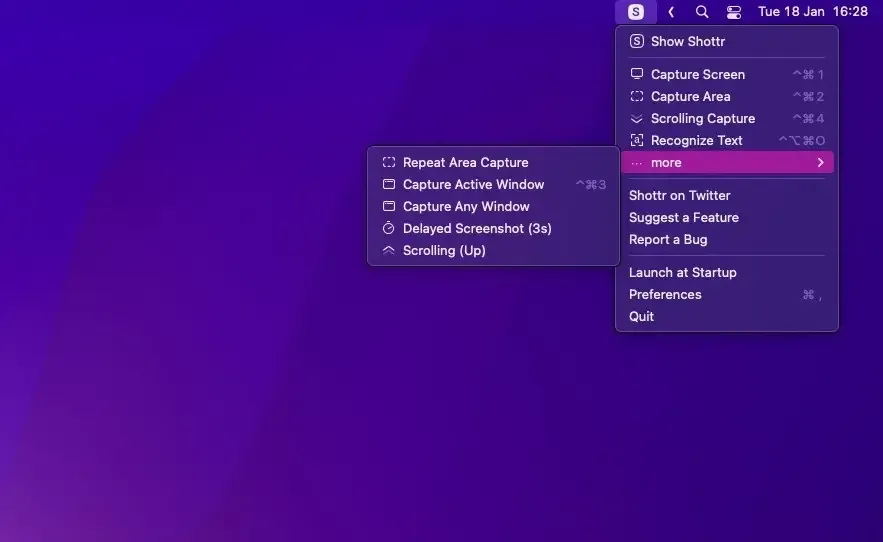
Shottr is a fast screenshot and annotation app for Mac built for designers, developers, and anyone who cares about pixels. It captures scrolling screenshots of long web pages or chat conversations, extracts text and QR codes with built-in OCR, and measures on-screen distances with a screen ruler. A color picker copies exact pixel values, including OKLCH and APCA contrast checking, and a backdrop tool adds gradients, shadows, and rounded corners to a capture. Annotation tools cover freehand drawing, highlighting, spotlights, arrows, and text, while pixelation or text-only erase can hide sensitive information. Screenshots can be pinned as floating windows, combined on one canvas, or overlaid to build before/after comparisons. Once activated, Shottr can upload directly to Amazon S3 and other compatible storage services. The app can be used for free indefinitely, with occasional prompts to consider purchasing a license.
Why Choose Shottr Mac App
Built-in screenshot tools cover the basics, then stop right where designers, developers, and QA testers actually need more. Shottr fills that gap without becoming bloated: scrolling captures for long pages, a screen ruler for measuring pixels, a color picker that reads exact values, and instant OCR that turns a screenshot into selectable text.
The app is built specifically for Apple Silicon and stays remarkably light, grabbing a screenshot in about 17 milliseconds and showing it roughly 165 milliseconds later. Nothing about the free version is crippled either. A gentle nudge shows up here and there suggesting a purchase, but every core tool stays available without one. Long-time users on MacUpdate consistently praise its performance and depth of features, giving it one of the highest ratings among Mac screenshot tools.
Key Features
- Scrolling screenshots: captures a long web page or chat conversation as one continuous image, in any app or window.
- OCR text recognition and QR reading: parses selectable text from a screenshot, or decodes a QR code, with a single hotkey.
- Backdrop tool: adds gradient backgrounds, drop shadows, and rounded corners to a screenshot.
- Pixelate or erase objects: hides sensitive information behind a pixelated curtain, with a text-only mode that erases just the words.
- Screen ruler and measurement: measures vertical or horizontal pixel distances directly on screen using the arrow keys.
- Color picker with OKLCH and APCA: copies the exact color under the cursor and checks contrast ratios against modern standards.
- Pin screenshots: keeps an image as a floating, always-on-top window for reference or temporary storage.
- Combine and overlay screenshots: merges multiple captures on one canvas, or overlays images to build before/after comparisons.
- Annotation suite: adds freehand drawings, highlights, spotlights, arrows, and text labels, including hand-drawn styles.
- Magnifier tool: attaches a zoomed-in callout to a screenshot to highlight a specific detail.
- S3 upload: sends a finished screenshot directly to Amazon S3 or another compatible storage service.
- Raycast and Alfred integration: triggers captures and actions from either popular launcher app.
Screenshots
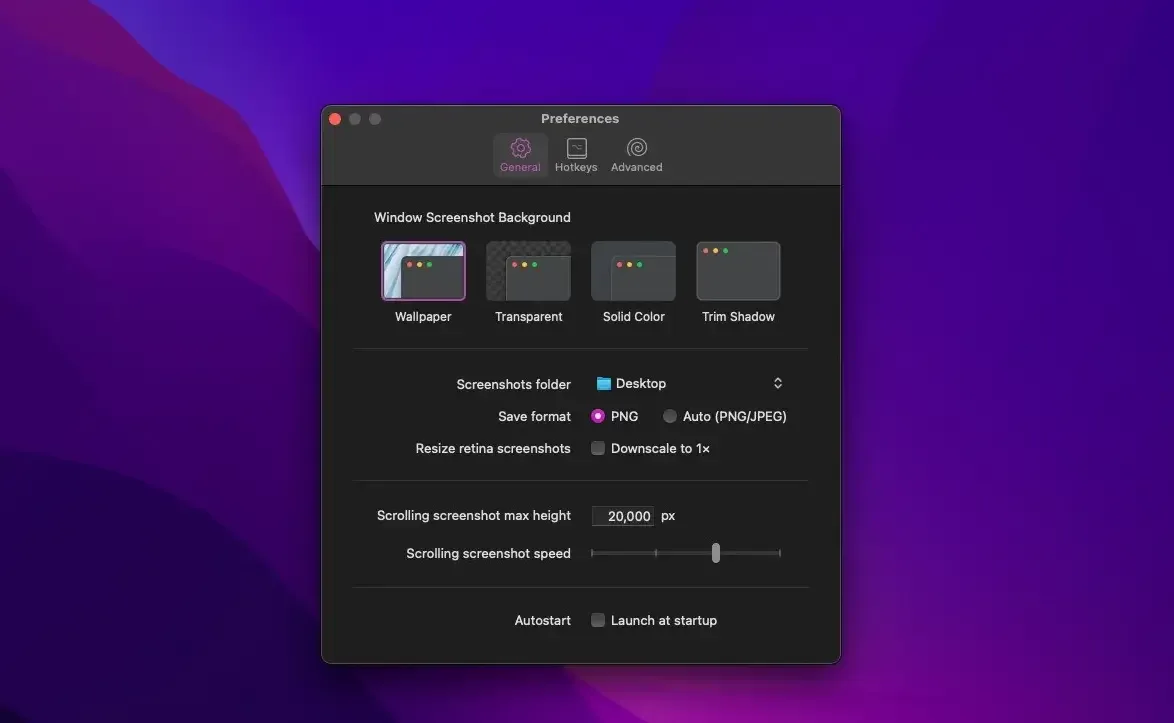
What's New in Shottr 1.9.3 Version
Version 1.9.3, released September 24, 2026, is a compatibility update:
- Another set of improvements to accommodate macOS 27
- The release just before it, 1.9.2, also focused on macOS 27 compatibility, while 1.9.1 added expanded support for third-party S3 services like Tencent, Yandex, and Minio, along with print orientation options and several bug fixes.
Supported macOS Versions
Shottr requires macOS Catalina (10.15) or later and runs as a native app optimized specifically for Apple Silicon, while remaining fully compatible with Intel Macs. Capturing and processing screenshots is lightweight work, so the app stays fast even on older supported hardware. Scrolling screenshots of very long pages and large backdrop renders benefit from more available RAM, since Shottr builds these images in memory before saving or copying them.
How to Download and Install Shottr Mac?
Installing Shottr on Mac only takes a few steps after downloading.
- Click the Download button above to safely downlaod the setup file.
- Open the downloaded .dmg file, then drag Shottr into your Applications folder.
- Launch Shottr from Applications. If macOS shows a security prompt, go to System Settings → Privacy & Security and click Open Anyway.
Grant Screen Recording permission when prompted, since Shottr needs it to capture the screen.
How to Use Shottr Mac?
- Press the assigned hotkey to start an area, window, or fullscreen capture.
- Select the region to capture, then press Enter to crop or release to open the editor.
- Use the toolbar to annotate, add a backdrop, or apply the color picker to the image.
- Press Cmd+S to save to a dedicated folder, or Cmd+C to copy the result to the clipboard.
- Hold an arrow key to measure a distance, or press Tab to copy the color under the cursor.
- Set up S3 upload in Preferences to send screenshots directly to cloud storage.
Alternatives to Shottr
Screenshot app (built into macOS): Free and included on every Mac, accessed with Cmd+Shift+5 for basic capture, markup, and screen recording.
Monosnap: Free screenshot utility for Mac with annotation tools and built-in sharing options.