AstroGrav Overview
AstroGrav for Mac simulates the solar system, and any other gravity-driven system, by calculating the actual gravitational interactions between every object rather than relying on pre-scripted orbital paths. That makes it noticeably more accurate than typical planetarium software when it comes to asteroids, comets, and other bodies whose trajectories don't follow simple ellipses. General relativity and radiation pressure can be factored in for even more precise results, and interactive 3D views let you rotate and zoom freely while the simulation evolves in real time. Astronomy students working through orbital mechanics, teachers demonstrating Kepler's Laws or gravity assists, and anyone curious what a Roche limit actually looks like all use it to see gravity play out visually instead of just reading about it.
Why Choose AstroGrav Mac App
The core distinction that matters here is real physics versus scripted animation. Most planetarium apps move objects along pre-calculated orbital paths that look right but don't respond to anything; AstroGrav actually computes the gravitational force between every object in a simulation, so an asteroid passing close to a planet genuinely gets deflected the way real gravity would deflect it. That level of accuracy shows up in subtle places too: run the solar system with general relativity switched on, and Mercury's orbit precesses at a rate that matches the published figure once you separate out the gravitational precession caused by the other planets, a detail that would be impossible to get right with scripted orbits. This extends well past the solar system too: any scenario where gravity is the only significant force, from exoplanet systems to protoplanetary disks to colliding star clusters, can be built and run the same way. Object data can be entered manually across more than 30 editable fields, or imported directly from a database of hundreds of thousands of real asteroids and comets.
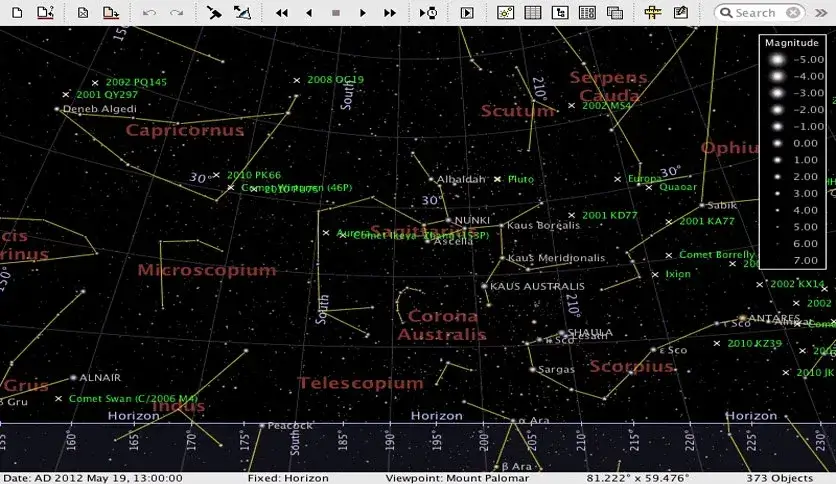
The practical details make it usable for real study, not just demonstration. Interactive 3D views can be set from space, from any object in the simulation, or from a specific location on Earth for a planetarium-style perspective, and multiple views can run and animate simultaneously with independently calculated tracks. Over 100,000 real background stars come from the Hipparcos catalogue with full accompanying data, and results can be read out in astronomical, metric, or imperial units depending on what you're cross-referencing. A large library of ready-made sample simulations, including gravity assists and the Roche limit, means you can explore a specific concept immediately without building a scenario from scratch first.
Features
- Real gravitational n-body simulation — calculates actual gravitational interactions between every object, rather than using pre-scripted orbital paths.
- General relativity and radiation pressure — optional physics effects for more precise simulation of orbits like Mercury's.
- Interactive 3D viewing — rotate, zoom, and view from space, from any object, or from any location on Earth, with optional anaglyph 3D support for red/cyan glasses.
- Multiple simultaneous views — animate several view windows at once, each with independently calculated orbits and tracks.
- 100,000+ background stars — real star data from the Hipparcos catalogue, with additional millions available as a separate download.
- Comprehensive object editing — over 30 editable fields per object, or import from a database of hundreds of thousands of real asteroids and comets.
- Not limited to the solar system — simulate exoplanet systems, protoplanetary disks, star clusters, or any gravity-only scenario.
- Flexible time steps — run a simulation from a fraction of a second to thousands of years per step.
- Multiple coordinate grids and units — ecliptic, equatorial, galactic, and horizontal grids, with astronomical, metric, or imperial units.
- Ready-made sample simulations — a large library covering gravity assists, the Roche limit, colliding star clusters, and more.
What's New in AstroGrav 5.4.1 Version
Version 5.4.1 focuses on smaller workflow improvements and simulation accuracy.
- Added a "New..." button next to the Location popup in View / View From, so coordinates for a new location can be entered without first creating a custom location entry.
- Added a "Fix when found" checkbox to the Find dialog, letting a found object be fixed in place without a separate command.
- Enhanced the Daylight display to show changes in sky brightness during a solar eclipse.
- Object and star data from double-clicking can now be copied to the clipboard and pasted into another application.
- Improved both the speed and accuracy of the simulation's evolution engine.
- View window popups now appear only for objects or background stars that are actually visible.
- Fixed a fault that prevented simulations saved before version 3.6 from opening.
Supported macOS Versions
AstroGrav 5.4.1 officially supports macOS 10.14 Mojave through macOS 15 Sequoia. Rather than one universal binary, it ships as two separate downloads: a build for Apple Silicon (M1 through M5) and a separate build for Intel Macs (Core 2 Duo through Xeon-class chips), so the version you grab depends on which chip your Mac has. Since gravitational simulation is genuinely CPU-intensive, especially with larger numbers of bodies or fine time steps, Apple Silicon Macs handle complex multi-body scenarios noticeably faster than older Intel machines, though both remain fully functional for typical use. macOS 26 Tahoe isn't yet listed among the officially supported versions, so anyone running the newest release should keep an eye on future updates.
How to Download and Install AstroGrav on Mac?
Installing AstroGrav on Mac is slightly different from a typical single-app drag-and-drop, since it installs as a folder containing the app plus a few supporting items.
- Click on the Download button above and select the architecture (intel or Apple silicon) as per your requirement and complete the downloading procedure.
- Open the downloaded .dmg file, then drag the entire AstroGrav folder onto the Applications folder alias. Enter your administrator password if prompted.
- Open your Applications folder and double-click the AstroGrav folder to see its contents.
- Right-click (or Control-click) the AstroGrav application and choose Open from the menu, then confirm you want to launch it. A plain double-click typically won't work the first time because of Gatekeeper, but it will on every launch after this one.
- Optionally, drag the AstroGrav application to the Dock for quicker access later.
Once this first launch is done, you won't need to repeat the right-click step, future launches open normally.
How to Use AstroGrav
- Launch AstroGrav and open one of the included sample simulations, such as the Solar System.
- Open a new View window and choose a viewpoint from space, from an object, or from a location on Earth.
- Press Evolve to start the simulation and watch orbits and tracks calculate in real time.
- Use the Table window to edit or add objects, or import asteroids and comets from the built-in database.
- Adjust the time step under Evolve Settings to speed up or slow down how the simulation progresses.
- Try one of the non-solar-system sample files, like a colliding star cluster, to see gravity simulated outside the solar system.