Recordia Overview
Recordia is a free audio recording app for Mac from Sindre Sorhus, accessible directly from the menu bar or a global keyboard shortcut. It records from the microphone, system audio, or both mixed into a single file. Recordings save as compressed M4A or uncompressed WAV, both at 48kHz, matching the standard used in modern video production. Input monitoring lets you hear yourself while recording, and unlimited recording duration removes any time cap. A finished recording can be previewed instantly with the Space key in Finder, then trimmed with one click. Customizable keyboard shortcuts control starting, stopping, pausing, and resuming, and iCloud Drive can be set as the default output folder for automatic syncing across devices. The newest version adds native system audio recording on macOS 26, no separate virtual audio driver required.
Why Choose Recordia Mac App
Recording a quick voice memo, a song idea, or a meeting on a Mac usually means opening a separate app, picking an input, and hoping the format works with whatever comes next. Recordia skips the setup. Click the menu bar icon or press a global shortcut, and recording starts immediately, from the microphone, system audio, or both mixed into one file.
Capturing whatever's playing on the Mac used to mean installing a separate virtual audio driver first, a step that put off plenty of people just trying to grab a quick clip. That workaround is gone for anyone on the newest macOS. Recordings default to 48kHz too, matching the standard used in modern video production rather than the 44.1kHz popularized by music CDs.
Key Features
- Menu bar and shortcut recording: starts and stops recording from the menu bar icon or a customizable global keyboard shortcut.
- Microphone and system audio: records from the microphone, system audio, or both mixed into a single file.
- Native system audio recording: captures system audio directly on macOS 26, with no third-party driver needed.
- Compressed or lossless formats: saves recordings as M4A (AAC, 256kbps) or WAV (16-bit PCM, uncompressed).
- 48kHz recording: matches the audio standard used in modern video and audio production.
- Unlimited recording duration: removes any built-in time limit on a single recording.
- Input monitoring: lets you hear yourself while recording, usable independently of an actual recording too.
- Instant preview and trim: plays a finished recording with the Space key in Finder, with a one-click trim tool.
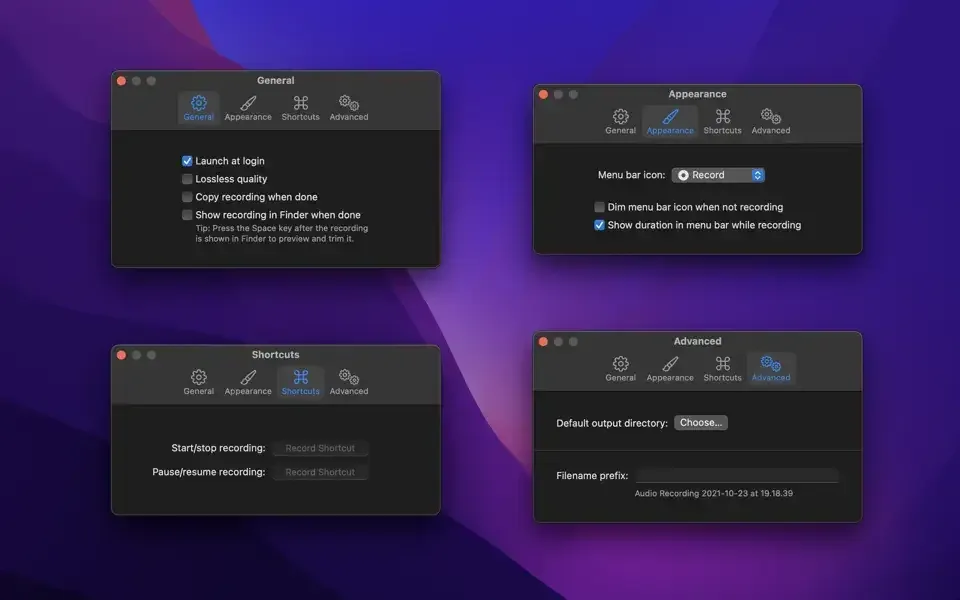
- Customizable shortcuts: assigns separate keyboard shortcuts for starting, stopping, pausing, and resuming.
- iCloud Drive sync: sets iCloud Drive as the default output folder for automatic syncing across devices.
- Shortcuts app support: automates recording tasks through the macOS Shortcuts app.
- Launch at login: starts Recordia automatically so it's always ready from the menu bar.
Screenshots

What's New in Recordia 2.12.0 Version
Version 2.12.0, released within the past few days, adds a capability that previously needed a workaround:
- The app can now record system audio natively, without installing a separate virtual audio driver
- The previous release, 2.11.0, raised the minimum requirement to macOS 26, with the last macOS 15-compatible version, 2.10.0, remaining available from the developer's website.
Supported macOS Versions
Recordia 2.12.0 requires macOS 26 or later. Anyone on an older Mac isn't stuck without an option. Matched builds go back through macOS 15, 14, 13, 12, 11, and even 10.15, each downloadable directly from the developer's website. Recording audio is a lightweight task for a Mac's processor, so hardware speed makes little practical difference. The main factor affecting recording quality is the input device itself, whether that's a Mac's built-in microphone or an external one.
How to Download and Install Recordia on Mac?
Installing Recordia on Mac takes under a minute through the App Store, with no separate download or setup involved.
- Click the Download button above. It opens Recordia's official listing on the Mac App Store.
- Click Get to download, since the app is free.
- Sign in with your Apple ID if prompted.
- macOS downloads and installs Recordia automatically in the background.
- Once installed, launch it from Launchpad or your Applications folder.
Grant Microphone access when prompted, so Recordia can record audio from the input you choose.
How to Use Recordia Mac App?
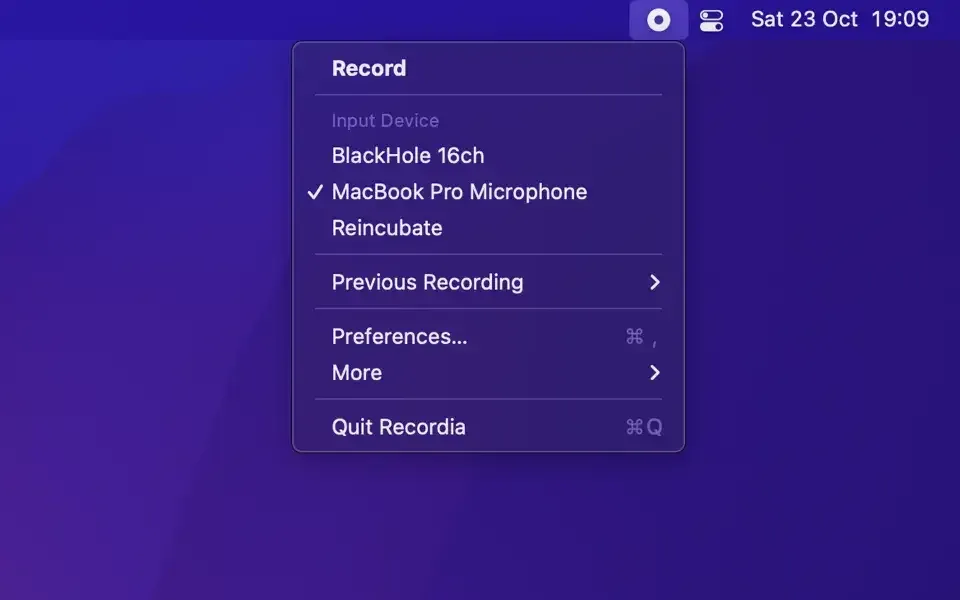
- Click the Recordia icon in the menu bar, or press the global keyboard shortcut, to start recording.
- Choose an audio source, Microphone, System Audio, or both, from the Recordia menu before starting.
- Press the same shortcut, or click the menu bar icon again, to stop recording.
- Find the finished recording in Finder, then press Space to preview it instantly.
- Click the trim button while previewing to cut the recording down to just what's needed.
- Set iCloud Drive as the output folder in Preferences if recordings should sync across devices.
Alternatives to Recordia
QuickTime Player (built into macOS): Free and included on every Mac, with basic audio recording through its New Audio Recording option.
Audacity: Free, open source audio recorder and editor with a more full-featured, though less minimal, interface than Recordia.